| Changes you make in the Smart Touch window are |
| automatically saved every time you click Close to close the |
Attention | Smart Touch window. |
| |
|
|
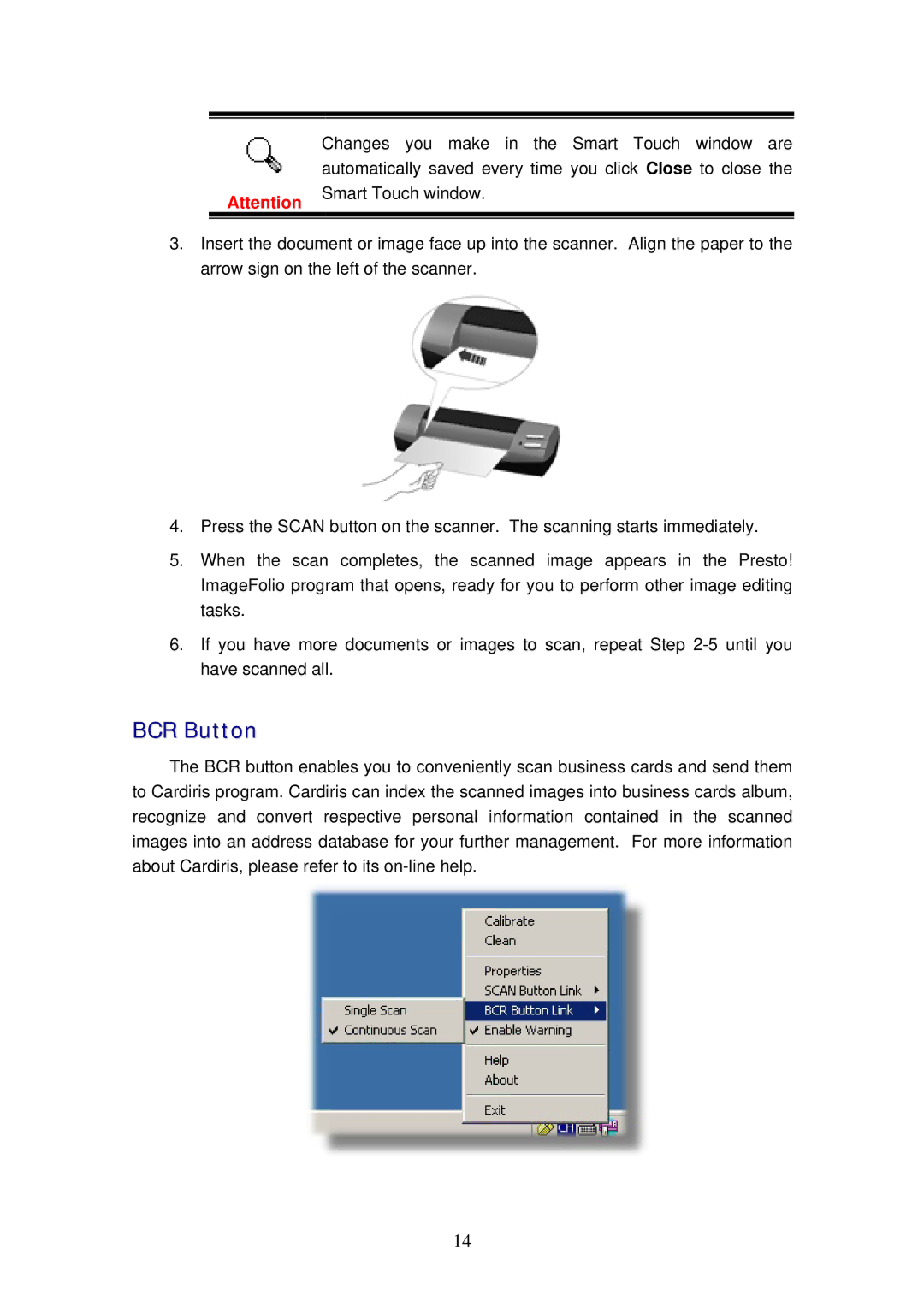
3.Insert the document or image face up into the scanner. Align the paper to the arrow sign on the left of the scanner.
4.Press the SCAN button on the scanner. The scanning starts immediately.
5.When the scan completes, the scanned image appears in the Presto! ImageFolio program that opens, ready for you to perform other image editing tasks.
6.If you have more documents or images to scan, repeat Step
BCR Button
The BCR button enables you to conveniently scan business cards and send them to Cardiris program. Cardiris can index the scanned images into business cards album, recognize and convert respective personal information contained in the scanned images into an address database for your further management. For more information about Cardiris, please refer to its
14