Color Laser Printer
Features of your new laser product
Special Features
Features by Models
Features
About this USER’S Guide
Convention Description Example
Quick Install Guide
Finding More Information
Online User’s Guide
Printer Driver Help
Important Safety Symbols and Precautions
Safety information
What the icons and signs in this user’s guide mean
Laser Safety Statement
Ozone Safety
Mercury Safety
Power Saver
Recycling
FCC Statement for Wireless LAN use
United States of America
FAX Branding
Canadian Radio Interference Regulations
Ringer Equivalence Number
You should also know that
Replacing the Fitted Plug for UK only
Declaration of Conformity European Countries
Approvals and Certifications
EC Certification
Regulatory Compliance Statements
Wireless Guidance
EEA/EFTA countries
Openssl License
Original Ssleay License
Safety information13
Contents
Printing reports Cleaning your machine
Solving other problems
Printing problems
Printing quality problems
Introduction
Printer Overview
Front view Rear view
This chapter includes
Control Panel Overview
Stop
Understanding the Control Panel
LEDs
Stop button
Statusd LED Toner Colors LED Description
Printer Driver Features
Contents
Feature Windows Linux Macintosh
Supplied Software
Setting UP the Hardware
Getting started
Printing a Demo
System Requirements
Setting UP the Network
Using a Wired Network
Printing Configuration report
Setting IP address
Network parameter setting
IP setting using the SetIP program
Using a Wireless NETWORKCLP-310W, CLP- 315W only
Installing the driver software
Wireless Networks
Checking your Network Environments
IP setting using SetIP program
Following procedure is based on Windows XP
Configuring the machine’s wireless network
Restoring factory default settings
Using SyncThru Web Service
Now go to Installing the driver software
Machines Basic Settings
Altitude adjustment
Using the save modes
Power Save mode
Selecting and loading print media
Selecting Print Media
Specifications on print media
Type Size Dimensions Weighta Capacityb
Guidelines for special print media
Media Type Guidelines
Changing the Size of the Paper in the Paper Tray
Selecting and loading print media
Adjusting the Output Support
Setting the Paper Size and Type
Printing on Special Print Materials
Feeding the print material manually
Basic printing
Canceling a Print JOB
Printing a Document
Maintenance
Cleaning Your Machine
Cleaning the outside
Cleaning the inside
After cleaning, let the machine to dry completely
Maintaining the Cartridge
Toner cartridge storage
Estimated Cartridge Life
Redistributing toner
Replacing the Toner Cartridge
Replacing the Imaging Unit
Replacing the Waste Toner Container
Maintenance Parts
To access SyncThru Web Service
Managing Your Machine from the Website
Items Yield Average
Tips for Avoiding Paper Jams
Troubleshooting
Clearing Paper Jams
Fuser lever
Solving Other Problems
Printing problems
Condition Suggested Solutions
Condition Possible Suggested Solutions Cause
Printing quality problems
Toner specks
Dropouts
White Spots
Vertical lines
Misformed
Characters
Skew
Curl or wave
Common Windows problems
Common Linux problems
Common Macintosh problems
Ordering supplies and accessories
HOW to Purchase
Supplies
Type Average Yield Part Number
Specifications
General Specifications
Printer Specifications
Glossary
ITU-T No chart
Ethernet
EtherTalk
Fuser Unit
Resolution
MAC address
Modem
NetWare
Subnet Mask
Toner Cartridge
UNC Path
Watermark
Index
LED
58Index
Contact Samsung worldwide
Country Customer Care Center WEB Site
Spain
Page
Software section
Contents
Sharing the Printer Locally
Using Your Printer with a Macintosh
Installing Software for Local Printing
Installing Printer Software
Select Typical installation for a local printer. Click Next
Custom Installation
Select Custom installation. Click Next
Select the components to be installed and click Next
Installing Software for Network Printing
Custom Installation
Select Custom installation. Click Next
Reinstalling Printer Software
Changing the Software Language
Installing mono printer driver
Click OK in the Install From Disk window
Removing Printer Software
Next
Installing Printer Software in Windows
Printing a Document
Select your printer driver from the Name drop-down list
Printing to a file PRN
Printer Settings
Select Printers and Faxes Select your printer driver icon
Layout Tab
Paper Tab
Graphics Tab
Color Mode
Type
Extras Tab
Advanced Options
Watermark
Overlay
Using a Favorite Setting
Using Help
About Tab
Printer Tab
Advanced Printing
Printing Multiple Pages on One Sheet of Paper N-Up Printing
Printing Posters
Printing Booklets
Printing on Both Sides of Paper
Printing a Reduced or Enlarged Document
Fitting Your Document to a Selected Paper Size
None
Using Watermarks
Using an Existing Watermark
Creating a Watermark
Editing a Watermark
Using Overlays
What is an Overlay?
Using a Page Overlay
Creating a New Page Overlay
Setting Up a Host Computer
Setting Up a Client Computer
Check the Share this printer box
Double-clickPrinters and Faxes
Troubleshooting Guide
Printer Setting
Understanding Smart Panel
Buy Now
Opening the Troubleshooting Guide
Changing the Smart Panel Program Settings
Using Printer Settings Utility
Using Onscreen Help File
Installing the Unified Linux Driver
Installing the Unified Linux Driver
Getting Started
Uninstalling the Unified Linux Driver
Click Uninstall
Using SetIP program
Using the Unified Driver Configurator
Opening the Unified Driver Configurator
Starting the program
Printers Configuration
Ports Configuration
Configuring Printer Properties Printing a Document
Printing from Applications
Printing Files
Following four tabs display at the top of the window
Installing Software
Double-click the Samsung Splc Installer icon
Select Easy Install and click Install
Printer driver
Setting Up the Printer
For a Network-connected
Click Add on the Printer List
Select Socket/HP Jet Direct in Printer Type
For a USB-connected
Printing
Changing Printer Settings
Printing a Document
Graphics
Printer Features
Paper
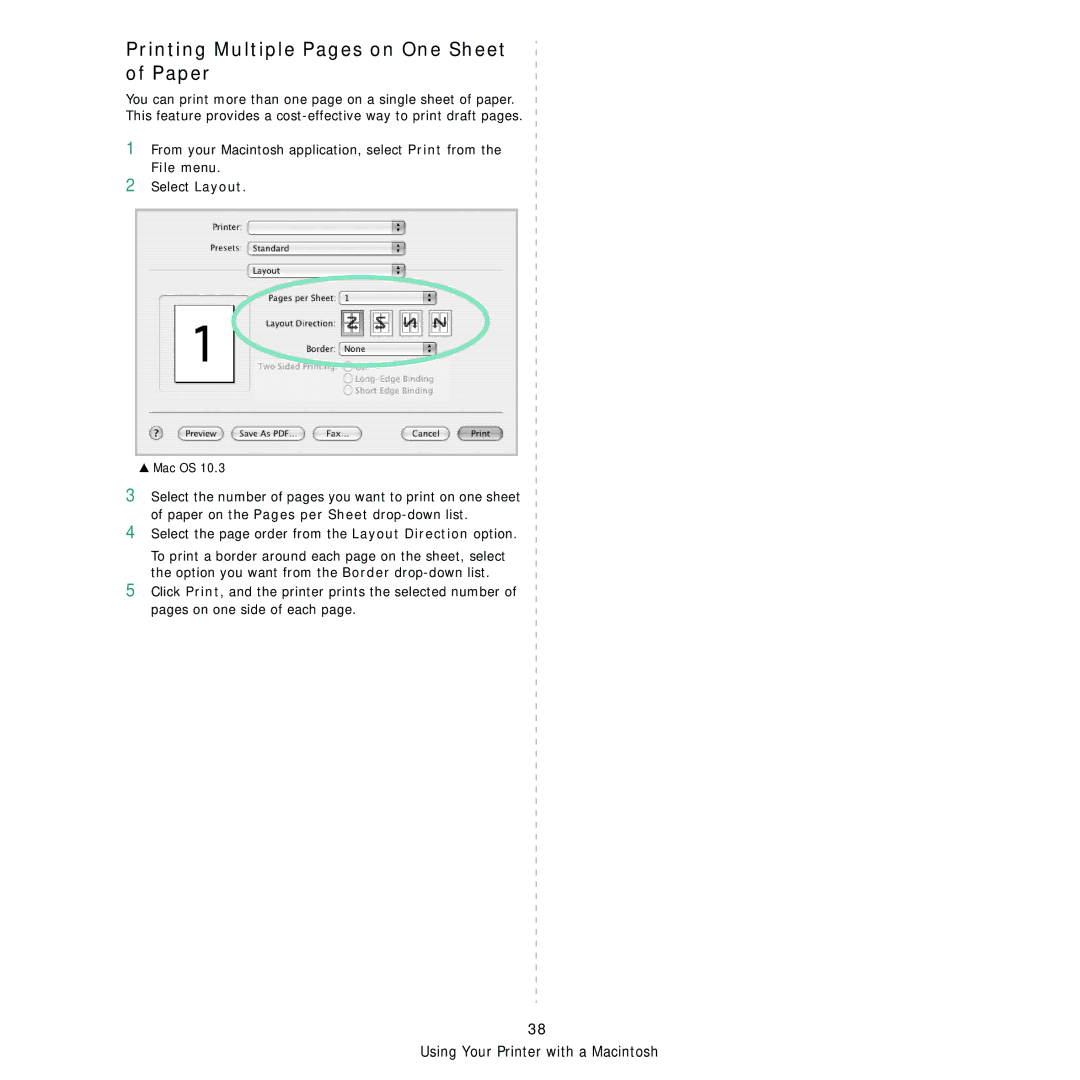
Printing Multiple Pages on One Sheet of Paper
Select the page order from the Layout Direction option