Archer C9 AC1900 Wireless Dual Band Gigabit Router
MAC Address (to be bridged) - The MAC address (BSSID) of the AP your router is going to connect to as a client. You can also use the Survey function to select the MAC address (BSSID) to join.
Survey - Click this button, you can search the APs that run in all channels.
Key type - This option should be chosen according to the AP's security configuration.
WEP Index - This option should be chosen if the key type is WEP. It indicates the index of the WEP key.
Auth Type - This option should be chosen if the key type is WEP. It indicates the authorization type of the Root AP.
Password - If the AP your router is going to connect needs password, you need to fill the password in this blank.
5.4.2WPS
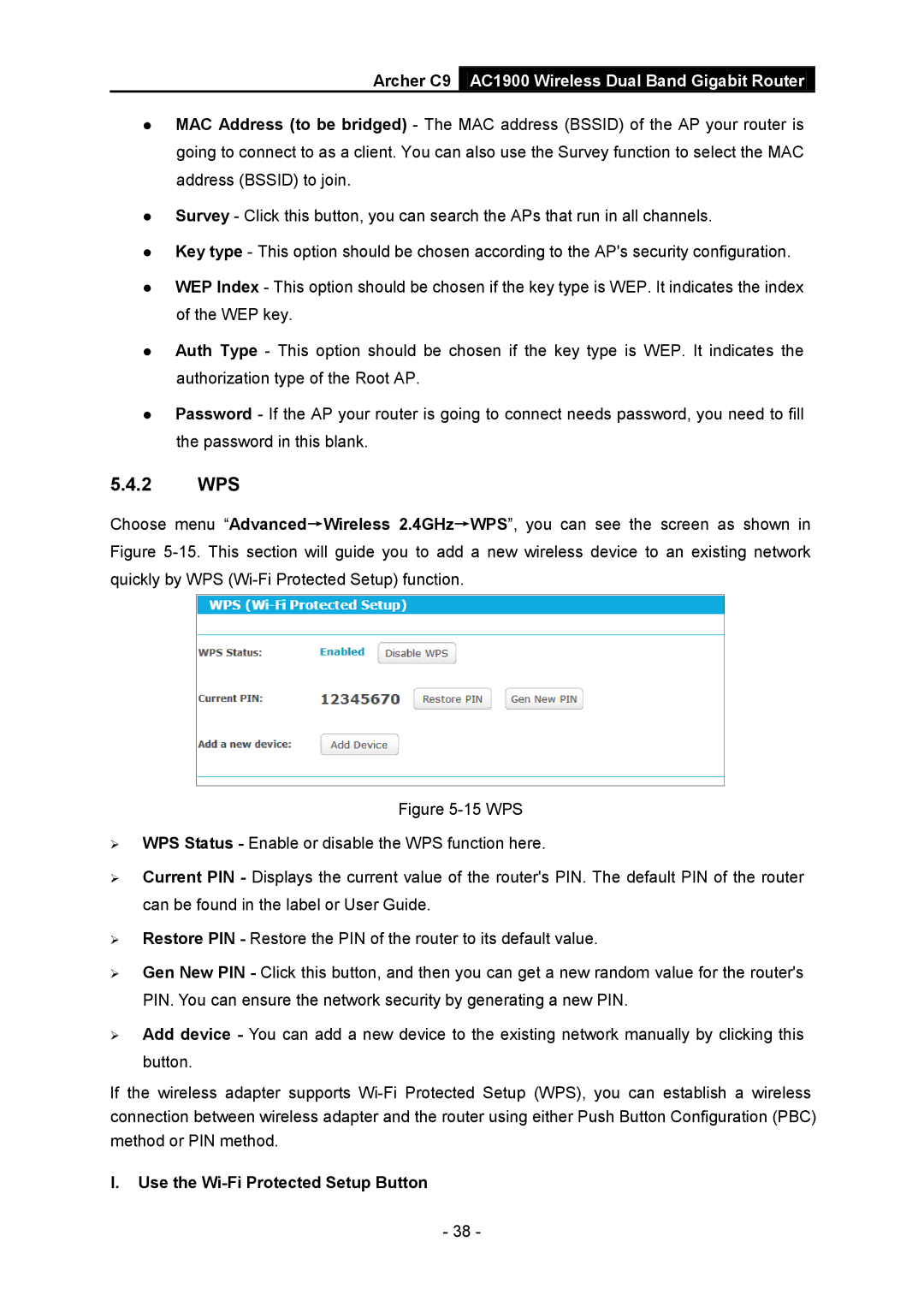
Choose menu “Advanced→Wireless 2.4GHz→WPS”, you can see the screen as shown in Figure
Figure 5-15 WPS
WPS Status - Enable or disable the WPS function here.
Current PIN - Displays the current value of the router's PIN. The default PIN of the router can be found in the label or User Guide.
Restore PIN - Restore the PIN of the router to its default value.
Gen New PIN - Click this button, and then you can get a new random value for the router's PIN. You can ensure the network security by generating a new PIN.
Add device - You can add a new device to the existing network manually by clicking this button.
If the wireless adapter supports Wi-Fi Protected Setup (WPS), you can establish a wireless connection between wireless adapter and the router using either Push Button Configuration (PBC) method or PIN method.
I.Use the Wi-Fi Protected Setup Button
- 38 -