WatchGuardSystem Manager User Guide
Address
Contents
Setting Up Logging and Notification
Copy the online help system to more computers
LogViewer Settings
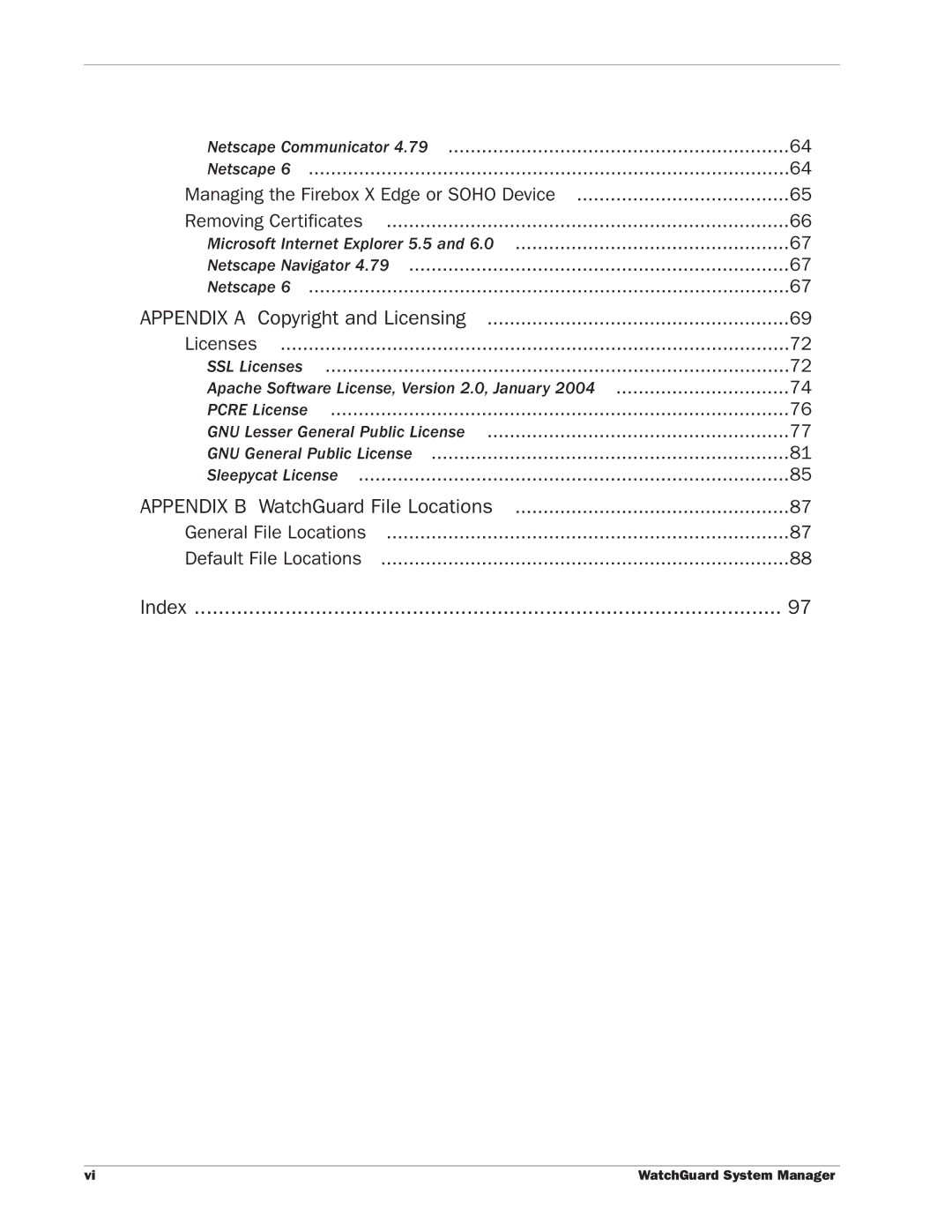
Importing Certificates Microsoft Internet Explorer 5.5
Apache Software License, Version 2.0, January
WatchGuard Management Server
Getting Started
About WatchGuard System Manager
Log Server
Installing WatchGuard System Manager
About Hardware and Appliance Software
License Keys
Network addresses
Trusted interface
1Network IP Addresses Without the Firebox
External interface
Optional interfaces
Uses 40-bit encryption
Software encryption levels
Base
Strong
Setting Up Your Management Server
Putting the Firebox into operation on your network
Master password
Admin password
After Your Installation
Installation Topics
WFS appliance software configuration modes
Routed configuration
Drop-in configuration
Use the Quick Setup Wizard during installation
Adding secondary networks to your configuration
To add a secondary networks, do one of these procedures
Dynamic IP support on the external interface
Entering IP addresses
About slash notation
Installing the Firebox cables
Installation Topics
Threat responses, alerts, and expert advice
Service and Support
LiveSecurity Service Solutions
Easy software updates
LiveSecurity Service Broadcasts
LiveSecurity Service Self Help Tools
Basic FAQs
New from WatchGuard
Interactive Support Forum
Advanced FAQs
Known Issues
Online Training
WatchGuard Users Group
Using the WatchGuard Users Forum
WatchGuard Users Forum
Online Help
Copy the online help system to more computers
Product Documentation
Technical Support
Software requirements
Type of Service
Web Site Service Time
We try to supply a solution in a maximum time of four hours
Hours
Training and Certification
About the WatchGuard System Manager Window
Monitoring Your Network
Starting WatchGuard System Manager
From the Windows Desktop
Device
Connecting to a Firebox
Disconnecting from a Firebox
Log
Disconnecting from a Server
Connecting to a Server
Type the password for the Management Server
Seeing Information about Devices
Firebox Status
Certificates
Branch Office VPN Tunnels
Pptp user VPN tunnels
Seeing Information on Log Servers
Mobile user VPN tunnels
No exclamation point
Monitoring VPNs
Policy Manager
About the WatchGuard Toolbar
Starting Security Applications
Firebox Manager
Log Viewer
Quick Setup Wizard
HostWatch
Historical Reports
Setting Up Logging and Notification
Setting Up the Log Server
Log Server collects logs from each WatchGuard Firebox
WatchGuard Log Server Configuration dialog box appears
Configuration Guide for your version of appliance software
Setting Global Logging and Notification Preferences
Type the new log encryption key two times Click OK
Click Save Changes or Close
Click Save Changes
Setting Global Logging and Notification Preferences
Types of Log Messages
Traffic Alarm Event Diagnostic
Reviewing and Working with Log Files
Traffic log messages
Log File Names and Locations
Alarm log messages
Diagnostic log messages
Starting LogViewer
Browse to find the log file and click Open
LogViewer Settings
Changing LogViewer settings with WFS appliance software
Click to set the format of the logs to the default colors
Using LogViewer
Select Edit Find
Paste the data into any text editor
Click File Merge log files
Click Browse to find the files to put together Click Merge