16 EN INSTALLING YOUR NEW UNIT
Basic Connections |
|
| OPERATION CAN BE PERFORMED. |
|
|
| THESE STEPS MUST BE COMPLETED BEFORE ANY VIDEO |
|
|
|
|
|
|
|
|
Another Recorder | Camcorder |
| Connecting to a TV Monitor |
Audio/Video |
|
| |
cable | (not supplied) | Audio/Video | |
(not supplied) |
| ||
| To | cable | (not supplied) |
| (not supplied) |
| |
| INPUT] |
| |
|
|
| |
Mains outlet | To [AUDIO/VIDEO INPUT] |
| |
|
|
| To |
Mains power cord |
| INPUT] | |
|
| ||
Back of unit |
|
|
|
To | To | To | To |
[COMPONENT | [VIDEO | [AUDIO/ | |
VIDEO OUT | OUTPUT] | VIDEO | OUTPUT] |
(Y/PB/PR)] |
| OUTPUT] |
|
Component video | BNC video | Audio/Video | |
cable | cable | cable | (not supplied) |
(not supplied) | (not supplied) | (supplied) |
|
TV |
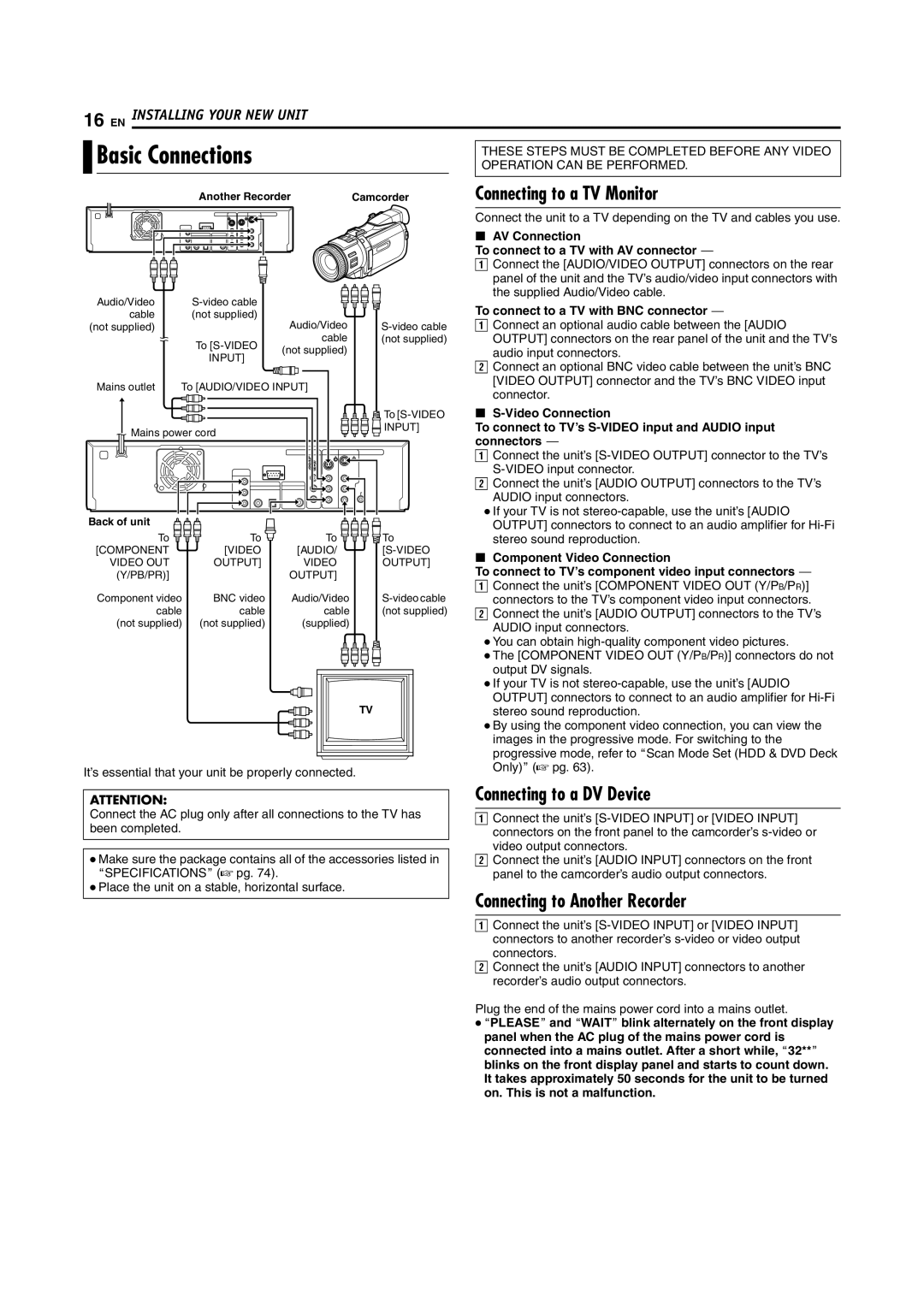
It’s essential that your unit be properly connected.
Connect the unit to a TV depending on the TV and cables you use.
8AV Connection
To connect to a TV with AV connector ^
AConnect the [AUDIO/VIDEO OUTPUT] connectors on the rear panel of the unit and the TV’s audio/video input connectors with the supplied Audio/Video cable.
To connect to a TV with BNC connector ^
AConnect an optional audio cable between the [AUDIO OUTPUT] connectors on the rear panel of the unit and the TV’s audio input connectors.
BConnect an optional BNC video cable between the unit’s BNC [VIDEO OUTPUT] connector and the TV’s BNC VIDEO input connector.
8
To connect to TV’s
AConnect the unit’s
BConnect the unit’s [AUDIO OUTPUT] connectors to the TV’s AUDIO input connectors.
●If your TV is not
8Component Video Connection
To connect to TV’s component video input connectors ^
AConnect the unit’s [COMPONENT VIDEO OUT (Y/PB/PR)] connectors to the TV’s component video input connectors.
BConnect the unit’s [AUDIO OUTPUT] connectors to the TV’s AUDIO input connectors.
●You can obtain
●The [COMPONENT VIDEO OUT (Y/PB/PR)] connectors do not output DV signals.
●If your TV is not
●By using the component video connection, you can view the images in the progressive mode. For switching to the progressive mode, refer to AScan Mode Set (HDD & DVD Deck Only)B (A pg. 63).
ATTENTION:
Connect the AC plug only after all connections to the TV has been completed.
●Make sure the package contains all of the accessories listed in ASPECIFICATIONSB (A pg. 74).
●Place the unit on a stable, horizontal surface.
Connecting to a DV Device
AConnect the unit’s
BConnect the unit’s [AUDIO INPUT] connectors on the front panel to the camcorder’s audio output connectors.
Connecting to Another Recorder
AConnect the unit’s
BConnect the unit’s [AUDIO INPUT] connectors to another recorder’s audio output connectors.
Plug the end of the mains power cord into a mains outlet.
●APLEASEB and AWAITB blink alternately on the front display panel when the AC plug of the mains power cord is connected into a mains outlet. After a short while, A32**B blinks on the front display panel and starts to count down. It takes approximately 50 seconds for the unit to be turned on. This is not a malfunction.