Other useful features
Photo mode
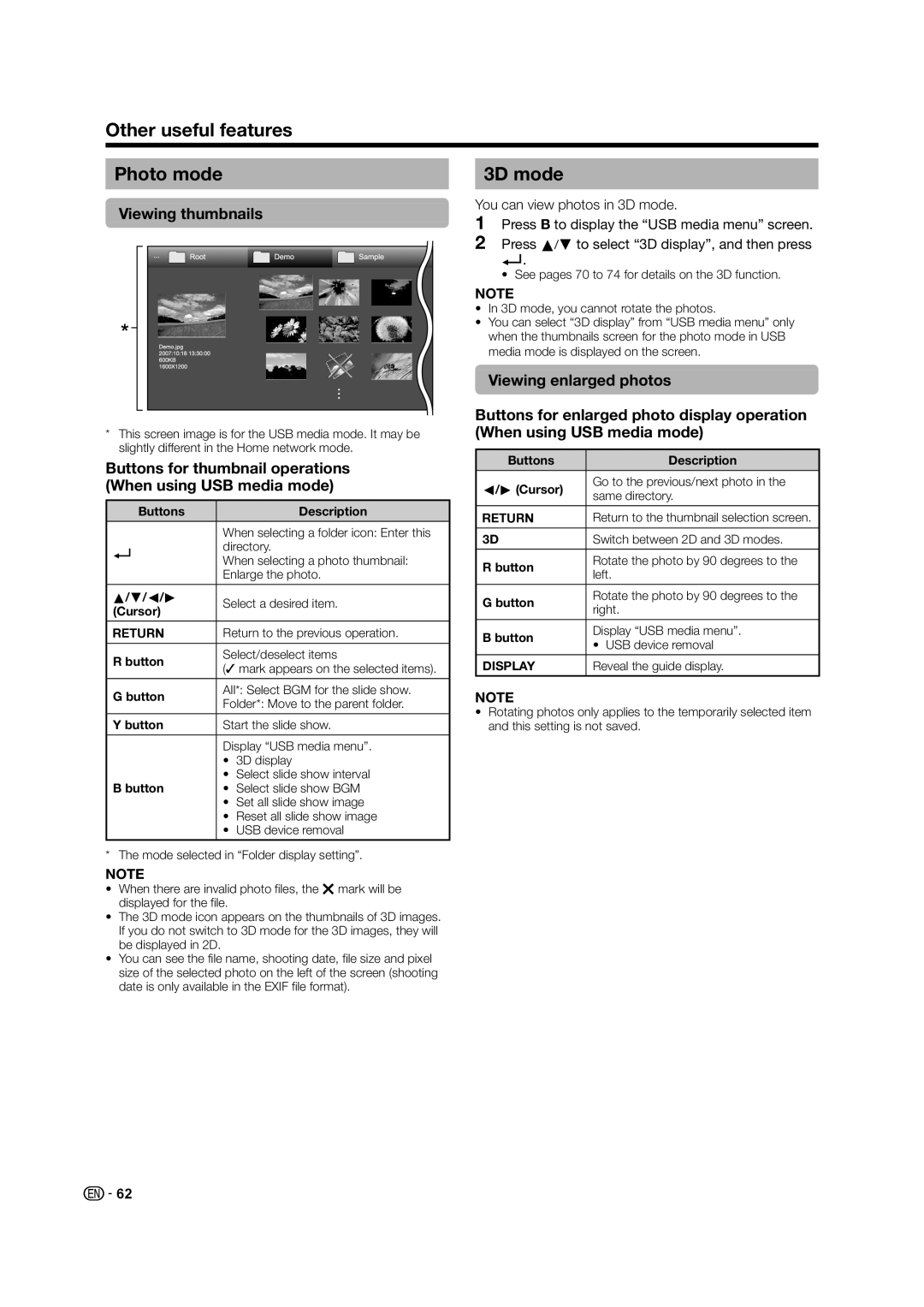
Viewing thumbnails
*This screen image is for the USB media mode. It may be slightly different in the Home network mode.
Buttons for thumbnail operations (When using USB media mode)
Buttons | Description |
When selecting a folder icon: Enter this
?directory.
When selecting a photo thumbnail: Enlarge the photo.
a/b/c/d | Select a desired item. | |
(Cursor) | ||
|
CReturn to the previous operation.
R button | Select/deselect items | ||
( mark appears on the selected items). | |||
| |||
|
| ||
G button | All*: Select BGM for the slide show. | ||
Folder*: Move to the parent folder. | |||
| |||
|
| ||
Y button | Start the slide show. | ||
|
| ||
| Display “USB media menu”. | ||
| • | 3D display | |
B button | • | Select slide show interval | |
• | Select slide show BGM | ||
| • | Set all slide show image | |
| • | Reset all slide show image | |
| • | USB device removal | |
3D mode
You can view photos in 3D mode.
1Press B to display the “USB media menu” screen.
2Press a/bto select “3D display”, and then press
?.
• See pages 70 to 74 for details on the 3D function.
NOTE
•In 3D mode, you cannot rotate the photos.
•You can select “3D display” from “USB media menu” only when the thumbnails screen for the photo mode in USB media mode is displayed on the screen.
Viewing enlarged photos
Buttons for enlarged photo display operation (When using USB media mode)
Buttons | Description | |
c/d(Cursor) | Go to the previous/next photo in the | |
same directory. | ||
|
CReturn to the thumbnail selection screen.
3D | Switch between 2D and 3D modes. | |
R button | Rotate the photo by 90 degrees to the | |
left. | ||
| ||
|
| |
G button | Rotate the photo by 90 degrees to the | |
right. | ||
| ||
|
| |
B button | Display “USB media menu”. | |
• USB device removal | ||
| ||
|
| |
DISPLAY | Reveal the guide display. |
NOTE
•Rotating photos only applies to the temporarily selected item and this setting is not saved.
* The mode selected in “Folder display setting”.
NOTE
•When there are invalid photo files, the gmark will be displayed for the file.
•The 3D mode icon appears on the thumbnails of 3D images. If you do not switch to 3D mode for the 3D images, they will be displayed in 2D.
•You can see the file name, shooting date, file size and pixel size of the selected photo on the left of the screen (shooting date is only available in the EXIF file format).
 62
62