6.From the Choose Pictures menu, select a folder to view or select All Pictures.
7.On the Now Showing screen, press the Play/Pause button on the remote to start the slideshow.
Select: view picture
To view a
Options: change settings
Press the Options button on your remote to change the slideshow settings.
Picture Options
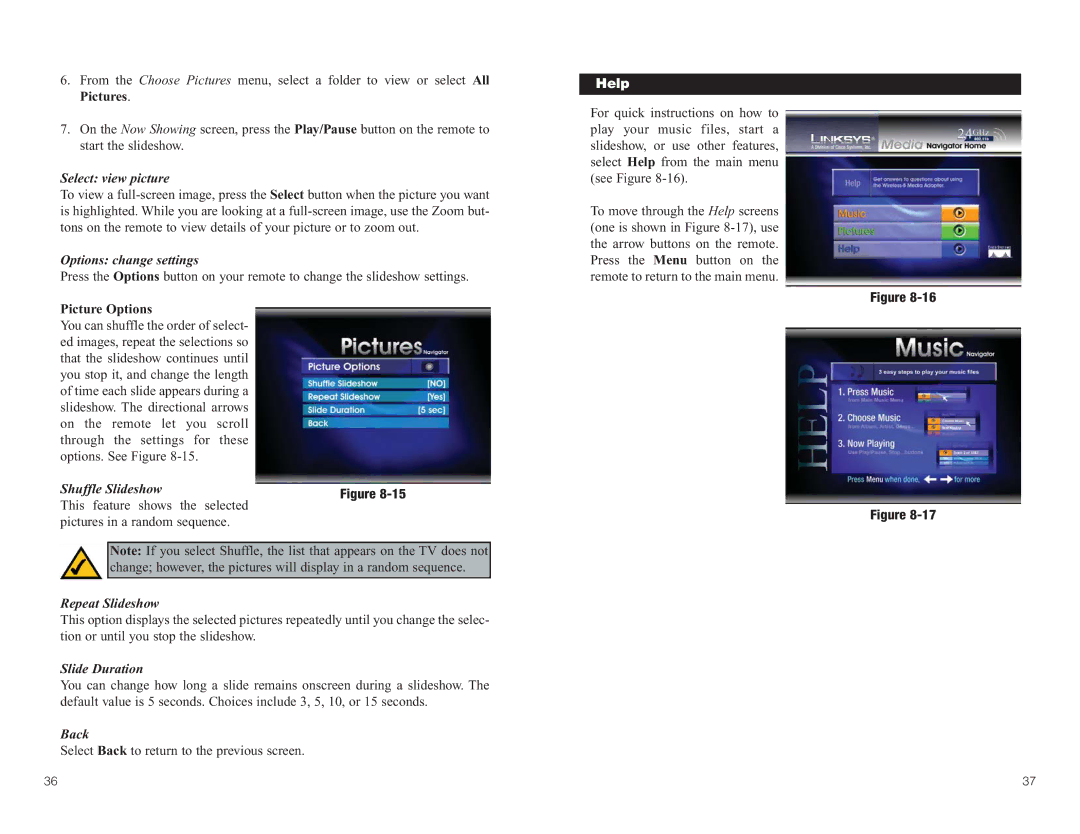
You can shuffle the order of select- ed images, repeat the selections so that the slideshow continues until you stop it, and change the length of time each slide appears during a slideshow. The directional arrows on the remote let you scroll through the settings for these options. See Figure
Shuffle Slideshow | Figure |
This feature shows the selected pictures in a random sequence.
Note: If you select Shuffle, the list that appears on the TV does not change; however, the pictures will display in a random sequence.
Repeat Slideshow
This option displays the selected pictures repeatedly until you change the selec- tion or until you stop the slideshow.
Slide Duration
You can change how long a slide remains onscreen during a slideshow. The default value is 5 seconds. Choices include 3, 5, 10, or 15 seconds.
Back
Select Back to return to the previous screen.
Help
For quick instructions on how to play your music files, start a slideshow, or use other features, select Help from the main menu (see Figure
To move through the Help screens (one is shown in Figure
Figure
Figure
36 | 37 |