91
Examples of menu and front display
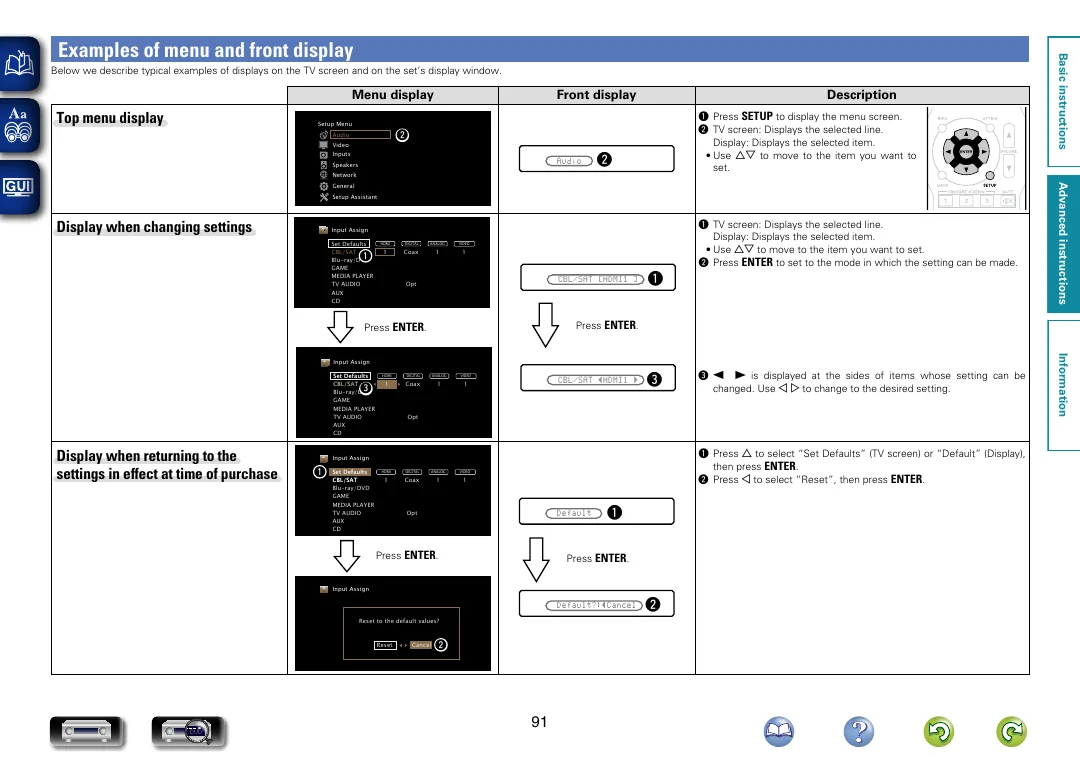
Below we describe typical examples of displays on the TV screen and on the set’s display window.
Menu display
Front display
Description
Top menu display
Setup Menu
Audio
Video
Inputs
Speakers
Network
General
Setup Assistant
w
w
Audio
q
Press
SETUP
to display the menu screen.
w
TV screen: Displays the selected line.
Display: Displays the selected item.
•
Use
ui
to move to the item you want to
set.
Display when changing settings
DIGITAL
ANALOG
HDMI
VIDEO
Set Defaults
Input Assign
CBL/SAT
Blu-ray/DVD
GAME
MEDIA PLAYER
TV AUDIO
AUX
CD
1
Coax
Opt
1
1
q
DIGITAL
ANALOG
HDMI
VIDEO
Set Defaults
Input Assign
CBL/SAT
Blu-ray/DVD
TV AUDIO
Set Defaults
CBL/SAT
GAME
MEDIA PLAYER
AUX
CD
1
Coax
Opt
1
1
e
Press
ENTER
.
q
CBL/SAT [HDMI1 ]
e
CBL/SAT
•
HDMI1 –
Press
ENTER
.
q
TV screen: Displays the selected line.
Display: Displays the selected item.
•
Use
ui
to move to the item you want to set.
w
Press
ENTER
to set to the mode in which the setting can be made.
e
0 1
is displayed at the sides of items whose setting can be
changed. Use
o
p
to change to the desired setting.
Display when returning to the
settings in effect at time of purchase
Input Assign
Reset to the default values?
Reset
Cancel
w
Press
ENTER
.
DIGITAL
ANALOG
HDMI
VIDEO
Set Defaults
Input Assign
CBL/SAT
Set Defaults
CBL/SAT
Blu-ray/DVD
GAME
MEDIA PLAYER
TV AUDIO
AUX
CD
1
Coax
Opt
1
1
q
w
Default?:
•
Cancel
q
Default
Press
ENTER
.
q
Press
u
to select “Set Defaults” (TV screen) or “Default” (Display),
then press
ENTER
.
w
Press
o
to select “Reset”, then press
ENTER
.
Basic instructions
Advanced instructions
Information
Advanced instructions
DVD