Getting Started (continued)
E n g l i s h
Step 4: Setting the language
You can select the language for subtitles and audio for DVD playback. For some DVDs, the subtitle/audio language can only be changed via the DVD disc menu. If the selected language is not available on the disc, the disc’s default language will be used instead.
The menu language
Language settings can only be changed when there is no disc in the disc tray.
1Press SYSTEM-MENU.
➜ The system menu appears.
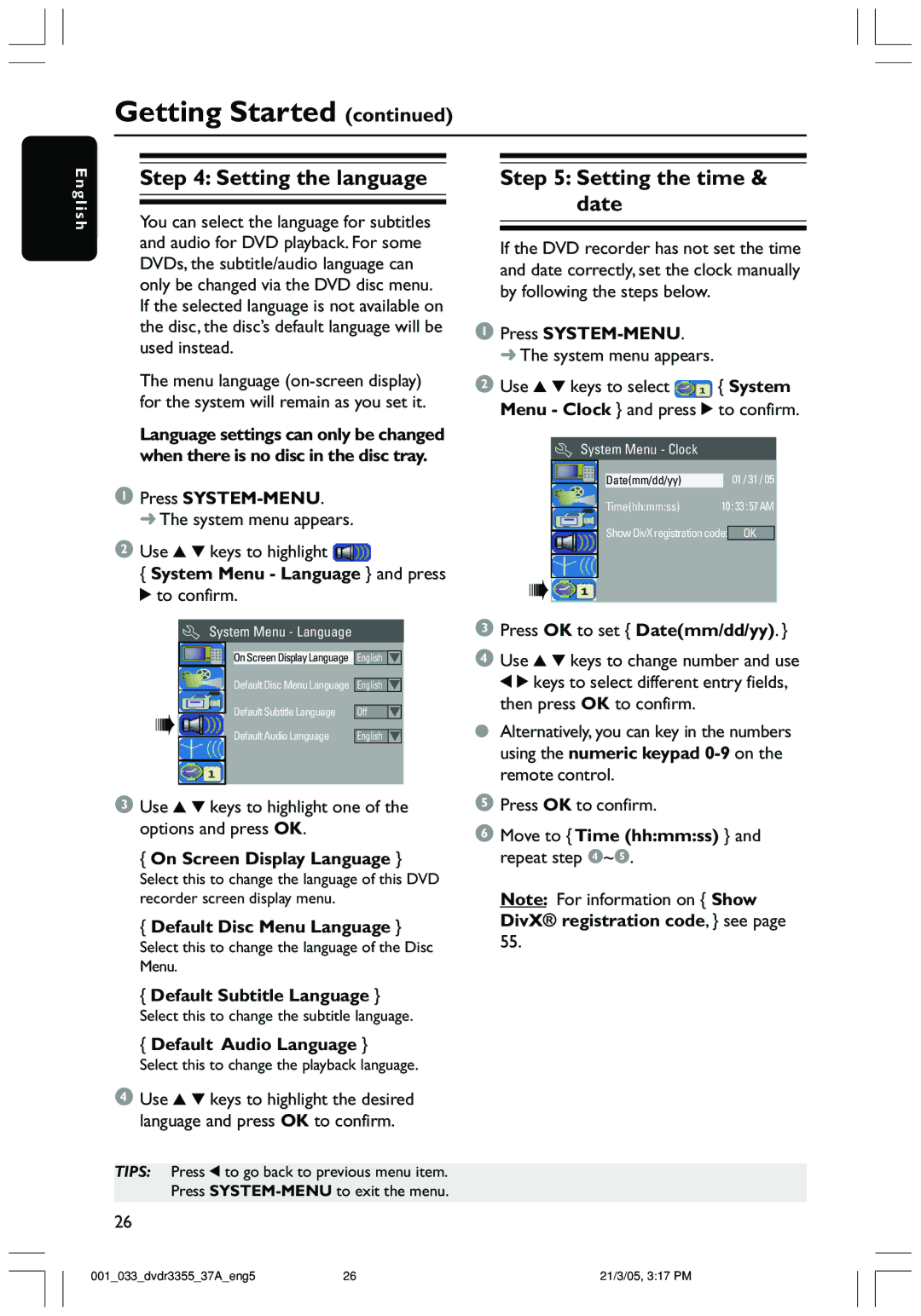
2Use 3 4 keys to highlight 
{ System Menu - Language } and press 2 to confirm.
System Menu - Language
On Screen Display Language | English |
Default Disc Menu Language | English |
Default Subtitle Language | Off |
Default Audio Language | English |
3Use 3 4 keys to highlight one of the options and press OK.
{On Screen Display Language }
Select this to change the language of this DVD recorder screen display menu.
{Default Disc Menu Language }
Select this to change the language of the Disc Menu.
{Default Subtitle Language }
Select this to change the subtitle language.
{Default Audio Language }
Select this to change the playback language.
Step 5: Setting the time & date
If the DVD recorder has not set the time and date correctly, set the clock manually by following the steps below.
1Press SYSTEM-MENU.
➜ The system menu appears.
2Use 3 4 keys to select  { System Menu - Clock } and press 2 to confirm.
System Menu - Clock
Date(mm/dd/yy) | 01 / 31 / 05 |
Time(hh:mm:ss) | 10 : 33 : 57 AM |
Show DivX registration code: OK
3Press OK to set { Date(mm/dd/yy). }
4Use 3 4 keys to change number and use 1 2 keys to select different entry fields, then press OK to confirm.
●Alternatively, you can key in the numbers using the numeric keypad
5Press OK to confirm.
6Move to { Time (hh:mm:ss) } and repeat step 4~5.
Note: For information on { Show DivX® registration code, } see page 55.
4Use 3 4 keys to highlight the desired language and press OK to confirm.
TIPS: Press 1 to go back to previous menu item. Press
26
001_033_dvdr3355_37A_eng5 | 26 | 21/3/05, 3:17 PM |