Getting Started
Control Panel
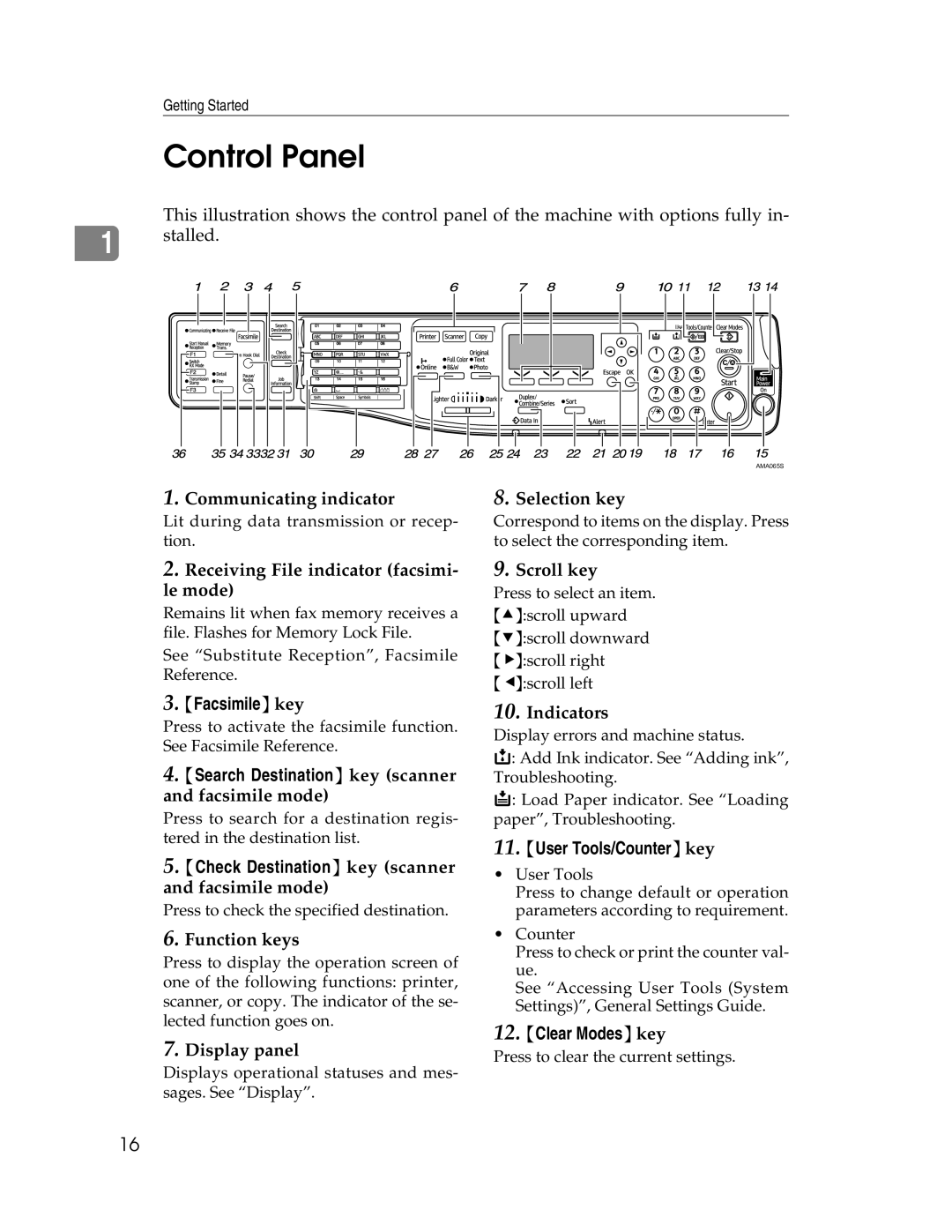
This illustration shows the control panel of the machine with options fully in-
1 stalled.
AMA065S
1.Communicating indicator
Lit during data transmission or recep- tion.
2.Receiving File indicator (facsimi- le mode)
Remains lit when fax memory receives a file. Flashes for Memory Lock File.
See “Substitute Reception”, Facsimile Reference.
3.{Facsimile} key
Press to activate the facsimile function. See Facsimile Reference.
4.{Search Destination} key (scanner and facsimile mode)
Press to search for a destination regis- tered in the destination list.
5.{Check Destination} key (scanner and facsimile mode)
Press to check the specified destination.
6.Function keys
Press to display the operation screen of one of the following functions: printer, scanner, or copy. The indicator of the se- lected function goes on.
7.Display panel
Displays operational statuses and mes- sages. See “Display”.
8.Selection key
Correspond to items on the display. Press to select the corresponding item.
9.Scroll key
Press to select an item. {U}:scroll upward {T}:scroll downward {V}:scroll right {W}:scroll left
10.Indicators
Display errors and machine status.
G: Add Ink indicator. See “Adding ink”, Troubleshooting.
B: Load Paper indicator. See “Loading paper”, Troubleshooting.
11.{User Tools/Counter} key
•User Tools
Press to change default or operation parameters according to requirement.
•Counter
Press to check or print the counter val- ue.
See “Accessing User Tools (System Settings)”, General Settings Guide.
12.{Clear Modes} key
Press to clear the current settings.
16