To Modify Alpha Name Tag
Recall the number and proceed to “ MODIFY” as above. Press  , and the Name Tag will appear by itself. Press
  to clear the letter(s), and enter the new Name.
To Modify Address
After you modified number/name, just press  without entering new address, and the current phonebook address will
be overwritten. If you enter a new address, and press  , the modified number/name will be combined to the new address, while the original address will remain unchanged.
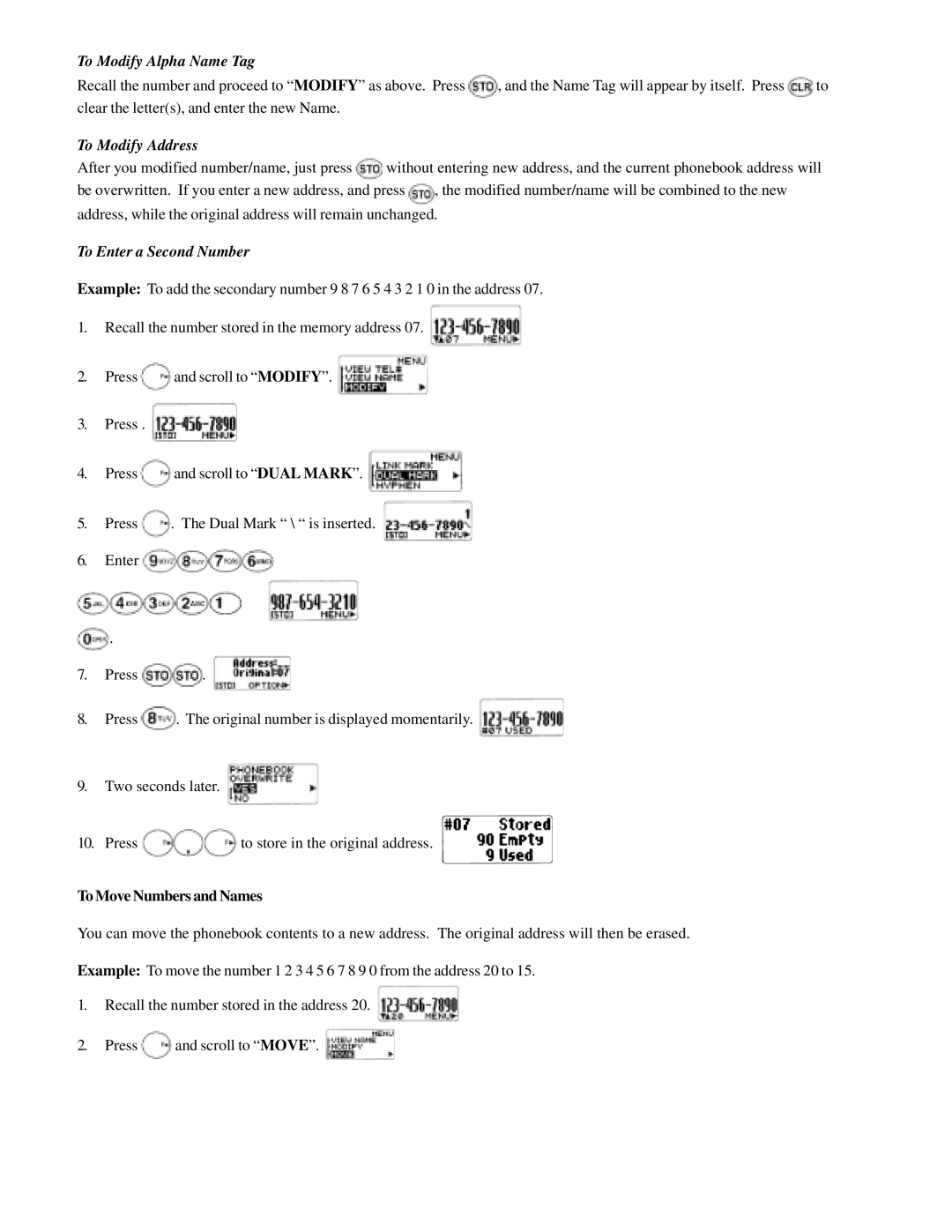
To Enter a Second Number
Example: To add the secondary number 9 8 7 6 5 4 3 2 1 0 in the address 07.
1.Recall the number stored in the memory address 07.
2.Press  and scroll to “ MODIFY”.
3.Press .
4.Press  and scroll to “ DUAL MARK”.
5.Press  . The Dual Mark “ \ “ is inserted.
6.Enter 

 .
.
7.Press  .
. 
8.Press  . The original number is displayed momentarily.
9.Two seconds later.
10.Press 
 to store in the original address.
To Move Numbers and Names
You can move the phonebook contents to a new address. The original address will then be erased.
Example: To move the number 1 2 3 4 5 6 7 8 9 0 from the address 20 to 15.
1.Recall the number stored in the address 20.
2.Press  and scroll to “ MOVE”.