Condition | |
Indicator Pattern |
|
(RAID Only) |
|
Steady green | Drive online |
Blinks green three | Rebuild aborted |
seconds, amber three |
|
seconds, and off six |
|
seconds |
|
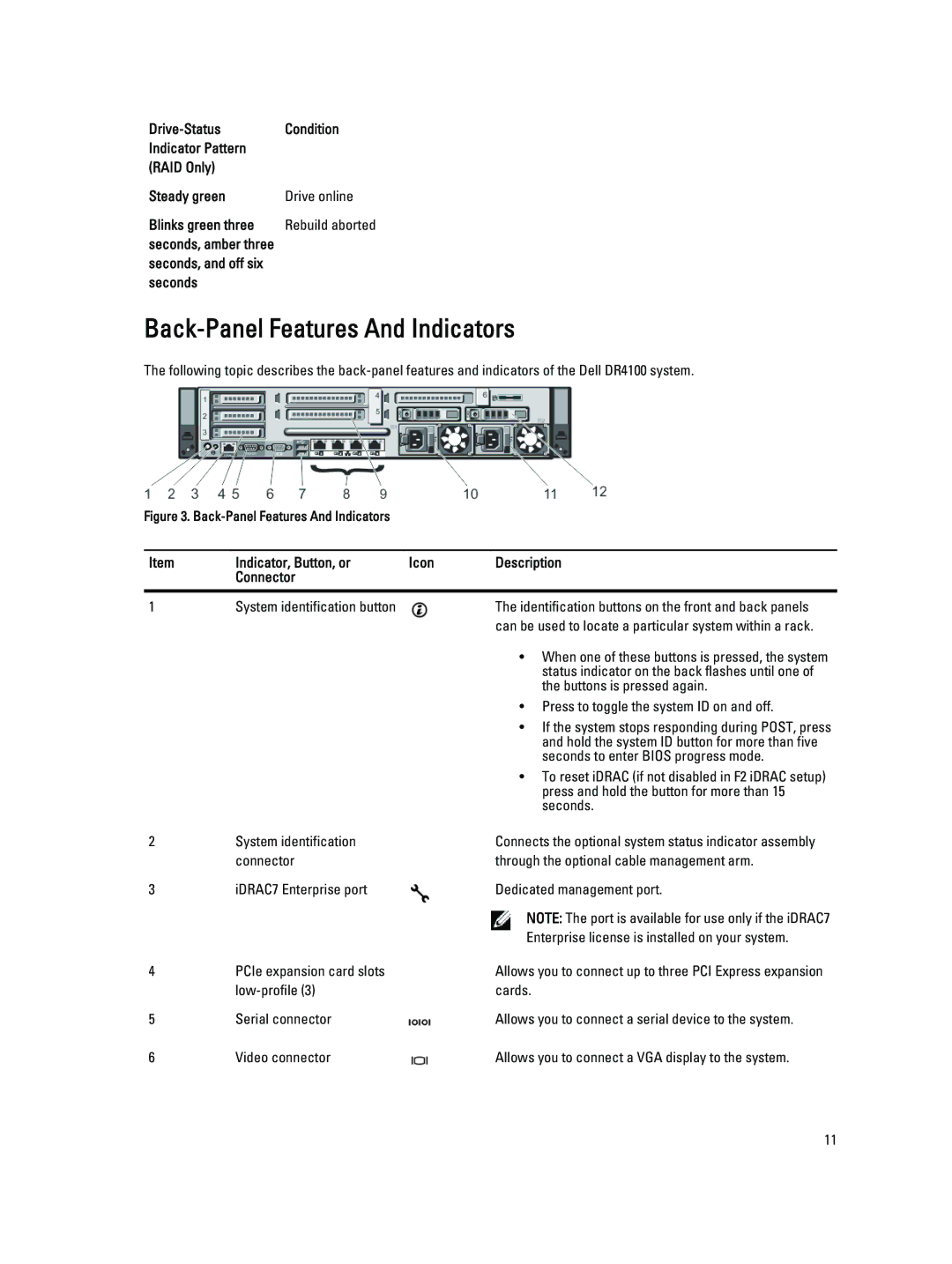
Back-Panel Features And Indicators
The following topic describes the
Figure 3. Back-Panel Features And Indicators
Item | Indicator, Button, or | Icon | Description |
| Connector |
|
|
|
|
|
|
1 | System identification button |
| The identification buttons on the front and back panels |
|
|
| can be used to locate a particular system within a rack. |
|
|
| • When one of these buttons is pressed, the system |
|
|
| status indicator on the back flashes until one of |
|
|
| the buttons is pressed again. |
|
|
| • Press to toggle the system ID on and off. |
|
|
| • If the system stops responding during POST, press |
|
|
| and hold the system ID button for more than five |
|
|
| seconds to enter BIOS progress mode. |
|
|
| • To reset iDRAC (if not disabled in F2 iDRAC setup) |
|
|
| press and hold the button for more than 15 |
|
|
| seconds. |
2 | System identification |
| Connects the optional system status indicator assembly |
| connector |
| through the optional cable management arm. |
3 | iDRAC7 Enterprise port |
| Dedicated management port. |
|
|
| NOTE: The port is available for use only if the iDRAC7 |
|
|
| Enterprise license is installed on your system. |
4 | PCIe expansion card slots |
| Allows you to connect up to three PCI Express expansion |
|
| cards. | |
5 | Serial connector |
| Allows you to connect a serial device to the system. |
6 | Video connector |
| Allows you to connect a VGA display to the system. |
11