W . d e l l . c o m s u p p o r t . d e l l . c o m
Dell Inspiron
Abbreviations and Acronyms
Contents
Microsoft Windows Logo Key Functions
Configuring Power Management Settings
What You Need to Establish a Wlan Connection
If you hear an unfamiliar scraping or grinding sound
Ensuring Sufficient Power for Your Computer
Program stops responding or crashes repeatedly
101
Using Microsoft Windows XP System Restore
If only part of the display is readable
Resolving Software and Hardware Incompatibilities
110
104
105
109
Glossary Index
Contents
Finding Information
Warranty information
Support.dell.com
Setup Diagram
Follow the instructions on the screen
Click the topic that describes your problem
What Are You Looking For? Find It Here
Click the arrow icon
Top technical issues for my computer
Microsoft Windows System Restore Microsoft
Restore your operating system
Service call status and support history
About Your Computer
Determining Your Computer’s Configuration
About Your Computer
Front View
Light operates as follows
About Your Computer
Y B O a R D a N D W I R E L E S S S T a T U S L I G H T S
Left Side View
Right Side View
Back View
Connects an external VGA-compatible monitor
Bottom View
Setting Up Your Computer
Setting Up Your Computer
Connecting to the Internet
Setting Up Your Internet Connection
Transferring Information to a New Computer
Click Finished and restart the new computer
Click Finished and restart the new computer
Connecting a USB Printer
Setting Up a Printer
Printer Cable
Surge Protectors
Power Protection Devices
Line Conditioners
Uninterruptible Power Supplies
Setting Up Your Computer
Setting Display Resolution
Using the Display
Adjusting Brightness
Switching the Video Image
Using the Display
Using the Keyboard and Touch Pad
Using the Keyboard and Touch Pad
Numeric Keypad
Display Functions
Power Management
Key Combinations
System Functions
Microsoft Windows Logo Key Functions
Adjusting Keyboard Settings
Customizing the Touch Pad
Touch Pad
Battery Performance
Using a Battery
Using a Battery
Charge Gauge
Checking the Battery Charge
Dell QuickSet Battery Meter
Microsoft Windows Power Meter
Check the Battery Health
Conserving Battery Power
Low-Battery Warning
Power Management Modes
Page
Replacing the Battery
Charging the Battery
Configuring Power Management Settings
Storing a Battery
Using Multimedia
Using Multimedia
Playing a CD or DVD
Adjusting the Volume
How to Copy a CD or DVD
Adjusting the Picture
Copying CDs and DVDs
Media Type Read Write Rewritable
Using Blank CDs and DVDs
Helpful Tips
Using Multimedia
101
Wireless Mini-Card
102
Install the replacement Mini-Card
103
Coin-Cell Battery
105
Display
Adding and Replacing Parts
Dell QuickSet Features
Dell QuickSet Features
107
108
109
Traveling With Your Computer
Identifying Your Computer
Packing the Computer
Traveling by Air
Travel Tips
111
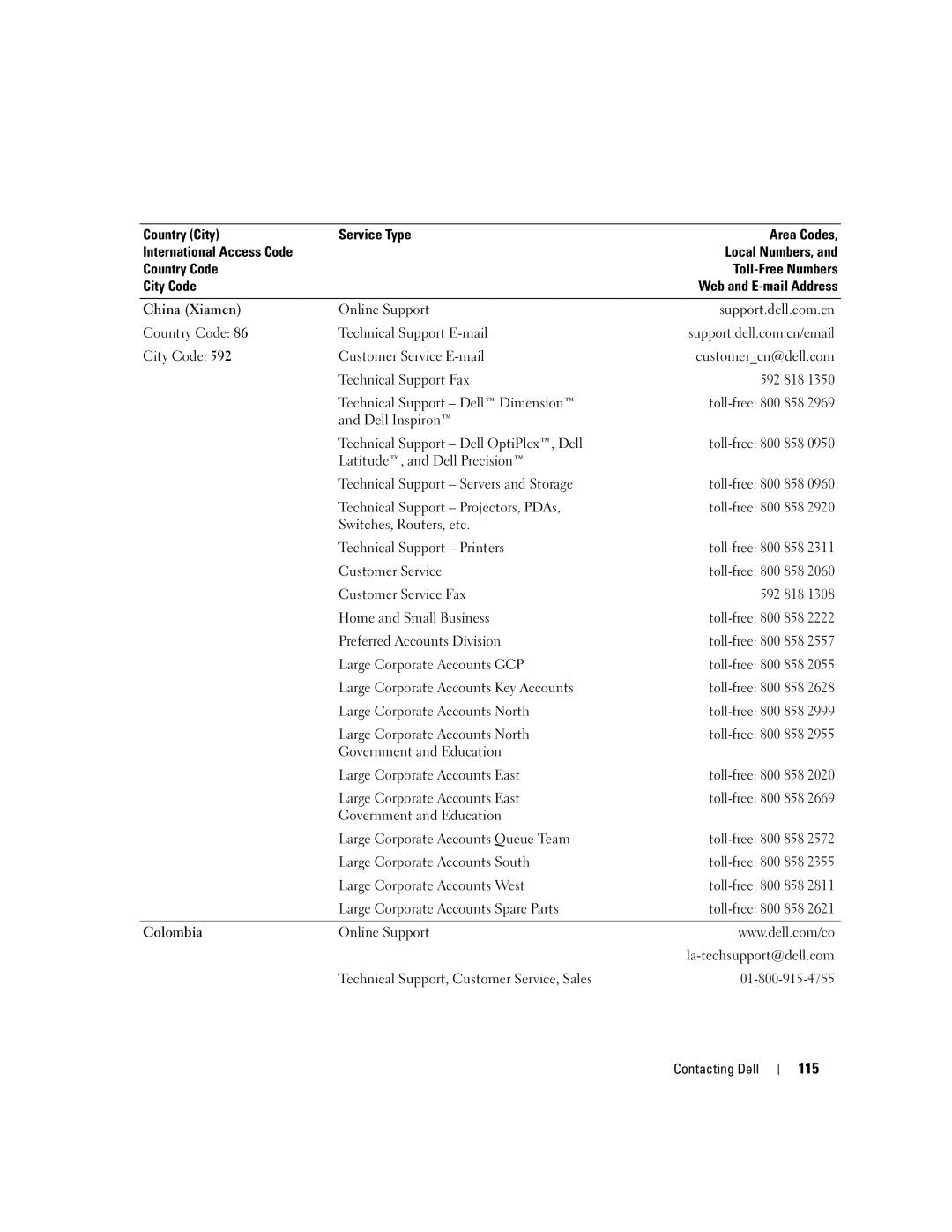
Contacting Dell
Contacting Dell
112
113
114
115
116
117
118
119
120
121
122
123
124
125
126
Should be called from within Singapore or
127
Malaysia only
128
129
130
131
132
133
Specifications
Communications
Ports and Connectors
134
Memory
Video
135
Audio
Display
136
Touch Pad
Battery
137
Keyboard
AC Adapter
138
Physical
Environmental
139
140
141
Using the System Setup Program
Entering System Setup
Appendix
Commonly Used Options
143
Cleaning Your Computer
CDs and DVDs
Computer, Keyboard, and Display
Touch Pad
Floppy Drive
145
Definition of Dell-Installed Software and Peripherals
Dell Technical Support Policy U.S. Only
Definition of Third-Party Software and Peripherals
FCC Class B
FCC Notice U.S. Only
146
147
Macrovision Product Notice
148
149
Glossary
Glossary
150