HP AdvanceStack Routers
Page
Product Numbers and Soft- ware Version
Audience
Why and When To Use This Guide
Preface
Other HP Router Manuals
‘‘How To Use the Main Menu’’, describes how to access
‘‘How To Use the Configuration Editor To Create or
Organization
Contents
How To Use the Event Log To Analyze Router Operation
Index
Page
Overview of Initializing and Verifying Router Software
Overview of Initializing and Verifying Router Software
Set the Date and Time
Configure for Routing
Boot the Router
Initializing the Router Software
Set Passwords
Verifying the Router Software
Main Menu
Overview of the Console Interface
Overview
Methods for Configuring the Router
Interaction Between the Configuration Tools
Configuration Tools in the Main Menu
Network Management Tools
How To Use the Main Menu
Introducing the Main Menu
Main Menu
How To Access the Main Menu
Main Menu
Pressing 2 in the Main Menu Displays the NCL Prompt
Selecting an Option in the Main Menu
Move the Pointer to Item
Getting Help in the Main Menu
NCL Help Display
Page
Page
Introducing Quick Configuration
Configuration Quick
What are the basic steps to configuring a router?
Quick Configuration Example HP Router SR
Configuration Quick
How To Create a Configuration
Example of a Quick Configuration Screen
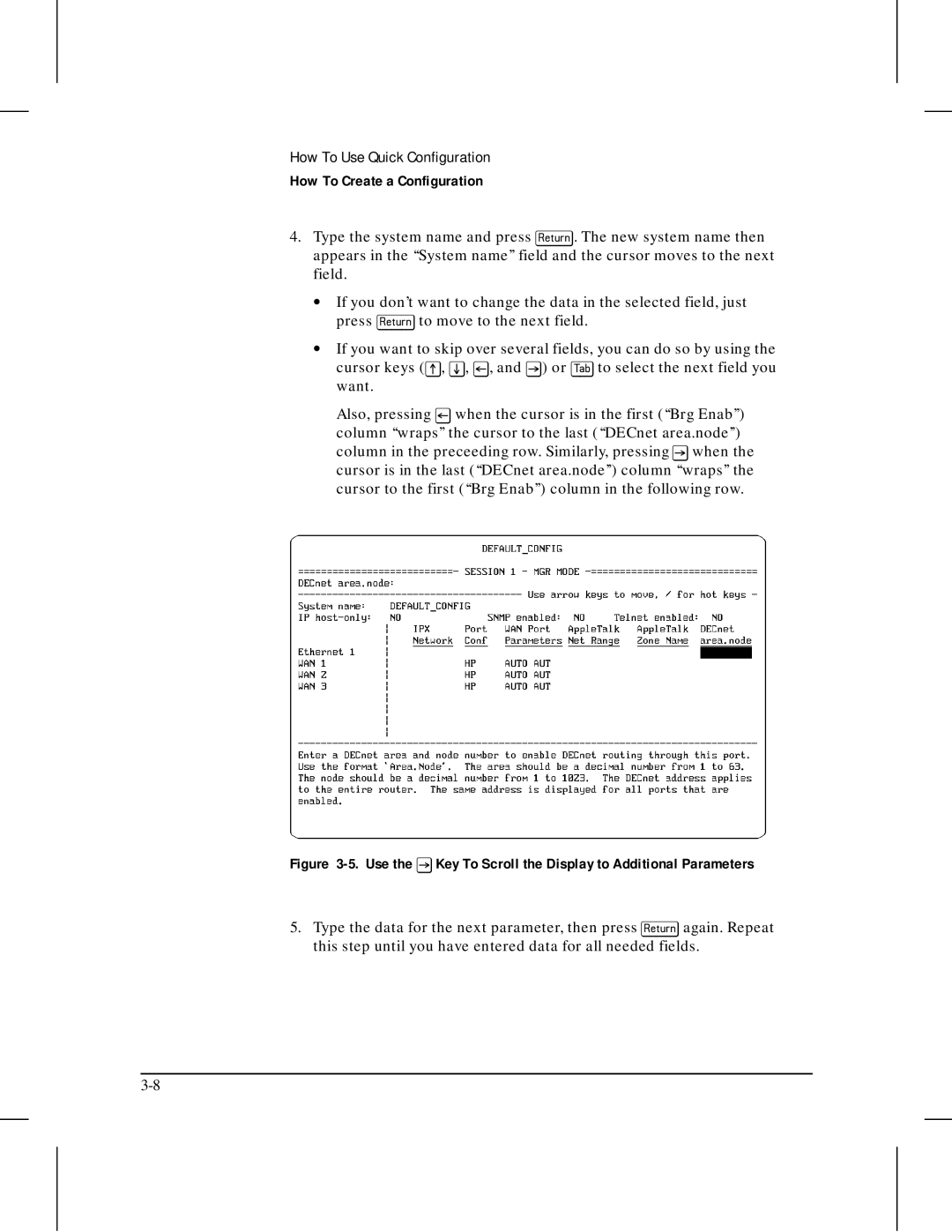
Use the Key To Scroll the Display to Additional Parameters
Example of ‘‘Save and Exit’’ Prompt
How to exit from Quick Configuration and reboot the router
Waiting for speed sense
Rebooting the System
‘‘Make Changes’’ Prompt
How to exit from Quick Configuration without saving changes
Example of Hotkey Display
How To Use the ‘‘Hotkeys’’
Numeric Hotkeys
Enable help messages
10. The Hotkey Menu
Alphabetical Hotkeys
11. Example of Using ‘‘Edit Other...’’ Hotkey
12. Example of using ‘‘Main...’’ Hotkey
DDN PDN
How To Configure for
13. Example of Configured WAN Port
To Configure Minimal X.25 service
14. Specify Lapb as the Link Type
T e
15. Local X.121 Address for PDN
17. Local X.121 Address for Point-to-Point
To configure additional non-minimal X.25 parameters
Save configuration and exit Quick Configuration y/n?
Reboot now y/n?
19. Highlight the X.25 Circuit Type
20. Hotkey Assignments
Rebooting the System
Parameter List
Operating Notes
Data Entry
Saving vs. Saving and Rebooting
Ospf
When To Use the Configuration Editor
Troubleshooting a Quick Configuration
Removing or Replacing a Module
HP Router 650 How To Update
Interface Module Configuration After
21. Two Interface Modules Installed and Configured
Removing a Previously Configured Interface Module
Highlighted port labels Indicate previously
23. Removed Ports for which a Configuration Exists
Type y and press Return When you see the reboot prompt
Replacing One Type of Interface Module with Another Type
24. One WAN Interface Module Installed and Configured
Are you sure you want to delete all conflicting
Configurations y/n?
Operating Notes
Page
Introducing the Configuration Editor
Editor
Configuration Editor Process
How To Enter the Configuration Editor
Configuration Menu
Save and exit ?
How To Exit From Configuration Menu
Back to menu ?
Exit without saving ?
Editor
Example of the Configuration Menu
How To Operate the Configuration Editor
DoD Internet Router
Configuration Categories
Do you wish to add ...? Yes
Moving From One Screen to Another
Enter selection 0 for previous menu
Action for selections Previous Display
Circuits
Example of Access to Previously Configured Elements
Use to select Yes, then press Return
You are sure you want to delete ? No
Circuit Name ETHER1
Entering or Changing Parameter Values Configuration Screens
Auto Enable Yes
Exit without Saving
Choose Save and Exit
Page
How To Use the Event Log To Analyze Router Operation
Introducing the Event Log
Event Log
Entering and Navigating Event Log Display
Shift-? or
Return or
? or
Event Log Status Line
T e
Page
Example of a Statistics Screen
Introducing the Statistics Screens
Screens Statistics
Example of the Statistics Screen Menu
How To Access the Statistics Screen Menu
You can choose from
Press ? for help, Down, Up, to exit, Return to select
Press ’r’ for reset, Down, Up, to exit
How To Manage the Statistics Screens
Page
Introducing NCL
NCL 7 Commands
How To Start NCL
Exit
How To Exit From NCL
Time
NCL Command Operation
How To Execute an NCL Command
Press Return
More Continuing the Display
Example of an NCL Command Using a Display
Ping x.x.x.x count wait
General NCL Command Summary
Atping X.X wait
Disable identifier
Enable identifier
Repetitions
Telnet
Stamp
Stats
Summary
Prerequisites for Telnet Operation
Syntax
How To Enable Telnet
How To Use Telnet
Telnet Access to Another HP Router
Hit Return
How To Disconnect Telnet Access to Another HP Router
Do you want to disconnect? Y/N
Slot Numbers
Accessing the Management Information Base
Managed Objects
Which protocols and services are enabled. The names
Ospf
Buf.1.msg.size
Example of a Pathname to a Mib Variable
Examples
How To Use the List Command
List branch identifier list branch identifier
List buf.1.msg
List buf
List buf.1
List buf List buf.1 Buf.1.msg 11.1.0
Using Codes To Specify Path Names
Get MIB identifier
How To Use the Get Command
How To Use the Reset Command
Rgets identifier x.x.x.x community where
Accessing the Internet Management Information Base
Rgets is the command name
Rgetw identifier x.x.x.x community
Accessing a Remote Management Information Base
Rgetw identifier x.x.x.x community where
Rgetmw identifier x.x.x.x community
Rgetm identifier x.x.x.x community
Accessing a Foreign Management Information Base
Rgetw is the command name
Rget identifier x.x.x.x community
Accessing Bridging and Routing Tables
Accessing Bridging and Routing Tables
Managing the Open Shortest Path First Protocol
Unblockste circuit group
Blocking and Unblocking Spanning Tree Explorer Frames
Blockste circut group where
Blockste circuit group
Ipmap
NCL Commands
Controlling IP-Mapped Circuits for 25 bis
Ipmap x.x.x.x disipmap
Quit
Tftp
Put filename operator
Fget X.X.X.X operator filename
Procomm Plus is a product of Datastorm Technologies, Inc
Or NCL Command Output to a PC Host File
How To Use Zput To Store the Configuration
Zput NCL-command filenameappendformat
Zput config filename appendformat
Messages in the Operator’s Reference
Preparation
How To Use Zget To Load the Configuration to
To upload the configuration to the router
Router
T e s
Page
How To Use Quick Remote To Configure a Remote Router
Locating Quick Remote in the Main Menu
Introducing Quick Remote
Quick Remote
What Can Quick Remote Configure?
Other Quick Remote Features
Set-Up Requirements for Quick Remote
Example of Quick Remote Operation
Quick Remote Operation
Basic Steps to Setting Up Quick Remote
There are eleven data fields for each configuration
Quick Remote Screen Features Control
Make more changes y/n?
How To Exit From Quick Remote
Save configuration and exit Quick Remote y/n?
To start Quick Remote and enter a minimal configuration
How To Create and Save a Quick Remote Configuration
Example of a Quick Remote Screen HP Router SR
T e
Save configuration and exit Quick Remote y/n?
To delete a Quick Remote Assignment
How to Delete a Quick Remote Assignment
To display the hotkey menu Type the forward slash
Tftp Access
How To Use the ‘‘Hotkeys’’
Snmp Default Settings
Page
Index
Index
Default configuration, quick configuration
HP Routing Services and Applications
NCL
Index-5
Ring interface Index
Index-7
Bis .. -3, 7-29 Verification