Model DV4001 User Guide
Copy protection
Important Safety Instructions
CE marking for Europe only
Table Of Contents
English
Features
Before You Start
Keep in mind the following when using the remote control
Putting the batteries in the remote control
Using the remote control
What’s in the box
Discs compatible with this player
MP3 compatibility information
DVD-Video regions
General information
WMA compatibility information
Connecting Up
Easy setup
Home theater video connections
Connecting Scart for Europe only and S-Video cables
Connecting Hdmi cables
Video or composite video?
Use an interconnector with a pin-type also called RCA
Connecting analog audio cables
Connecting coaxial cables
Home theater audio connections
Controls & Displays
Front panel
Angle
Remote control
Zoom
PREV./¢ NEXT- Skip pages 15, 16, 18, 19, 27
Basic playback controls
Getting Started
Playing discs
Resuming playback from the last stopped point
Press the Menu to turn the PBC function on or off
Navigating DVD disc menus
Navigating Video CD PBC menus
Some discs don’t allow PBC menus
Preview function
This option is only available during playback mode
Playing Discs
Introduction
Playing Discs
Fast Forward is engaged
Fast Forward/Fast Reverse
Fast Forward and Fast Reverse with sound
Press and hold 4 Prev during play
Viewing slow playback
Still Frame/Slow Play/Frame Advance Playback
Viewing a Paused Picture
Step Motion playback Viewing one frame at a time
Each press switches the repeat mode
Using the Repeat Play
Repeat mode
Press Repeat during playback to select a
Looping a section of a disc
Using the Random Shuffle Play
To cancel Random mode, press Random
To resume normal playback, press A-B again
To switch the camera angle, press Angle
Switching Camera Angles
Switching the Subtitle Language
To set subtitle preferences, see
Using the Zoom Function
Switching the Audio Language
Switching the audio channel
To switch the audio channel, press Audio repeatedly
Audio/Subtitle
Play back Information
Title/Chapter/Track selection
During playback, press Disp
Repeat
Angle
Time Search
Time
Insert a disc
Press Repeat repeatedly to access various play modes
Playing an MP3/DivX/JPEG/ Windows Media Audio disc
Disc reading time may exceed
Preview function
Zoom picture
Playing a Jpeg image file slide show
Rotating/flipping the picture
Playing MP3/WMA music and Jpeg pictures simultaneously
To stop simultaneous playback, press Stop Tip
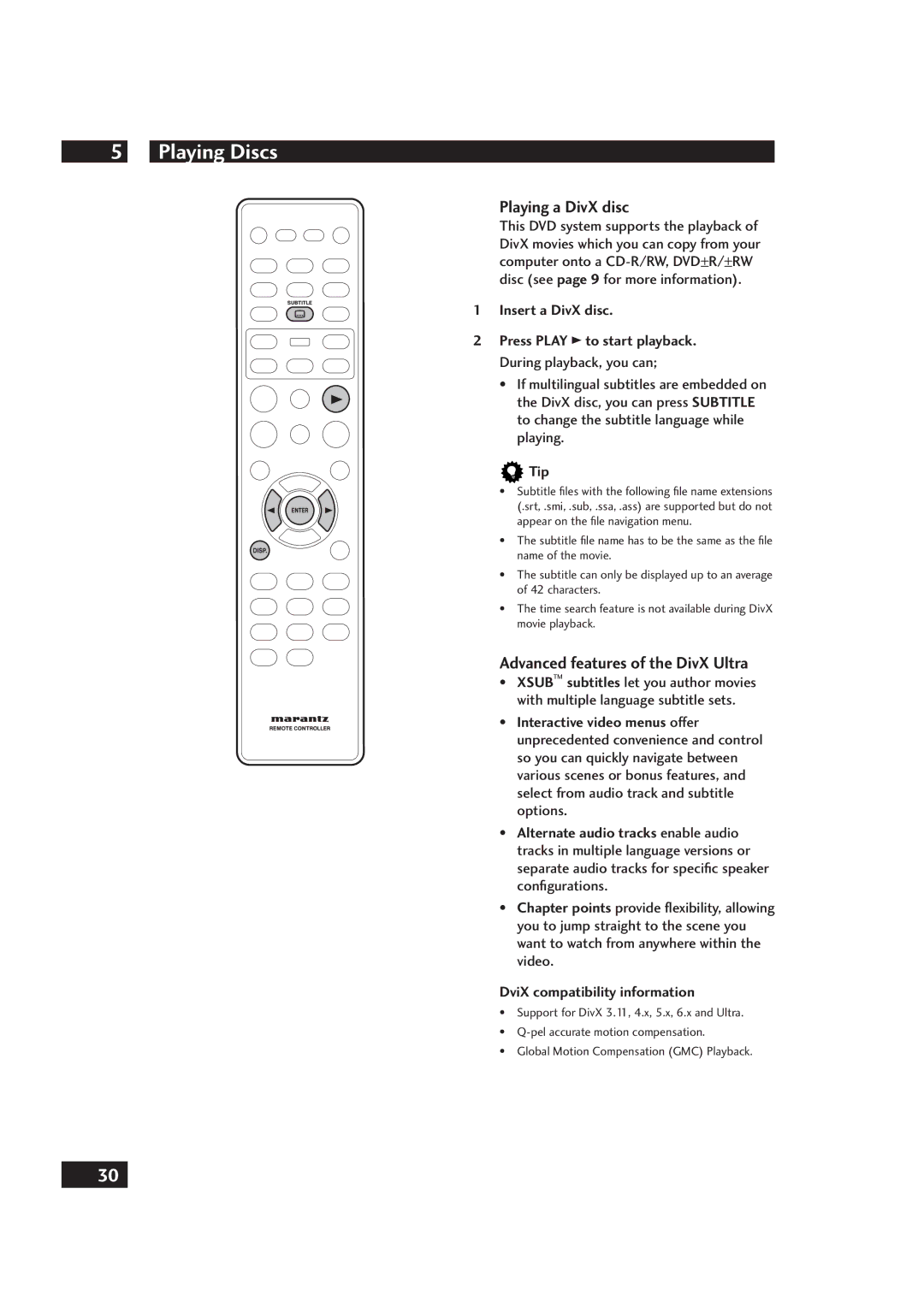
Insert a DivX disc Press Play 3 to start playback
Advanced features of the DivX Ultra
Playing a DivX disc
DviX compatibility information
Using the Setup Menu
DVD Setup Menu
DivXR VOD Code
Press the Setup button
OSD Language
Enter button
Program
Disc Lock
Display DIM
Screen Saver
Audio OUT
Setting up the Audio Setup
Default setting ALL
Digital OUT
CD Upsampling
Lpcm OUT
Hdmi Audio OUT
Audio DRC
TV System
Setting up the Video Setup
Default setting Ntsc USA model
PAL Europe model
Progressive
On Turns on progressive scan mode
TV Aspect
To change the TV system manually
OFF Disables the progressive scan mode
Picture Setting
Hdmi Setup
To deactivate Progressive manually
Setup Examples
Hdmi Video
DVI Output Range
Black Level
Closed Caption USA Model only
Audio
Setting up the Preference
Using the AUDIO, Subtitle and Disc Menu language
Subtitle
PBC
Disc Menu
Parental
MP3/JPEG NAV
Password
Previewing VR format
Divx Subtitle
Default
Additional Information
Language Codes
Handling discs
Cleaning the pickup lens
Problems with condensation
Storing discs
Moving the player
Hints on installation
Precautions on using the power cord
Don’t
Troubleshooting
Cannot output 192 kHz or 176.4 kHz digital audio
Remote control doesnt seem to work
No audio, or audio is distorted
Cannot output 96 kHz or 88.2 kHz digital audio
No video appears on the connected HDMI/DVI component
Disc containing the MP3 tracks won’t play
Some MP3 tracks appear to be missing from a disc
No audio is coming from the connected Hdmi component
Specifications
Additional Information English
Prudence
Instructions Importantes SUR LA Sécurité
Français
Avertissements
Table des matières
Avant de commencer
Fonctions
Le contenu de la boîte
Installation des piles dans la télécommande
Utilisation de la télécommande
Insérez deux batteries
Disques compatibles avec le lecteur
Information sur la compatibilité WMA
Informations générales
Information sur la compatibilité MP3
Information sur la compatibilité Jpeg
Raccordement
Installation facile
Interrupteur commandé à distance
Raccordement des câbles de contrôle du système
Raccordement des câbles Hdmi
Raccordements vidéos du home cinéma
Vidéo composite ou S-Vidéo ?
Votre système en utilisant le guide ci-dessous
Raccordements audio du home cinéma
Raccordements des câbles audio analogiques
Raccordement des câbles coaxiaux
Commandes et écrans
Panneau frontal
Télécommande
Saut 4 PREV./¢ NEXT- Skip pages 15, 16, 18, 19, 27
Subtitle consultez la
Commandes de base de lecture
Démarrage
Lecture des disques
Appuyez sur Menu pour activer ou désactiver la fonction PBC
Navigation dans les menus du disque
Navigation dans les menus PBC du CD vidéo
Certains disques n’autorisent pas les menus PBC
Appuyez sur Scan
Lecture des disques
Fonction aperçu
Puis appuyez sur Enter
Certains disques n’autorisent pas le mode Scan
Pour les CD
Maintenez enfoncé le bouton ¢ Next pendant la lecture
Affichage en mode Avance Rapide/Retour Rapide
Avance rapide/Retour rapide
Maintenez enfoncé le bouton 4 Prev pendant la lecture
Affichage d’une lecture au ralenti
Image figée/Ralenti/Avance de la lecture par trame
Affichage d’une image sur pause
Lecture pas à pas Afficher une image à la fois
Certains disques n’autorisent pas la fonction Répéter
Chaque pression change le mode répéter
Utilisation de la répétition de lecture
Repeter UNE répéter plage
Bouclage de section d’un disque
Utilisation de la lecture aléatoire Shuffle
Aleatoire Shuffle
Pour changer d’angle de prise de vue, appuyez sur Angle
Commutation des angles de caméra
Commutation de la langue des sous-titres
Subtitle
Utilisation de la fonction Zoom
Commutation de la langue audio
Commutation du canal audio
Pour régler les préférences de la langue, consultez la
Information de lecture
Sélection Titre/Chapitre/Plage
Audio/Sous-titres
Durée
Recherche de durée
Répéter
Pour les disques DVD
Lecture d’un MP3/Divx/JPEG/ Windows Media Disque audio
Insérez un disque
Image grossie zoomée
Lecture d’un fichier image Jpeg diaporama
Fonction aperçu
Pivotement/Retournement de l’image
Pour arrêter la lecture simultanée, appuyez sur Stop Tip
Lecture de musique MP3/WMA et d’images Jpeg simultanément
Les fichiers images seront lus jusqu’à la fin du dossier
Seule la première session du CD multisession sera lue
Lecture d’un disque DivX
Fonctions avancées de DivX Ultra
Information sur la compatibilité DviX
Setup
Utilisation du Menu Configuration
Le menu Configuration vous donne accès
Menu Configuration DVD
Langue OSD OSD Language
Réglage de la page Configuration Generale
Appuyez sur le bouton Setup
Code VOD DivXR DivXR VOD Code
Deverrouillage Tous les disques sont lisibles
Programme Program
Veille Auto Auto Standby
Attenuation Affichage Display DIM
Réglage de la page Configuration Audio
Paramètre par défaut Stereo
DTS n’est pas pris en charge
CD Upsampling CD Upsampling
On Eteint le mode Audio DRC
Sortie Lpcm Lpcm OUT
Paramètre par défaut 48kHz
Paramètre par défaut
Réglage de la page Configuration Video
Systeme TV TV System
Ntsc modèle USA PAL modèle Europe
Progressif Rpgressove
On Active le mode progressive scan
Aspect TV TV Aspect
Format de sortie vidéo
Configuration Hdmi Hdmi Setup
Pour désactiver manuellement la fonction Progressive
Format Grand Ecran Wide Screen Format
Video Hdmi
Exemples de configuration
Pour changer manuellement le système
Niveau DU Noir Black Level
Composant Component modèle Euro seulement
Component
Réglage de la page Configuration
Utilisation de la langue Audio SOUS-TITRE et Menu Disque
Sous Titre Subtitle
Menu Disque Disc Menu
Liste VR VR List
SOUS-TITRE Divx Divx Subtitle
MOT DE Passe Password
Aperçu du format VR
Cyrillic Cyrillique
PAR Defaut Default
Informations supplémentaires
Codes des langues
Disques à éviter
Manipulation des disques
Rangement des disques
Nettoyage de la lentille de lecture
Précaution avec le câble d’alimentation
Conseils d’installation
Déplacement du lecteur
Ce qu’il faut faire
Résolution des problèmes
Pas de son ou son déformé
La télécommande semble ne pas fonctionner
Différence notable entre le volume du DVD et du CD
Ne peut émettre un son numérique de 192 kHz ou de 176,4 kHz
Aucune vidéo n’apparaît sur le composant HDMI/DVI raccordé
Un disque contenant des plages MP3 ne fonctionne pas
Certaines plages MP3 sont absentes d’un disque
Aucun son ne sort du composant Hdmi raccordé
Spécifications
Informations supplémentaires Français
RECYCLING-HINWEIS
Vorwort
Deutsch
Inhaltsverzeichnis
Vor dem Start
Merkmale / Funktionen
Verwendung der Fernbedienung
Inhalt der Box
Einlegen der Batterien in die Fernbedienung
Legen Sie zwei AAA
Mit diesem Player kompatible Discs
Regionen für DVD-Video-Discs
Informationen zur Kompatibilität mit WMA
Allgemeine Informationen
Informationen zur Kompatibilität mit MP3
Informationen zur Kompatibilität mit Jpeg
Anschließen
Basis-Einstellung
Anschlüsse für Heimkino-Video-Discs
Video oder Composite-Video?
HDMI-Kabel anschließen
Anschließen von Koaxialkabeln
Anschlüsse für Heimkino-Audio-Discs
Anschließen analoger Audio-Kabel
Anzuschließen. Achten Sie auf korrekten Sitz des Steckers
Bedienelemente und Anzeigen
Bedienfeld
Cursor 2/3/5/∞ / ENTER-Taste Display Seite
Zoom Seite
Scan Abtasten Seite
Disc Skip In diesem Set nicht verwendet
Basis-Bedienelemente für die Wiedergabe
Vor der Inbetriebnahme
Wiedergabe von Discs
Legen Sie eine Disc ein
Navigieren in DVD-Disc-Menüs
Navigieren in Video-CD-PBC-Menüs
5/ ∞
Wiedergabe von Discs
Einführung
Vorschau-Funktion
Verwenden Sie 2/3/5/∞, um einen Titel zu
Für CD
Einige Discs lassen den Scan-Modus nicht zu
Schneller Vorlauf ist eingestellt
Schneller Vorlauf/Schneller Rücklauf
Ansicht bei schnellem Vorlauf/schnellem Rücklauf
Schneller Rücklauf ist eingestellt
Betrachten eines angehaltenen Bildes
Anschauen bei langsamer Wiedergabe
Verwendung der wiederholten Wiedergabe
Jedes Drücken bewirkt ein Umschalten des Wiederholungs-Modus
Schleifendurchlauf eines Abschnitts auf der Disc
Dieses Abschnittes erneut
Drücken Sie die Taste Subtitle wiederholt, um
Umschalten Kamera-Winkel
Umschalten Untertitel-Sprache
Zur Voreinstellung der Untertitel siehe Seite Hinweise
Nutzung der Zoom-Funktion
Umschalten Audio-Sprache
Umschalten Audio-Kanal
Zur Voreinstellung der Audio-Sprache siehe Seite Hinweise
Informationen zur Wiedergabe
Wahl des DVD-Titels/Kapitels/Titels
Audio/Untertitel
Wiederholen
Kamera-Aufnahmewinkel
Zeit-Suche
Zeit
Wiedergabe von MP3/DivX/JPEG/ Windows Media Audio-Disc
Tip
Auf dem Fernseher erscheint das Disc-Menü
Gezoomte Bilder
Wiedergabe einer JPEG-Bilddatei Diashow
Vorschau-Funktion
Drehen/Umdrehen des Bildes
Es ist normal, dass Sie, während Sie die Musik-Wiedergabe
Informationen zur Kompatibilität mit DivX
Wiedergabe einer DivX-Disc
Erweiterte Funktionen von DivX Ultra
Untertitel-Dateien mit den Dateinamen- Erweiterungen
Nutzung des Einstell-Menüs Setup
DVD-Einstellmenü
OSD Language Bildschirm-Sprache
Drücken Sie die SETUP-Taste
Einrichten der Allgemein Einstellungsseite
Divx R VOD Code DivX VOD-Code Video auf Abruf
Program Programmierung
Display DIM Display-Dimension
Disc Lock Disc gesperrt
Screen Saver Bildschirmschoner
Einstellen der Audio-Einstellung-Seite
Audio OUT Audio-Ausgang
Digital OUT Digitalausgang
Standard-Einstellung 48 kHz
Lpcm OUT LPCM-Ausgang
Audio DRC Audio-DRC
Hdmi Audio OUT HDMI-Audio-Ausgang
Standard-Einstellung Ntsc USA-Modell
Einrichten der Video-Einstellung-Seite
TV System Fernsehsystem
PAL Europa-Modell
Manuelle Änderung des Fernsehsystems
Seitenverhältnis des Bildschirms
Progressive Progressiv
Wide 169 Breitbildschirm Wählen Sie diese Einstellung
Wide Screen Format Format des Breitbildschirms
Picture Setting Bildeinstellung
Hdmi Setup HDMI-Einrichtung
Soft Weich Einstellung mit warmen Farben
Einrichtungs-Beispiele
Hdmi Video HDMI-Video
Standard-Einstellung Auto
Video-Ausgang
Component Komponenten nur europäische Modelle
Black Level Schwarzpegel
DVI Output Range DVI-Ausgangsbereich
Manuelle Änderung des Components-Ausgangs
Einrichten der Voreinstellung-Seite
Audio Audio
Subtitle Untertitel
PBC Wiedergabe-Steuerung
Disc Menu Disc-Menü
Parental Kinderschutz
MP3/JPEG NAV Navigation
Divx Subtitle DivX-Untertitel
Password Passwort
Vorschau VR-Format
Standard
Default Standard-Einstellung ab Werk
Zusätzliche Informationen
Sprachen-Codes
Aufbewahrung von Discs
Probleme mit der Kondensation
Handhabung von Discs
Diese Discs unbedingt meiden
Vorsicht im Umgang mit dem Netzkabel
Hinweise zur Installation
Fortbewegen des Players
Zu empfehlen ist …
Problembehebung
Keine Audiosignale oder die Audiosignale sind verzerrt
Keine Abgabe von DTS-Audio- Signalen
Die Fernbedienung scheint nicht zu funktionieren
Eine Disc mit MP3-Discs gestattet keine Wiedergabe
DivX-Filme werden nicht abgespielt
Ein DivX-Film wird nicht wiederholt
Technische Daten
Zusätzliche Informationen Deutsch
Nota SUL Riciclaggio
Introduzione
Italiano
Prima di iniziare
Caratteristiche
Inserimento delle batterie nel telecomando
Contenuto della confezione
Uso del telecomando
Chiudere il coperchio Nota
Dischi compatibili con questo lettore
Regioni DVD-Video
Informazioni sulla compatibilità
Informazioni generali
Informazioni sulla compatibilità MP3
Informazioni sulla compatibilità Jpeg
Collegamento
Configurazione semplice
Video o video composito?
Connessioni video home theater
Connessione di cavi Scart solo per l’Europa e S-Video
Connessione di cavi Hdmi
Connessione di cavi audio analogici
Connessioni audio home theater
Connessione di cavi coassiali
Spinotto sia inserito a fondo
Comandi e display
Indicatore Standby
Indicatore Hdmi
Pannello anteriore
Telecomando
Ripresa della riproduzione dall’ultimo punto di arresto
Per iniziare
Lettura di dischi
Caricare uno degli ultimi 10 dischi riprodotti
Alcuni dischi non ammettono i menu PBC
Navigazione trai menu dei dischi DVD
Navigazione nel menu dei dischi Video-CD PBC
Numeri
Lettura di dischi
Introduzione
Funzione di anteprima
Per CD
Avanzamento veloce/riavvolgimento veloce
Tenere premuto 4 Prev durante la Riproduzione
Visualizzazione di un immagine in pausa
Visualizzazione al rallentatore
Uso della funzione Repeat Play Ripeti comando
Alcuni dischi non ammettono la modalità Repeat Ripetizione
Looping di una sezione di un disco
Uso della funzione Random Play casuale Shuffle
Premere di nuovo alla fine
Ripetutamente Subtitle Sottotitoli
Commutazione delle prospettive della telecamera
Commutazione della lingua dei sottotitoli
La lingua corrente dei sottotitoli appare sullo schermo
Commutazione della lingua dellaudio
Commutazione del canale audio
Uso della funzione Zoom
AUDIO.Impostazioni audio
Informazioni sulla riproduzione
Selezione titolo/capitolo/traccia
Premere Enter Invio per confermare
Ricerca di orario
Audio/Sottotitoli
Angolazione
Ripetizione
Lettura di un MP3/DivX/JPEG Windows Media Disco audio
Inserire un disco
Suggerimento
Rotazione/capovolgimento dell’immagine
Funzione di anteprima
Ingrandimento di immagini
Durante la riproduzione, premere
Inserire un disco MP3/WMA contenente musica e immagini
Lettura di musica MP3/WMA e immagini Jpeg simultaneamente
Per interrompere la riproduzione simultanea, premere Stop
Lettura di un disco DivX
Caratteristiche avanzate di DivX Ultra
Durante la riproduzione, è possibile
Uso del menu Setup Impostazioni
Quando non verranno nuovamente modificate
Impostazioni Audio
Menu Setup DVD Impostazioni DVD
Impostazioni Generali
Video
Configurazione della pagina General Setup
Premere il tasto Setup
Lingua OSD
Programma
Disc Lock Blocco disco
Display DIM Attenuazione display
Screensaver
Digital OUT Uscita digitale
Configurazione della pagina Audio Setup
Audio OUT Uscita audio
Enter Invio
CD Upsampling Campionamento CD
Lpcm OUT Uscita Lpcm
Audio OUT Hdmi Uscita audio Hdmi
Audio DRC DRC Audio
Impostazione predefinita
Configurazione della pagina Video Setup
TV System Sistema TV
Ntsc modello USA PAL modello per l’Europa
Per modificare il sistema TV manualmente
TV Aspect Rapporto di forma della TV
Progressive Progressivo
Prima di iniziare…
Per disattivare la modalità Progressiva Manualmente
Picture Setting Impostazione dell’immagine
Hdmi Setup Configurazione Hdmi
Bright Luminoso Impostazione di colore vivace
Hdmi Video Video Hdmi
Esempi di configurazione
Video OUT Uscita video
Component Componenti solo modello per l’Europa
DVI Output Range Gamma di uscita DVI
Black Level Livello di nero
Per modificare l’uscita Component Componenti manualmente
Configurazione della pagina
Parental Parentale
Subtitle Sottotitoli
Disc Menu Menu disco
Impostazione predefinita Without
VR List Elenco VR
Anteprima del formato VR
Default Impostazioni predefinite
Divx Subtitle Sottotitoli Divx
Cyrillic Cirillico
Informazioni aggiuntive
Codici lingua
Conservazione dei dischi
Problemi di condensa
Manipolazione dei dischi
Dischi da evitare
Avvertenze relative al cavo di alimentazione
Consigli d’installazione
Spostamento del lettore
Usare in ambiente ben ventilato
Risoluzione dei problemi
Audio assente o distorto
Differenza notevole tra il volume del DVD e quello del CD
Il telecomando non sembra funzionare
Impossibile emettere l’audio digitale a 192 kHz o 176,4 kHz
Sul componente Hdmi connesso non appare il video
Un disco contenente tracce MP3 non viene riprodotto
Alcune tracce MP3 sembrano non essere presenti sul disco
Il componente Hdmi connesso non emette audio
Specifiche tecniche
Informazioni aggiuntive Italiano
Recycling VAN Apparatuur EN Verpakkingsmateriaal
Voorwoord
Bediening en Displays
Voordat u begint
Aansluiting
Zo begint u
Bits/192 kHz kwaliteits-DAC
Voordat u begint
Eigenschappen
MP3 en WMA* -compatibiliteit
De onderdelen in de doos
De batterijen in de afstandsbediening plaatsen
Gebruik van de afstandsbediening
Discs die met deze speler compatible zijn
Informatie over WMA-compatibiliteit
Algemene informatie
Informatie over MP3-compatibiliteit
Informatie over JPEG-compatibiliteit
Aansluiting van audio/videokabels
Aansluiting
Eenvoudige opstelling
Schakelaar voor de afstandsbediening
Aansluiting van Scart alleen voor Europa en S-Videosnoeren
Video of composietvideo?
Aansluiting van de HDMI-snoeren
Op de Component Video OUT van deze
Aansluiting van coaxiale snoeren
Audio-aansluitingen voor Home Theatre
Aansluiting van de analoge audiosnoeren
Sluiten. Zorg ervoor dat de stekker Geheel is ingestoken
Bediening en Displays
Voorpaneel
Afstandsbediening
Standaardweergavebediening
Zo begint u
Afspelen van discs
OPEN/CLOSE indrukken om de disclade te openen Laad een disc
Op sommige discs zijn PBC-menu’s niet toegestaan
Navigeren door DVD-discmenu’s
Navigeren door Video-CD PBC-menu’s
Cursor Beweegt de cursor over het scherm /3/5/∞
Previewfunctie
Afspelen van Discs
Introductie
Scan indrukken
Voor CD
Op sommige discs kan de Scanmodus niet worden gebruikt
¢ Next tijdens het afspelen ingedrukt houden
Snel voorwaarts/Snel achterwaarts
Beelden bekijken in Fast Forward/Fast Reversed
Prev tijdens het afspelen ingedrukt houden
Bekijken van een onderbroken beeld
Bekijken van langzame weergave
Repeat tijdens weergave indrukken om een
Gebruik van Repeat Play
Herhalingsfunctie te kiezen
Repeat ONE track herhalen
B nogmaals indrukken om normale weergave te hervatten
Een lust maken voor een gedeelte van een disc
Gebruik van Random Shuffle Play
Druk op Random om de Random-stand uit te schakelen
Angle indrukken om de camerahoek te wijzigen
Wijzigen van de camerahoek
Wijzigen van de ondertiteltaal
Zie blz om de ondertitelvoorkeuren in te stellen
Gebruik van de zoomfunctie
Wijzigen van de audiotaal
Wijzigen van het audiokanaal
Zie blz om de audiotaalvoorkeuren in te stellen
Informatie over de weergave
Titel/Hoofdstuk/Track-selectie
Audio/Ondertitel
Voor DVD-discs
Hoek
Toegang
Voor VCD/SVCD-discs
Afspelen van een MP3/DivX/JPEG/ Windows Media Geluidsdisc
Plaats een disc
Het discmenu verschijnt op de TV
Draaien/omkeren van het beeld
Afspelen van een JPEG-beeldbestand slideshow
Previewfunctie
Druk tijdens weergave op
Afspelen van MP3/WMA-muziek en JPEG-beelden
Plaats een MP3/WMA-disc die muziek en beelden bevat
Druk op Stop 7 om gelijktijdige weergave te stoppen Tip
Plaats een DivX-disc Druk op Play 3 om weergave te starten
Afspelen van een DivX-disc
Geavanceerde functies van de DivX Ultra
Om de ondertiteltaal te wijzigen tijdens weergave
Gebruik van het Setupmenu
Video Setup Setup van de display en HDMI-Video-opties
480P/525P 576P/625P 720P 1080i
DVD-setupmenu
Europees Model PAL
Europees Model 0 IRE
Setup PAGE, en druk vervolgens op de ENTER-toets
Opstellen van de General SETUP-pagina
Druk op de SETUP-toets
Kies met de cursortoetsen 2/3 General
Standaardinstelling Unlock
Zodra u klaar bent kunt u op Start
Standaardinstelling on
Standaardinstelling Stereo
Standaardinstelling ALL
DTS wordt niet ondersteund
Standaardinstelling 48kHz
Standaardinstelling OFF
Wanneer op PCM is ingesteld, wordt de DTS gedempt
Standaardinstelling Ntsc USA-model
PAL Europees model
Voordat u begint…
Video-outputformaat
Om het TV-systeem handmatig te wijzigen
Multi Æ afhankelijk van de disc
Om Progressive handmatig te deactiveren
Wanneer u TV Aspect 169 Wide heeft
Voorbeelden voor de Setup
Volg de discbron met Interliniëringsoutput
Volg de discbron met Progressive-output
Alleen Europees model
RGB Kies deze optie voor de A/V Euro Connector
Component
Closed Caption alleen USA-model
Opstellen van de PREFERENCE-pagina
Met gebruik van de Audio SUBTITLE- en Disc MENU-taal
Standaardinstelling 8 Adult
Standaardinstelling Without Menu
Standaardinstelling Original List
VR-formaat previewing
Voer het nieuwe zescijferige password in bij
NEW Password
Druk op Enter om de selectie te bevestigen
Cyrillic Cyrillisch
Bijkomende informatie
Taalcodes
Bewaren van discs
Problemen met condensatie
Omgaan met discs
Discs die u dient te vermijden
Waarschuwing bij het netsnoer
Wenken bij de installatie
Verplaatsen van de speler
Wat u wel moet doen
Oplossen van problemen
Merkbaar verschil tussen DVD- en CD-geluid
De afstandsbediening blijkt niet de functioneren
Geen geluid, of geluid is verstoord
Geen DTS-geluidsoutput
Er komt geen geluid uit het aangesloten HDMI-component
Een disc die MP3-tracks bevat kan niet worden afgespeeld
Sommige MP3-tracks blijken niet op de disc aanwezig te zijn
Kan geen DivX-films afspelen
Specificaties
Bijkomende informatie
OM Återvinning
Förord
Svenska
Högkvalitativ 24-bitars/192 kHz Omvandlare
Innan du börjar
Funktioner
Kompatibel med MP3 och WMA*3
Använda fjärrkontrollen
Vad finns i lådan?
Sätta i batterier i fjärrkontrollen
Stäng locket
Skivor som kan spelas på denna spelare
DVD-regioner
Information om kompatibla WMA-filer
Allmän information
Information om kompatibla MP3-filer
Information om kompatibla JPEG-filer
Grundinstallation
Anslutning
Ansluta HDMI-kablar
Bildanslutningar för hemmabio
Video eller kompositvideo?
Ansluta SCART- gäller endast Europa och S-videokablar
Ansluta koaxiala kablar
Ljudanslutningar för hemmabio
Ansluta analoga ljudkablar
Använd en kabel med en stiftkontakt i varje ände även
Kontroller & display
Frontpanelen
Sidorna 13, 36 och Zoom sidan
Fjärrkontroll
OPEN/CLOSE Öppnar/stänger skivfacket
Repeat repetera sidan 19 A-B sidan Angle vinkel sidan
Komma igång
Spela skivor
Återuppta uppspelning där den avbröts förra gången
Hantera menyer på DVD-skivor
Hantera PBC-menyer på Video-CD
På vissa skivor kan PBC-menyer inte användas
Förhandsgranskning
Spela Skivor
Inledning
Tryck på Scan
På vissa skivor kan Scan-funktionen inte användas
Snabbspolning framåt/bakåt
Tryck på 4 Prev under uppspelning Och håll knappen intryckt
Titta i långsam hastighet
Stillbild/Långsam uppspelning/Visning bild för bild
Titta på en stillbild
Stegvis uppspelning titta på en bild i taget
Använda repeteringsfunktionen
På vissa skivor kan repeteringsfunktionen inte användas
Ytterligare gång vid slutet av avsnittet
Repetera ett avsnitt på en skiva
Använda slumpfunktionen
Tryck på Random för att stänga av Slumpfunktionen
För att byta kameravinkel trycker du på knappen Angle
Byta kameravinkel
Byta textspråk
För att ställa in önskat textspråk, se sidan
Använda zoomfunktionen
Byta ljudspråk
Byta ljudkanal
För att ställa in önskat ljudspråk, se sidan
Information om uppspelningen
Välja titel/kapitel/spår
Ljud/Textning
Repetera
Vinkel
Tidssökning
Tid
Tips
Zooma in bilden
Visa JPEG-bilder bildspel
Förhandsgranskning
Vrida/vända bilden
Alla bildfilerna i mappen kommer att visas
Tryck på Stop 7 för att stoppa samtidig uppspelning Tips
Spela en skiva med DivX-filer
DivX Ultras avancerade funktioner
Använda inställningsmenyn Setup menu
DVD-inställningsmenyn
Allmänna Inställningar
Personliga
Väljer önskat språk för DVD-systemets skärmmenyer
Göra inställningar på General SETUP-sidan
Divx R VOD Code
Kod för köp/beställning av DivX-filer
Display DIM ljusstyrka på displayen
Sleep insomningstimer
Disc Lock skivlås
Program programmering
Digital OUT digital utgång
Göra inställningar på Audio SETUP-sidan
Audio OUT ljudutgång
Grundinställning ALL alla
Dynamisk omfångskontroll av ljudet
Lpcm OUT linjär PCM-utgång
Hdmi Audio OUT HDMI-ljudutgång
Grundinställning 48kHz
Göra inställningar på Video SETUP-sidan
Grundinställning Ntsc USA-modellen PAL Europamodellen
PAN Scan Välj detta alternativ om du har en vanlig
TV Aspect bildskärmsformat
För att byta TV-system manuellt
Letter BOX Välj
För att stänga av Progressive manuellt
Picture Setting bildinställning
Hdmi Setup HDMI-inställning
Wide Screen Format bredbildsformat
Exempel på inställningar
Black Level nivå för svärtan
Closed Caption
Dold text, gäller endast USA-modellen
Audio ljud
Välja språk för ljud, textning och skivmenyer
Göra inställningar på PREFERENCE-sidan
Subtitle textning
Hantering av MP3-/JPEG-filer
Disc Menu skivmeny
Parental föräldralås
VR List lista för skivor i VR-format
Password lösenord
Förhandsgranska VR-format
Default grundinställning
Divx Subtitle DivX-textning
Cyrillic kyrillisk skrift
Annan information
Språkkoder
Förvaring av skivor
Problem med kondens
Hantering av skivor
Skivor som ska undvikas
Hantera nätkabeln försiktigt
Placeringstips
Att flytta spelaren
Välj…
Felsökning
Läs i förstärkarens bruksanvisning
Fjärrkontrollen verkar inte fungera
Inget ljud, eller ljudet är förvrängt
Kan inte mata ut digitalt ljud med 192 kHz eller 176,4 kHz
Ingen bild på den anslutna HDMI/DVI-apparaten
En skiva med MP3-spår kan inte spelas
Vissa MP3-spår verkar saknas på en skiva
Det kommer inget ljud från den anslutna HDMI-apparaten
Specifikationer
Annan information Svenska
Protección contra copiado
Instrucciones DE Seguridad Importantes
Advertencias
Español
Compatibilidad MP3 y WMA*3
Antes de empezar
Características
Compatibilidad Jpeg
Cómo utilizar el mando a distancia
Contenido de la caja
Cómo colocar las pilas en el mando a distancia
El interior del compartimento Vuelva a colocar la tapa Nota
Discos compatibles con este reproductor
Regiones de DVD-Vídeo
Información sobre compatibilidad
Información general
Información sobre compatibilidad MP3
Información sobre compatibilidad DivX
Cómo realizar las conexiones
Configuración sencilla
Cómo conectar los cables Hdmi
Conexiones de vídeo para el sistema Home Theater
¿S-Vídeo o vídeo compuesto?
Cómo conectar los cables Scart sólo para Europa y S-Vídeo
Cómo conectar los cables coaxiales
Conexiones de audio para el sistema Home Theater
Cómo conectar los cables de audio analógico
Utilice un interconector con una clavija de tipo
Indicador de Standby
Controles y displays
Panel frontal
Bandeja del disco
Sound Mode Modo DE Sonido
Mando a distancia
Random Reproducción Aleatoria
Reproducción de discos
Cómo cancelar el modo reanudar
Cómo empezar
Controles básicos de reproducción
Cómo navegar por los menús de discos DVD
Cómo navegar por los menús PBC de discos Vídeo CD
Algunos discos no soportan los menús PBC
Función de vista previa
Reproducción de discos
Introducción
Pulse Scan
Para discos CD
Algunos discos no soportan el modo Scan
Avance rápido/Retroceso rápido
Presione y mantenga pulsado ¢ Next Durante la reproducción
Presione y mantenga pulsado 4 Prev durante la reproducción
Visualización de una imagen congelada
Reproducción a cámara lenta
Cómo utilizar la función de Reproducción Sucesiva
Reproducción Sucesiva Unitaria repetir pista
Cómo reproducir en bucle una sección de un disco
Cómo utilizar la Función de Reproducción Aleatoria
Sucesiva, y otra vez al final de dicha sección
Para cambiar el ángulo de cámara, pulse
Cómo cambiar los ángulos de cámara
Cómo cambiar el idioma de los subtítulos
Angle
Cómo cambiar el idioma del audio
Cómo cambiar el canal del audio
Cómo utilizar la función del zoom
Pulse Audio repetidamente
Audio/Subtítulos
Información sobre reproducción
Cómo seleccionar Título/Capítulo/Pista
Durante la reproducción, pulse Disp
Búsqueda de tiempos
Ángulo
Reproducción sucesiva
Tiempo
Durante la reproducción, es posible
Cómo reproducir discos de audio MP3/DivX/JPEG/Windows Media
Introducir un disco
Sugerencia
Cómo invertir/girar la imagen
Función de vista previa
Imagen aumentada
Durante la reproducción, pulse
Introduzca un disco MP3/WMA que contenga música e imágenes
Sólo se reproducirá la primera sesión de un CD multisesión
Introduzca un disco DivX
Cómo reproducir un disco DivX
Características avanzadas del DivX Ultra
Información sobre compatibilidad DviX
Cómo utilizar el Menú de Configuración
Distancia para navegar y seleccionar las opciones deseadas
Menú de Configuración del DVD
Código VOD DivX R
Cómo configurar la página de
Idioma OSD mostrado en pantalla
Bloquear Disco
Salvapantallas
Luminosidad DEL Display
Programa
Desconexión Temporizada
Salida DE Audio
Salida Digital
Surround Virtual Esta
Sobremuestreo CD
Salida Lpcm
Salida DE Audio Hdmi
Configuración por defecto 48 kHz
Sistema DE TV
Ntsc modelo EE.UU. PAL modelo europeo
Para cambiar manualmente el sistema de
Aspecto DEL TV
EXPLOR. Progresiva
Panorámico
Para desactivar manualmente el modo de Explor. Progresiva
Configuración DE Imagen
Configuración DEL Hdmi
Formato Panorámico
Resolución Disco a reproducir
Vídeo Hdmi
Ejemplos de configuración
Disco grabado en formato Comprimido
Sólo en el modelo europeo
Rango DE Salida DVI
Componente
Nivel DE Negro
Subtítulos
Menú DEL Disco
Lista VR Video Recording
Bloqueo a Menores
NAV MP3/JPEG
Lista Original
Vista previa del formato VR
Contraseña
Seleccionar
Estándar
Subtítulos Divx
Valores POR Defecto
Cirílico
Información adicional
Códigos de idiomas
Cómo guardar los discos
Problemas de condensación
Cómo manipular los discos
Discos que no deberán reproducirse
Precauciones con el cable de alimentación
Sugerencias para la instalación
Cómo trasladar el reproductor
Lo que debe hacer
Resolución de problemas
No se genera audio digital de 192 kHz o 176,4 kHz
Parece que el mando a distancia no funciona
Ausencia de audio, o el audio se escucha distorsionado
No se genera audio digital de 96 kHz o de 88,2 kHz
Parece que faltan algunas pistas MP3 en un disco
Ausencia de audio DTS
No puede reproducirse un disco que contenga pistas MP3
Imposible reproducir películas DivX
Especificaciones
Información adicional Español
2006/09 PMC

 Tip
Tip