Operating Manual
Thank you for buying the Pentax Optio S4 Digital Camera
For Safe USE of Your Camera
Care to be Taken During Handling
To users of this camera
Contents
Playback/Erasing/Editing
Recording and Playback
Appendix
Settings
Contents of the Operating Manual
Checking the Contents of the Package
Front
Names of Parts
Back
Guide indications
Names of Operating Parts
Attaching the Strap
Charging the Battery
Powering the Camera
Getting
Installing the Battery
Started
Battery Level Indicator
Using the AC Adapter optional
Installing the SD Memory Card / MultiMediaCard
Precautions When Using a SD Memory Card / MultiMediaCard
Data Backup
Setting the Display Language
Initial Settings
Press the four-way controller
Setting the D.S.T. Mode
Setting the Home Town
Setting the Date and Time
GettingStarted
Taking Still Pictures
Press the power switch
Press the shutter release button
Press the Playback button after taking a picture
Playing Back Images
Playing Back Previous or Next Images
Rotating a Displayed Image
Deleting a Displayed Image
Viewing Images on a TV
Viewing Images on the Camera
Viewing Images on a PC
Printing images by a printing service
Voice Recorder Mode
Playback Only Mode
Turning the Camera On and Off
Capture Mode
Using the Button Functions
Zoom/f/y button
Playback Mode
Shutter release button
Use the four-way controller 23 to select an item
Setting the Menus
How to Set the Menus
Press the Menu button
Menu button
Example of menu operation
Menu List
Rec. Mode Menu
Set-up Menu
Playback Menu
Switching between Capture Mode and Playback Mode
Setting the Shooting Functions
Changing the Mode
Press the four-way controller 3 Capture mode
Press the q s or z button in Capture mode
Selecting the Focus Mode
Focus Mode
Manual Focus
Focusing area mode, press the four-way controller
Changing the Focusing Point
To move the autofocus area
Press the b button in Capture mode
Selecting the Flash Mode
Display Off
Displaying Shooting Information in Capture Mode
Display On
Histogram Display
Selecting the Recorded Pixels
Select Recorded Pixels on the a Rec. Mode menu
To change the size
Press the OK button
Selecting the Quality Levels
White balance screen will be
Select White Balance on the a Rec. Mode menu
Use the four-way controller To select the setting
Press the OK button twice
Press the Display button
Manual Setting
Select K manual on the White
Balance screen
Saving the Focusing Area Setting 1 p.74
Changing the AF Area Focusing Area
Select AE Metering on the a Rec. Mode menu
Sensitivity
Setting the Sensitivity
Select Instant Review on the a Rec. Mode menu
Setting the Instant Review time Instant Review
Normal to Hard + or Soft
Setting the Image Sharpness Sharpness
Select Sharpness on the a Rec. Mode menu
To change the setting from
Select Saturation on the a Rec. Mode menu
Setting the Color Saturation Saturation
Pictures
Setting the Image Contrast Contrast
EV Compensation
Select EV Compensation on the a Rec. Mode menu
Press the four-way controller 3 in Capture Mode
Setting the Functions Program Mode
Taking Pictures
Picture Mode
Mode at the top of the dial Press the OK button
Select the icon for the desired picture
Taking Pictures of Dark Scenes Night-Scene Mode
Picture mode C at the top of the dial Press the OK button
Taking Movie Pictures Movie Picture Mode
Use the four-way controller 45 to display the Movie
Keeping the shutter release button pressed
3, 4
Taking Panorama Pictures Panorama Assist Mode
Move the camera to the right
Take the first picture
Take the second picture
Color Filters
Taking Pictures with Digital Filters Digital Filter Mode
Slim Filter
Use the four-way controller 45 to set the slimness
Setting the slim filter
Using Preset Function Settings User Mode
Pictures Take the pictures
Taking Stereo Pictures 3D Image Mode
Select the viewing mode
5, 6 4, 7
Take the first image
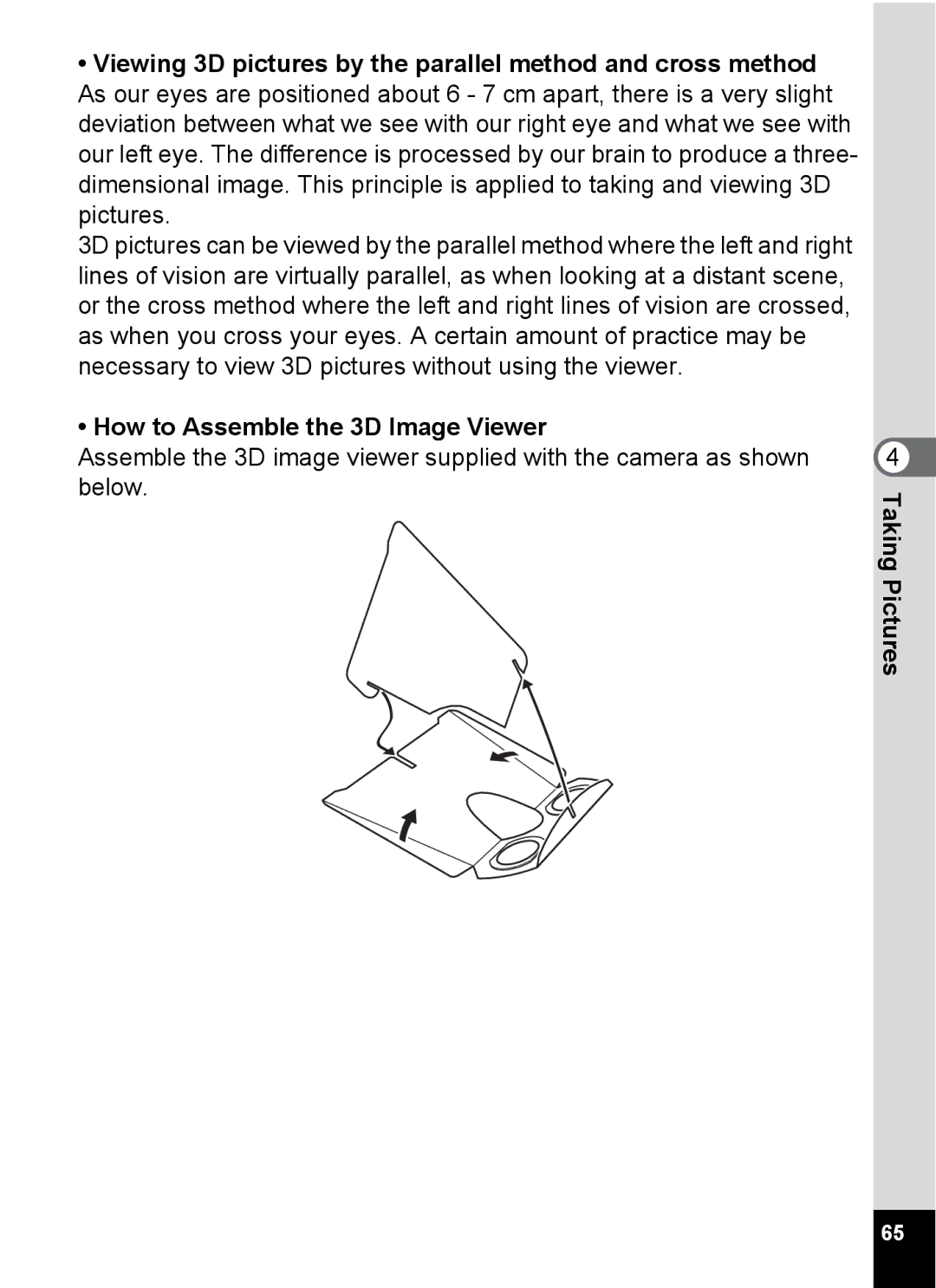
How to Assemble the 3D Image Viewer
How to view 3D pictures using the 3D image viewer
Example of a 3D Picture
Button to display j on the LCD Monitor
Continuous Shooting Continuous Shooting Mode
BDE
C F GDE
Using the Self-Timer
Life of the Battery for the Remote Control Unit
Using the Remote Control Unit optional
On the remote control unit
You can take pictures using the remote control F optional
Press the Zoom button in Capture
Using the Zoom
Mode
Enabling the Digital Zoom Function
Press the Menu button in Capture mode
Taking Time-lapse Movie Pictures Fast Fwd Movie
Press the Menu button in Movie Picture mode
Choose Off ×1, ×2, ×5, ×10
Saving the Menu Items Memory
Saving the Settings Memory
To select the item
Register Functions in User Mode
Functions registered in User mode
To select Memory
Playback
Recording Sound Voice Recorder Mode
Press the power switch for more than 2 seconds
To exit Voice Recorder mode, turn the camera off
Following operations can be performed during playback
Playing Back Sound
Press the Playback button
4 1
Enter the playback mode
Setting the Record Voice Memo to Off
Adding a Voice Memo
Playing Back Still Pictures
Playing Back Images
Zoom Display
Following operations can be Performed during playback
Playing Back Movie Pictures
Displaying shooting information in Playback mode
Press w/f on the Zoom button f/y
Nine Image Display
4 5
Slideshow
Select Slideshow with the four
To change the playback interval
Erasing a Single Image or Voice Memo
Erasing Images
Erasing a Voice Memo only
Erasing All Images
Enter the Playback mode and press the i button twice
Protecting Images / sound from Deletion Protect
Enter the Playback mode Press the Z button twice
Protecting All Images
Viewing Images on a TV
Copies
Setting the Printing Service Dpof
Printing Single Image
Press the four-way controller 2 button
To select whether to insert the date or not
Press the four-way controller 45 to select O On or Off
Printing All Images
Press the four-way controller 23 to select Resize
Editing Images
Changing the Image Size
Press the Menu button Press the four-way controller
Press the four-way controller 45 to select Recorded pixels
Press the four-way controller 23 to select Trimming
Trimming Images
Trim the image
Select the copying method
Copying Files
To select the file you want to copy Press the OK button
How to recall the B Set-up menu
Camera Settings
Changing the volume of playback and operation sounds
Changing the Sound Settings
Changing the Start-up Screen