En
Timer Recording
Introduction | Programming recordings |
glish
Use 'Timer Recording’ to automatically start and stop a recording at a later date/ time. The DVD recorder will tune to the right program number and begin recording at the specified time.
With this DVD recorder, you can pre- program up to six recordings within a period of 15 days.
To make a programmed recording, your DVD recorder needs to know:
–The date you want to make the recording.
–The program number of the TV channel.
–The start and stop time of the recording.
–The recording mode (M1/M2/M2x/M3/ M4/M6/M8,) see page 38.
1Turn on the TV power. Select the correct Video In channel at the TV.
2Press TIMER on the remote control. ➜ The timer overview appears.
●If the time has not set yet, the { Time and Date } menu will appear on the screen, see page 28.
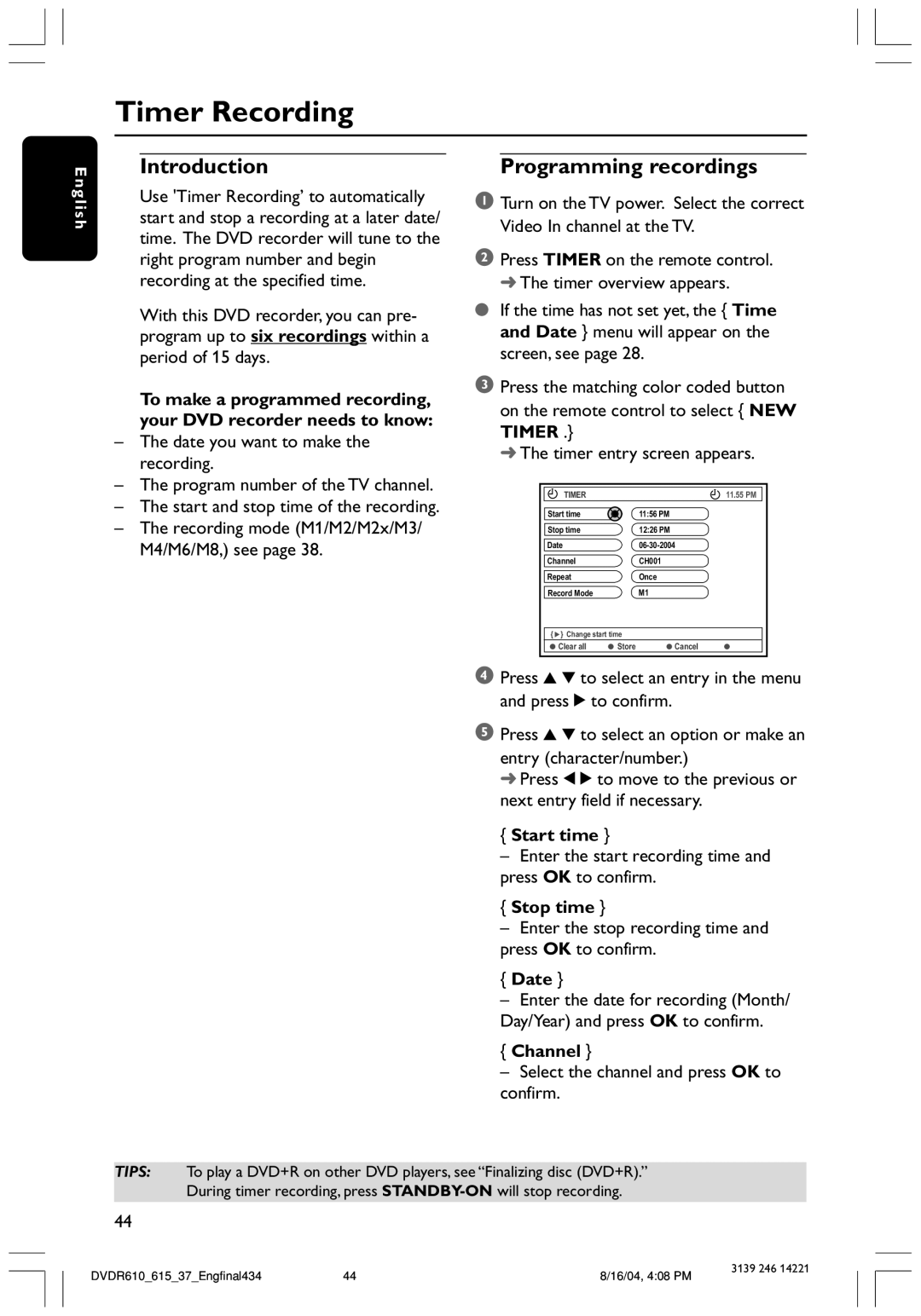
3Press the matching color coded button on the remote control to select { NEW TIMER .}
➜ The timer entry screen appears.
TIMER |
| 11.55 PM |
Start time |
| 11:56 PM |
Stop time |
| 12:26 PM |
Date |
| |
Channel |
| CH001 |
Repeat |
| Once |
Record Mode |
| M1 |
{ } Change start time |
| |
Clear all | Store | Cancel |
4Press 3 4 to select an entry in the menu and press 2 to confirm.
5Press 3 4 to select an option or make an
entry (character/number.)
➜ Press 1 2 to move to the previous or next entry field if necessary.
{Start time }
–Enter the start recording time and press OK to confirm.
{Stop time }
–Enter the stop recording time and press OK to confirm.
{Date }
–Enter the date for recording (Month/ Day/Year) and press OK to confirm.
{Channel }
–Select the channel and press OK to confirm.
TIPS: To play a DVD+R on other DVD players, see “Finalizing disc (DVD+R).”
During timer recording, press
44
DVDR610_615_37_Engfinal434 | 44 | 8/16/04, 4:08 PM | 3139 246 14221 |
|