215
U
Select the folder in which subsequent images will be stored.
❚❚
Selecting Folders by Folder Number
1
Choose
Select folder by number
.
Highlight
Select folder by number
and press
2
.
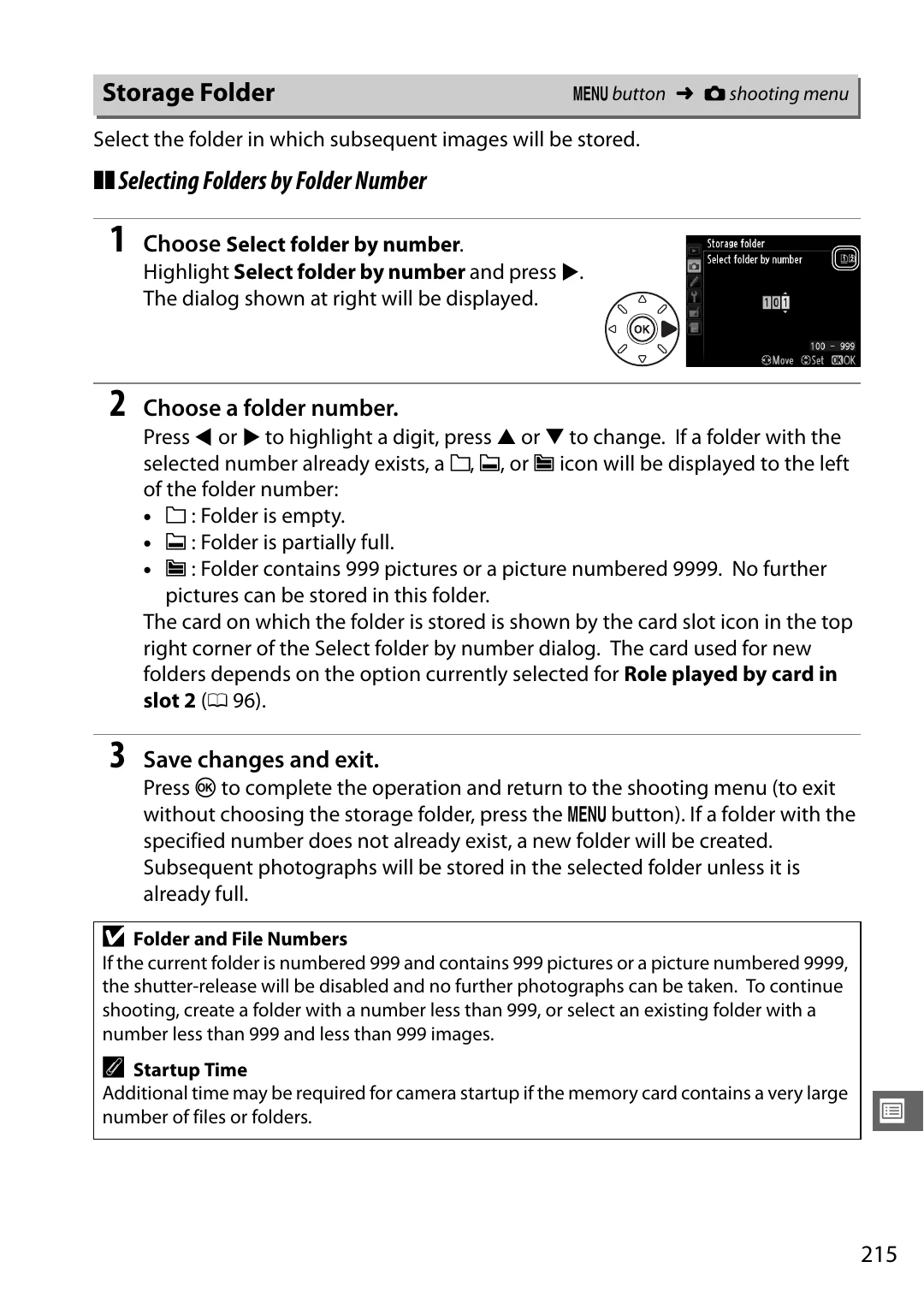
The dialog shown at right will be displayed.
2
Choose a folder number.
Press
4
or
2
to highlight a digit, press
1
or
3
to change. If a folder with the
selected number already exists, a
W
,
X
, or
Y
icon will be displayed to the left
of the folder number:
•
W
: Folder is empty.
•
X
: Folder is partially full.
•
Y
: Folder contains 999 pictures or a picture numbered 9999. No further
pictures can be stored in this folder.
The card on which the folder is stored is shown by the card slot icon in the top
right corner of the Select folder by number dialog. The card used for new
folders depends on the option currently selected for
Role played by card in
slot 2
96).
3
Save changes and exit.
Press
J
to complete the operation and return to the shooting menu (to exit
without choosing the storage folder, press the
G
button). If a folder with the
specified number does not already exist, a new folder will be created.
Subsequent photographs will be stored in the selected folder unless it is
already full.
Storage Folder
G
button
➜
C
shooting menu
D
Folder and File Numbers
If the current folder is numbered 999 and contains 999 pictures or a picture numbered 9999,
the shutter-release will be disabled and no further photographs can be taken. To continue
shooting, create a folder with a number less than 999, or select an existing folder with a
number less than 999 and less than 999 images.
A
Startup Time
Additional time may be required for camera startup if the memory card contains a very large
number of files or folders.