[RAM] [SD] [PC]
1 Press [DVD] or [SD/PC] to select the drive.
≥Each time you press [SD/PC]:
SD card drive ,". PC card drive | e.g., | |||||||
≥On the main unit, press [DRIVE SELECT] | SD card drive | |||||||
several times. |
|
|
|
|
|
|
|
|
|
|
|
|
|
|
|
| |
The indicator lights up on the unit. | DVD SD PC |
| ||||||
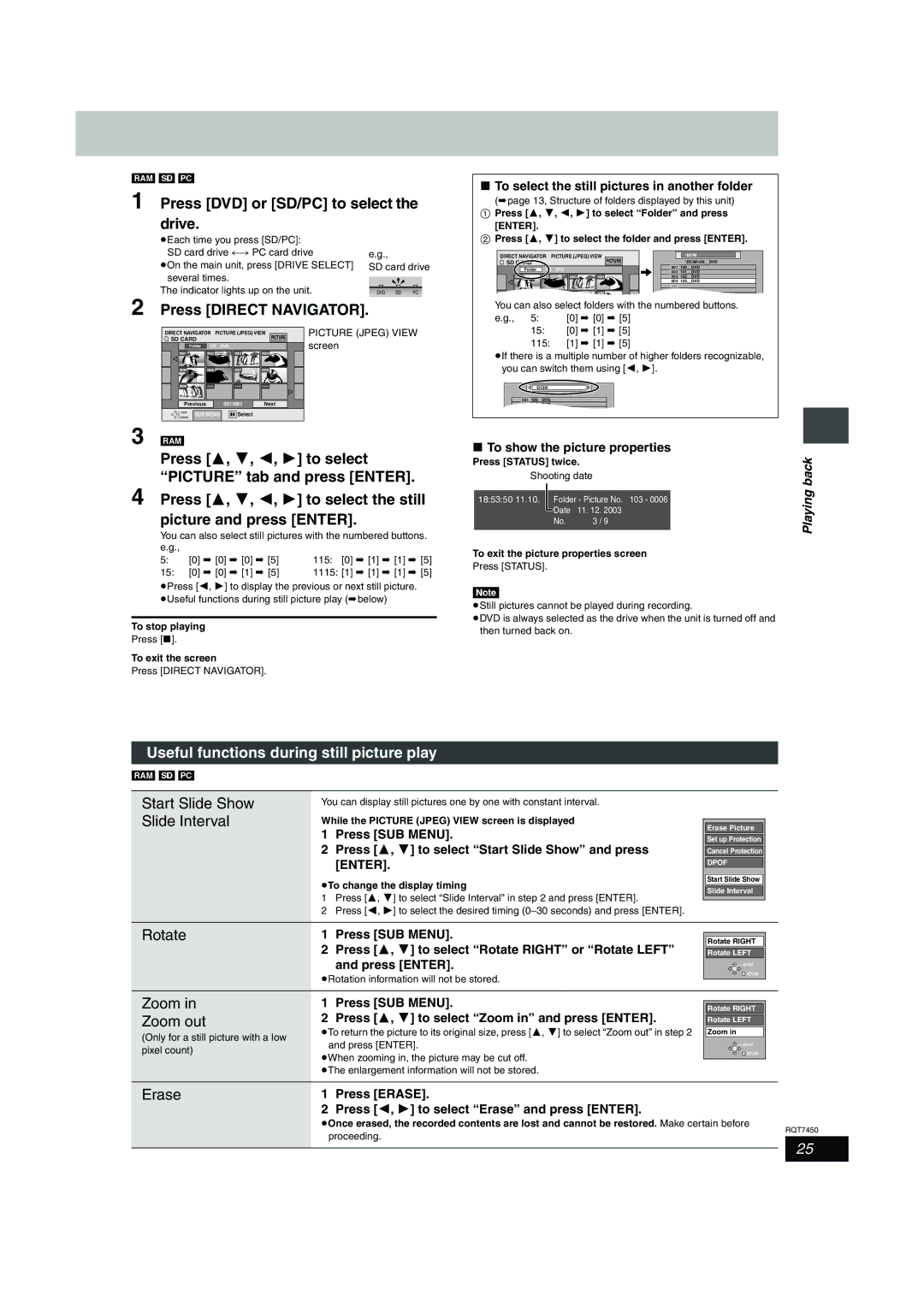
2 Press [DIRECT NAVIGATOR].
DIRECT NAVIGATOR PICTURE (JPEG) VIEW | PICTURE | PICTURE (JPEG) VIEW | |
SD CARD |
| screen | |
Folder | 103__DVD |
| |
0001 | 0002 | 0003 | 0004 |
0005 | 0006 | 0007 | 0008 |
0009 |
Previous | 001/001 | Next | |
ENTER | SUB MENU | Select |
|
RETURN |
| ||
|
|
| |
3 [RAM]
Press [3, 4, 2, 1] to select “PICTURE” tab and press [ENTER].
4 Press [3, 4, 2, 1] to select the still picture and press [ENTER].
You can also select still pictures with the numbered buttons. e.g.,
5: | [0] | ➡ [0] | ➡ [0] | ➡ [5] | 115: [0] | ➡ [1] ➡ [1] ➡ [5] |
15: | [0] ➡ [0] | ➡ [1] | ➡ [5] | 1115: [1] | ➡ [1] ➡ [1] ➡ [5] | |
≥Press [2, 1] to display the previous or next still picture. ≥Useful functions during still picture play (➡below)
To stop playing
Press [∫].
To exit the screen
Press [DIRECT NAVIGATOR].
∫To select the still pictures in another folder
(➡page 13, Structure of folders displayed by this unit)
1Press [3, 4, 2, 1] to select “Folder” and press [ENTER].
2Press [3, 4] to select the folder and press [ENTER].
DIRECT NAVIGATOR | PICTURE (JPEG) VIEW |
| \DCIM | ||
SD CARD |
|
| PICTURE |
| \DCIM\100__DVD |
Folder | 103__DVD |
| 001 | 100__DVD | |
| 002 | 101__DVD | |||
|
|
|
| ||
0001 | 0002 | 0003 | 0004 | 003 | 102__DVD |
|
|
|
| 004 | 103__DVD |
|
|
|
|
| |
0005 | 0006 | 0007 | 0008 |
| |
|
| ||||
You can also select folders with the numbered buttons. | |
e.g., 5: | [0] ➡ [0] ➡ [5] |
15:[0] ➡ [1] ➡ [5]
115:[1] ➡ [1] ➡ [5]
≥If there is a multiple number of higher folders recognizable, you can switch them using [2, 1].
\DCIM
001100__DVD
002101__DVD
003102 DVD
∫To show the picture properties
Press [STATUS] twice.
Shooting date
|
|
|
|
|
18:53:50 11.10. |
| Folder - Picture No. 103 - 0006 | ||
|
| Date | 11. 12. | 2003 |
|
| |||
|
| No. | 3 / | 9 |
|
|
|
|
|
To exit the picture properties screen
Press [STATUS].
[Note]
≥Still pictures cannot be played during recording.
≥DVD is always selected as the drive when the unit is turned off and then turned back on.
Playing back
Useful functions during still picture play
[RAM] [SD] [PC]
Start Slide Show
Slide Interval
You can display still pictures one by one with constant interval.
While the PICTURE (JPEG) VIEW screen is displayed
1Press [SUB MENU].
2Press [3, 4] to select “Start Slide Show” and press [ENTER].
≥To change the display timing
1Press [3, 4] to select “Slide Interval” in step 2 and press [ENTER].
2Press [2, 1] to select the desired timing
Erase Picture
Set up Protection
Cancel Protection
DPOF
Start Slide Show
Slide Interval
Rotate | 1 | Press [SUB MENU]. |
| 2 | Press [3, 4] to select “Rotate RIGHT” or “Rotate LEFT” |
and press [ENTER].
≥Rotation information will not be stored.
Rotate RIGHT
Rotate LEFT
 ENTER
ENTER
 RETURN
Zoom in
Zoom out
(Only for a still picture with a low pixel count)
1Press [SUB MENU].
2Press [3, 4] to select “Zoom in” and press [ENTER].
≥To return the picture to its original size, press [3, 4] to select “Zoom out” in step 2 and press [ENTER].
≥When zooming in, the picture may be cut off. ≥The enlargement information will not be stored.
Rotate RIGHT
Rotate LEFT
Zoom in
 ENTER
ENTER
 RETURN
Erase | 1 | Press [ERASE]. |
| 2 | Press [2, 1] to select “Erase” and press [ENTER]. |
≥Once erased, the recorded contents are lost and cannot be restored. Make certain before
proceeding.
RQT7450
25