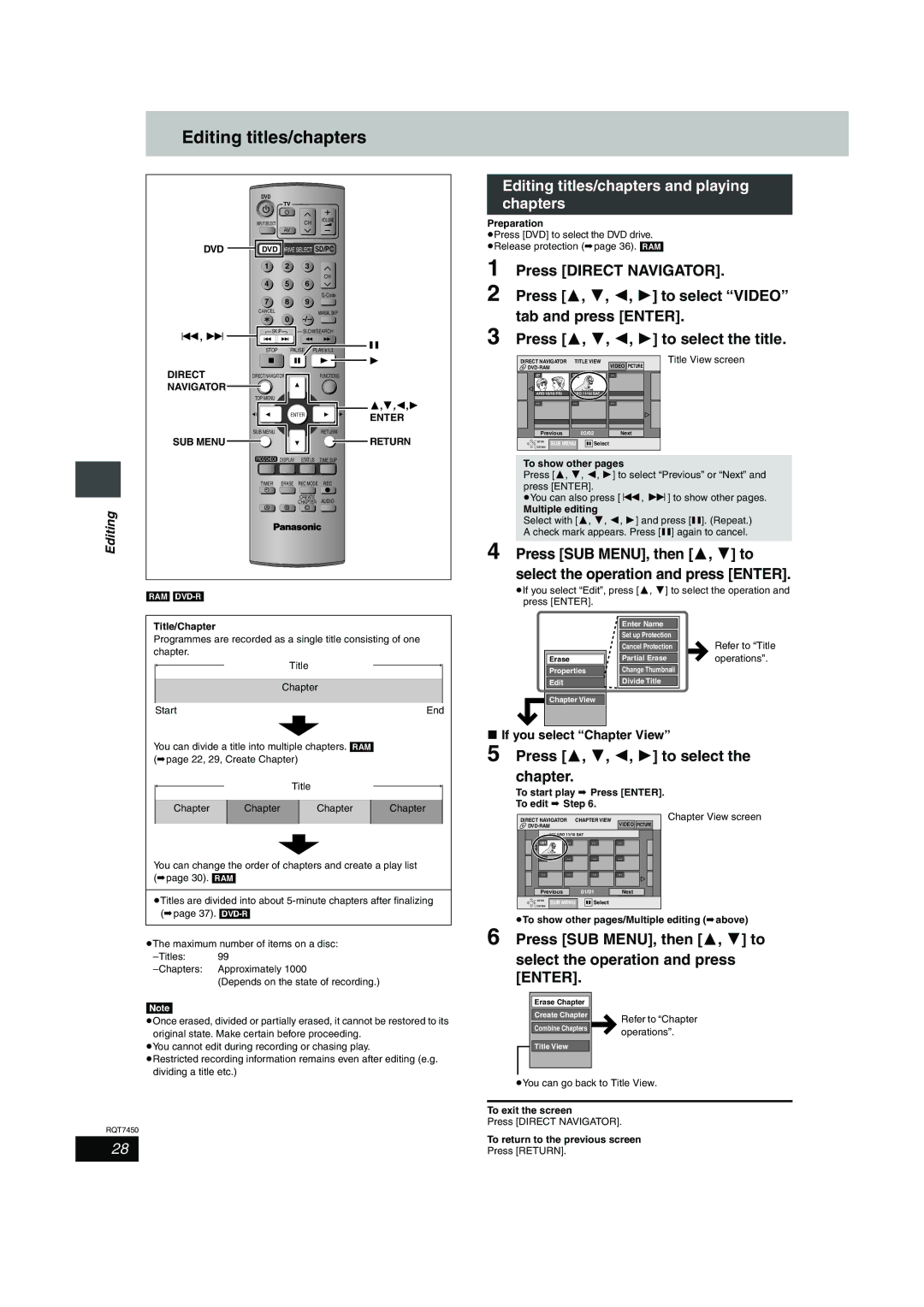
Editing titles/chapters
DVD
| TV |
|
INPUT SELECT | CH | VOLUME |
|
AV
DVD | DVD DRIVE SELECT SD/PC | ||
| 1 | 2 | 3 |
|
|
| CH |
| 4 | 5 | 6 |
|
|
| |
| 7 | 8 | 9 |
| CANCEL |
| MANUAL SKIP |
|
| 0 | |
:, 9 | SKIP | SLOW/SEARCH |
| |
|
|
| ; | |
| STOP | PAUSE | PLAY/x1.3 | |
|
| |||
1
DIRECT | DIRECT NAVIGATOR |
| FUNCTIONS | |
NAVIGATOR |
|
|
|
|
| TOP MENU |
|
| 3,4,2,1 |
|
|
|
| |
|
| ENTER | ENTER | |
|
|
|
| |
| SUB MENU |
|
| RETURN |
SUB MENU |
|
|
| RETURN |
| PROG/CHECK DISPLAY | STATUS | TIME SLIP | |
| TIMER | ERASE | REC MODE | REC |
| F |
|
|
|
|
|
| CREATE | AUDIO |
|
|
| CHAPTER | |
| A | B | C |
|
Editing
[RAM] [DVD-R]
Title/Chapter
Programmes are recorded as a single title consisting of one chapter.
Title
Chapter
Start | End |
You can divide a title into multiple chapters. [RAM] (➡page 22, 29, Create Chapter)
Title
Chapter | Chapter | Chapter | Chapter |
|
|
|
|
You can change the order of chapters and create a play list (➡page 30). [RAM]
≥Titles are divided into about
≥The maximum number of items on a disc:
(Depends on the state of recording.)
[Note]
≥Once erased, divided or partially erased, it cannot be restored to its original state. Make certain before proceeding.
≥You cannot edit during recording or chasing play.
≥Restricted recording information remains even after editing (e.g. dividing a title etc.)
RQT7450
28
Editing titles/chapters and playing chapters
Preparation
≥Press [DVD] to select the DVD drive. ≥Release protection (➡page 36). [RAM]
1 Press [DIRECT NAVIGATOR].
2 Press [3, 4, 2, 1] to select “VIDEO” tab and press [ENTER].
3 Press [3, 4, 2, 1] to select the title.
DIRECT NAVIGATOR | TITLE VIEW | VIDEO | Title View screen | ||
|
|
| PICTURE | ||
07 |
| 08 |
| - - |
|
ARD 10/10 FRI | ARD 11/10 SAT |
|
| ||
- - |
| - - |
| - - |
|
Previous |
| 02/02 | Next | ||
ENTER | SUB MENU | Select |
|
| |
RETURN |
|
| |||
|
|
|
|
| |
To show other pages
Press [3, 4, 2, 1] to select “Previous” or “Next” and press [ENTER].
≥You can also press [:, 9] to show other pages.
Multiple editing
Select with [3, 4, 2, 1] and press [;]. (Repeat.) A check mark appears. Press [;] again to cancel.
4 Press [SUB MENU], then [3, 4] to select the operation and press [ENTER].
≥If you select “Edit”, press [3, 4] to select the operation and press [ENTER].
|
|
|
| Enter Name |
|
|
|
|
|
|
| Set up Protection |
|
|
|
|
|
|
| Cancel Protection |
|
| Refer to “Title |
|
|
|
| Partial Erase |
|
| operations”. |
|
| Erase |
|
|
| ||
|
| Properties |
| Change Thumbnail |
|
|
|
|
|
|
| Divide Title |
|
|
|
|
| Edit |
|
|
|
| |
|
|
|
|
|
|
|
|
|
| Chapter View |
|
|
|
|
|
|
|
|
|
|
|
|
|
|
|
|
|
|
|
|
|
∫If you select “Chapter View”
5 Press [3, 4, 2, 1] to select the chapter.
To start play ➡ Press [ENTER].
To edit ➡ Step 6.
DIRECT NAVIGATOR | CHAPTER VIEW | Chapter View screen |
| VIDEO PICTURE | |
008 ARD 11/10 SAT |
| |
001 |
Previous | 01/01 | Next | |
ENTER | SUB MENU | Select |
|
RETURN |
| ||
|
|
| |
≥To show other pages/Multiple editing (➡above)
6 Press [SUB MENU], then [3, 4] to
select the operation and press [ENTER].
|
|
|
|
| Erase Chapter |
|
|
| Create Chapter |
| Refer to “Chapter |
| Combine Chapters |
| operations”. |
|
| ||
|
|
|
|
| Title View |
|
|
|
|
|
|
|
|
|
|
≥You can go back to Title View.
To exit the screen
Press [DIRECT NAVIGATOR].
To return to the previous screen
Press [RETURN].