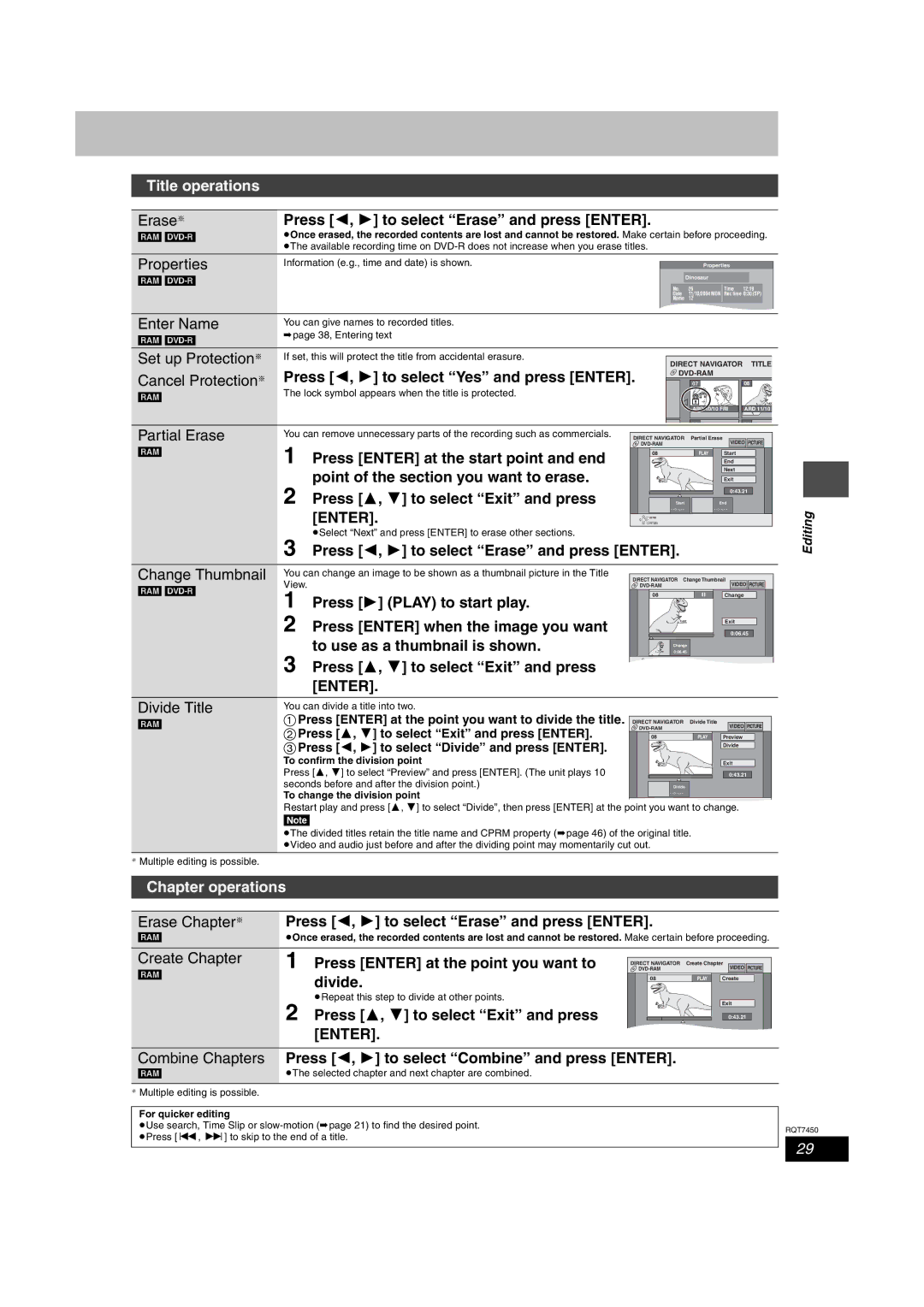
Title operations
Erase§ | Press [2, 1] to select “Erase” and press [ENTER]. |
|
|
|
|
[RAM] | ≥Once erased, the recorded contents are lost and cannot be restored. Make certain before proceeding. | ||||
| ≥The available recording time on |
|
|
|
|
Properties | Information (e.g., time and date) is shown. |
| Properties |
| |
[RAM] |
|
| Dinosaur |
|
|
|
| No. | 26 | Time | 12:19 |
|
| Date | 11/10/2004 MON Rec time 0:30 (SP) | ||
|
| Name 12 |
|
| |
|
|
| SELECT |
|
|
Enter Name | You can give names to recorded titles. |
|
|
|
|
[RAM] | ➡page 38, Entering text |
|
|
|
|
|
|
|
|
| |
Set up Protection§ | If set, this will protect the title from accidental erasure. | DIRECT NAVIGATOR | TITLE | ||
Cancel Protection§ | Press [2, 1] to select “Yes” and press [ENTER]. |
|
| ||
| 07 |
| 08 | ||
[RAM] | The lock symbol appears when the title is protected. |
|
|
|
|
|
|
|
|
| |
|
|
| ARD 10/10 FRI | ARD 11/10 | |
|
|
| - - |
| - - |
Partial Erase | You can remove unnecessary parts of the recording such as commercials. | DIRECT NAVIGATOR | Partial Erase |
| |
[RAM] | 1 Press [ENTER] at the start point and end |
| VIDEO | PICTURE | |
08 | PLAY | Start |
| ||
|
|
| End |
| |
| point of the section you want to erase. |
|
| Next |
|
|
|
| Exit |
| |
| 2 Press [3, 4] to select “Exit” and press |
|
| 0:43.21 |
|
| Start |
| End |
| |
| [ENTER]. | - |
| - |
|
| RETURN |
|
|
| |
|
| ENTER |
|
|
|
≥Select “Next” and press [ENTER] to erase other sections.
3 Press [2, 1] to select “Erase” and press [ENTER].
Editing
Change Thumbnail
[RAM] [DVD-R]
You can change an image to be shown as a thumbnail picture in the Title View.
1 Press [1] (PLAY) to start play.
2 Press [ENTER] when the image you want to use as a thumbnail is shown.
3 Press [3, 4] to select “Exit” and press [ENTER].
DIRECT NAVIGATOR | Change Thumbnail |
| |
| VIDEO | PICTURE | |
08 | ; | Change |
|
|
| Exit |
|
|
| 0:06.45 |
|
Change |
|
| |
0:06.45 |
|
| |
ENTER |
|
|
|
Divide Title | You can divide a title into two. |
|
|
|
|
[RAM] | 1Press [ENTER] at the point you want to divide the title. DIRECT NAVIGATOR | Divide Title | VIDEO | PICTURE | |
| 2Press [3, 4] to select “Exit” and press [ENTER]. |
|
|
| |
| 08 | PLAY | Preview |
| |
| 3Press [2, 1] to select “Divide” and press [ENTER]. |
|
| Divide |
|
| To confirm the division point |
|
| Exit |
|
| Press [3, 4] to select “Preview” and press [ENTER]. (The unit plays 10 |
|
| 0:43.21 |
|
| seconds before and after the division point.) | Divide |
|
|
|
| To change the division point | - |
|
|
|
|
| ENTER |
|
|
|
| Restart play and press [3, 4] to select “Divide”, then press [ENTER] at the point you want to change. |
| |||
[Note]
≥The divided titles retain the title name and CPRM property (➡page 46) of the original title. ≥Video and audio just before and after the dividing point may momentarily cut out.
§Multiple editing is possible.
Chapter operations
Erase Chapter§ | Press [2, 1] to select “Erase” and press [ENTER]. |
[RAM] | ≥Once erased, the recorded contents are lost and cannot be restored. Make certain before proceeding. |
Create Chapter | 1 | Press [ENTER] at the point you want to | DIRECT NAVIGATOR Create Chapter | PICTURE | ||
[RAM] |
| VIDEO | ||||
| divide. | 08 | PLAY | Create |
| |
|
|
|
| |||
| 2 | ≥Repeat this step to divide at other points. |
|
| Exit |
|
| Press [3, 4] to select “Exit” and press |
|
|
| ||
|
|
| 0:43.21 |
| ||
|
| [ENTER]. |
|
|
|
|
Combine Chapters Press [2, 1] to select “Combine” and press [ENTER].
[RAM] | ≥The selected chapter and next chapter are combined. |
§Multiple editing is possible.
For quicker editing |
| |
≥Use search, Time Slip or | RQT7450 | |
≥Press [:, 9] to skip to the end of a title. | ||
|
29