Troubleshooting
Before asking for repairs, check the symptoms with the following table
Contact your dealer if a problem cannot be solved even after checking and trying the solution or if the problem is not described below.
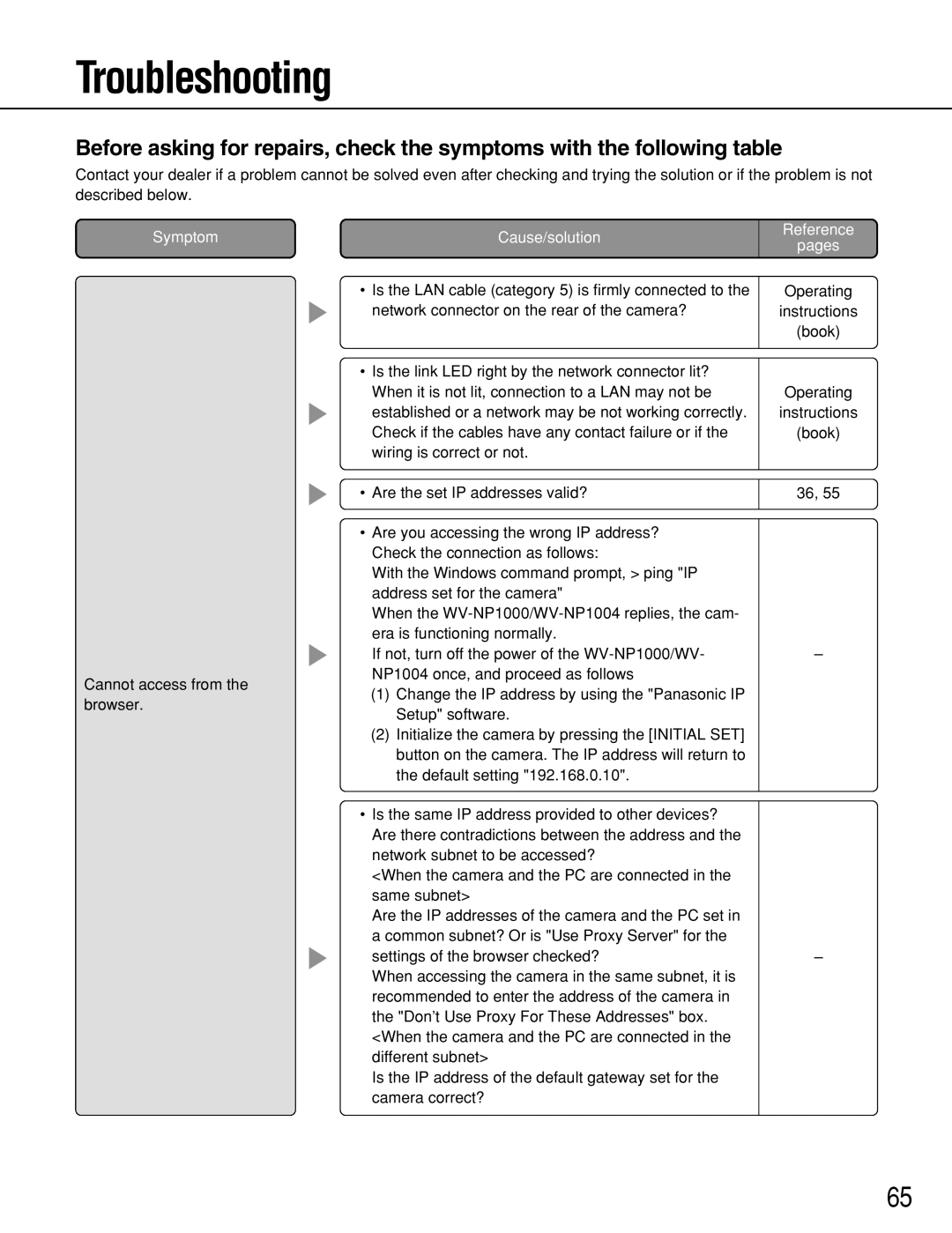
Symptom | Cause/solution |
•Is the LAN cable (category 5) is firmly connected to the
network connector on the rear of the camera?
•Is the link LED right by the network connector lit? When it is not lit, connection to a LAN may not be
established or a network may be not working correctly. Check if the cables have any contact failure or if the wiring is correct or not.
• Are the set IP addresses valid?
•Are you accessing the wrong IP address? Check the connection as follows:
With the Windows command prompt, > ping "IP address set for the camera"
When the
Reference
pages
Operating
instructions
(book)
Operating
instructions
(book)
36, 55
Cannot access from the
If not, turn off the power of the
–
(1) Change the IP address by using the "Panasonic IP
browser.
Setup" software.
(2)Initialize the camera by pressing the [INITIAL SET] button on the camera. The IP address will return to the default setting "192.168.0.10".
•Is the same IP address provided to other devices? Are there contradictions between the address and the network subnet to be accessed?
<When the camera and the PC are connected in the same subnet>
Are the IP addresses of the camera and the PC set in a common subnet? Or is "Use Proxy Server" for the
settings of the browser checked?
When accessing the camera in the same subnet, it is recommended to enter the address of the camera in the "Don’t Use Proxy For These Addresses" box.
<When the camera and the PC are connected in the different subnet>
Is the IP address of the default gateway set for the camera correct?
–
65