Video/Audio Recorder
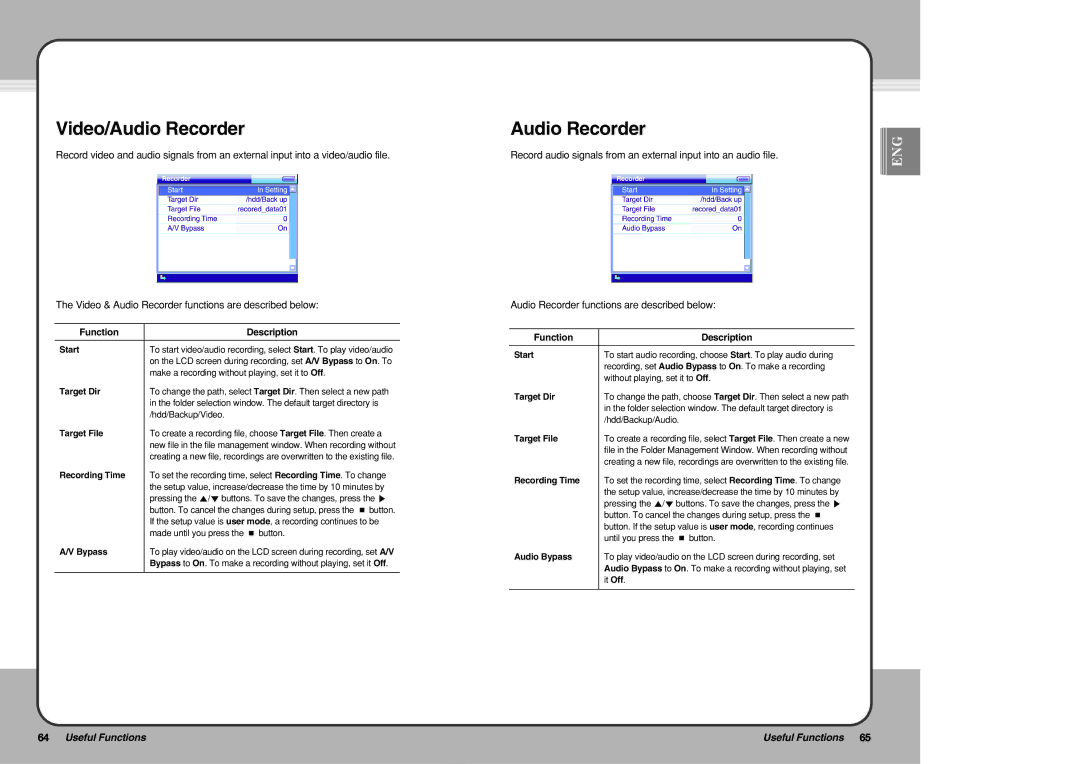
Record video and audio signals from an external input into a video/audio file.
The Video & Audio Recorder functions are described below:
Function | Description |
|
|
Start | To start video/audio recording, select Start. To play video/audio |
| on the LCD screen during recording, set A/V Bypass to On. To |
| make a recording without playing, set it to Off. |
Target Dir | To change the path, select Target Dir. Then select a new path |
| in the folder selection window. The default target directory is |
| /hdd/Backup/Video. |
Target File | To create a recording file, choose Target File. Then create a |
| new file in the file management window. When recording without |
| creating a new file, recordings are overwritten to the existing file. |
Recording Time | To set the recording time, select Recording Time. To change |
| the setup value, increase/decrease the time by 10 minutes by |
| pressing the ▲/▼ buttons. To save the changes, press the ▶ |
| button. To cancel the changes during setup, press the ■ button. |
| If the setup value is user mode, a recording continues to be |
| made until you press the ■ button. |
A/V Bypass | To play video/audio on the LCD screen during recording, set A/V |
| Bypass to On. To make a recording without playing, set it Off. |
|
|
Audio Recorder
Record audio signals from an external input into an audio file.
Audio Recorder functions are described below:
Function | Description |
|
|
Start | To start audio recording, choose Start. To play audio during |
| recording, set Audio Bypass to On. To make a recording |
| without playing, set it to Off. |
Target Dir | To change the path, choose Target Dir. Then select a new path |
| in the folder selection window. The default target directory is |
| /hdd/Backup/Audio. |
Target File | To create a recording file, select Target File. Then create a new |
| file in the Folder Management Window. When recording without |
| creating a new file, recordings are overwritten to the existing file. |
Recording Time | To set the recording time, select Recording Time. To change |
| the setup value, increase/decrease the time by 10 minutes by |
| pressing the ▲/▼ buttons. To save the changes, press the ▶ |
| button. To cancel the changes during setup, press the ■ |
| button. If the setup value is user mode, recording continues |
| until you press the ■ button. |
Audio Bypass | To play video/audio on the LCD screen during recording, set |
| Audio Bypass to On. To make a recording without playing, set |
| it Off. |
|
|


 ENG
ENG
64 Useful Functions | Useful Functions 65 |
|
|