AR-M200 AR-M201
Page
Contents
User Programs Selecting a Setting for a User Program
Specifications Index
Important points when selecting an installation site
20 cm
10 cm
Trademark acknowledgements
Do not touch the photoconductive drum green portion
Software License
Laser information
Using the manual
Online Manual on the accessory CD-ROM
Introduction
Conventions used in this manual and online manual
Main Features
Explanation of illustration
High-speed laser copying
High-quality digital image
Enhanced copying features
Scan once/Print many
LCD panel displays messages
Laser printer function
Preparations
Part Names
Original cover
Interface
Operation panel
AR-M200
Display
Zoom key
Clear ALL key
Connecting the Power Cord
Power off
Power save modes
Preheat mode
Auto power shut-off mode
Paper tray Paper type Size Weight Capacity Type
Loading Paper
Paper
Loading the Paper Tray
Special papers
Gently push the paper tray back into the machine
Important points when inserting paper in the bypass tray
Envelopes
Loading paper in the bypass tray
Open the bypass tray and extend the tray
Press the Tray Select key to select the bypass tray
Changing a Trays Paper Size Setting
Select the tray, and then press the OK
Using the document glass
Making Copies
Normal Copying
Copying books or originals with folds or creases
Using the Rspf
Removing the document cover
Document feeder tray
Press the Start key
Originals that cannot be used in the Rspf
Original output tray extension
Capacity of paper output tray
Paper output tray extension
Setting the number of copies
Selecting the Tray
Press the Tray Select key
Select the number of copies and any other copy settings,
Making a Copy Darker or Lighter
Original types
Press the OK key
Selecting a preset ratio
Fine adjustment of the ratio
REDUCTION/ENLARGEMENT/ZOOM
Press the Zoom key and/or key or key to
Convenient Copy Functions
Automatic TWO-SIDED Copying
To 2 appears, and then press the OK
Place the originals in the RSPF. p.21
When all originals have been scanned, press the key
Sort Copy
Place the first original. p.20 Press the E-SORT/SP.FUNC Key
Until Sort appears and then press
Place the originals. p.21
Press the E-SORT/SP.FUNC SP
Until Sort appears and then press the OK key
If the memory becomes full
Copying Multiple Originals Onto a Single Sheet of Paper
1 copy
Place the first original. p.20 Press the E-SORT/SP.FUNC SP
Key Until 2IN1 appears and then press
ORIG. Size Enter
Using the /RSPF
Place the originals. p.21 Press the E-SORT/SP.FUNC Key
Creating Margins When Copying
Margin shift
Document glass
Place the originals Press the E-SORT/SP.FUNC SP
Margin Shift on OFF
Installing the Software
Software
MFP driver
Sharpdesk
Before Installation
Installation environment and usable software
Hardware and software requirements
Windows Available 98/Me/2000/XP/Vista
Installing the Software
Using the machine with a USB connection
Installing the Software
Select Connected to this computer and click the Next button
Installing the Software
When installing is finished, click the Close button
This completes the installation of the software
Connecting a USB cable
Using the machine as a shared printer
Select Connected via the network and click the Next button
Click the Add Network Port button
You will return to the window of . Click the Close button
Setting UP Button Manager
Windows XP/Vista
Installing the Software
Windows 98/Me/2000
Select Sharp AR-XXXX and click the Properties button
Select Sharp Button Manager T Send to this application
System requirements for USB 2.0 Hi-Speed mode
PRINTER/SCANNER Functions
Using the Printer Mode
Basic Procedure for Printing
Cancelling a print job
Make sure that paper is loaded in the tray
Using the Scanner Mode
Scanning Using the Keys on the Machine
Scanning from the operation panel of the machine
Scanning from Your Computer
Operation in COPY, PRINTER, and Scanner Modes
Button Manager scan menu
HOW to USE the Online Manual
Viewing the online manual
Click to read the online manual
User Settings
Copy mode
User Programs
MIN
OFF
300dpi
10 mm
Explanation Number
50%
LOW
Reset Factory
LSU Setting
Norwegian
Finnish Danish Hungarian Czech Polish Russian Slovak
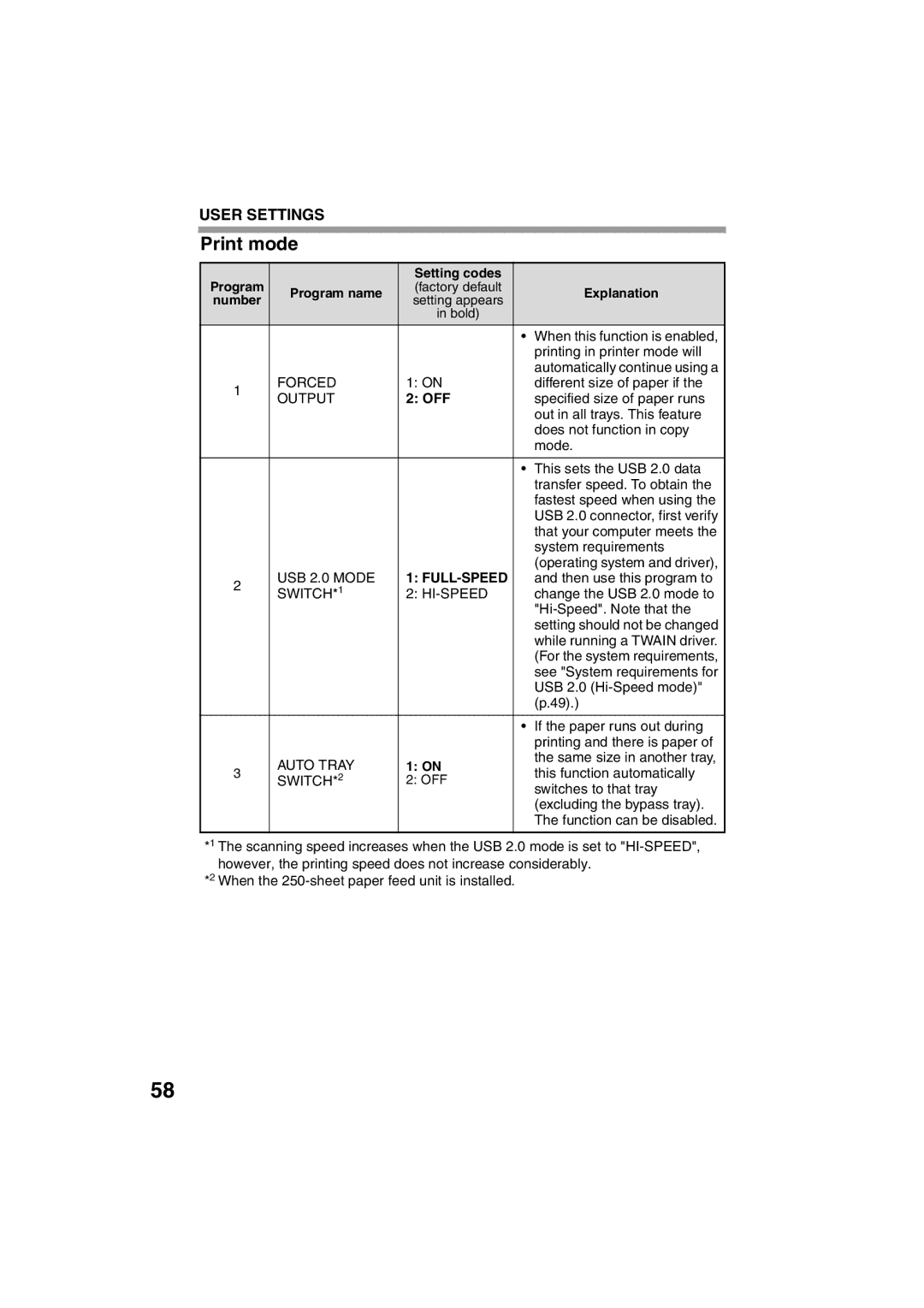
Print mode
Selecting a Setting for a User Program
Press the Menu key and then press the OK key
Base settings
Auto
Account Control Settings
Preparing for Using Account Control Settings
Entering account control mode
Changing password
Enabling auditing mode
Account Number Control
Entering an account number
Deleting an account number
Changing an account number
Resetting account
Total PER Account
Copying When Auditing Mode is Enabled
When the copy job is finished, press the ACC.#-C key
Enter your five-digit account number with the numeric keys
Troubleshooting and Maintenance
Indication Cause and remedy Lamp indicator Display
Display Messages
Install a NEW
Maintenance
For Service Memory FULL, Press Start to
Cartridge is
Troubleshooting the Machine
Paper
Problem Cause and solution Misfeed occur
Paper is outside of the specified Size and weight range
Paper is not loaded properly
Paper misfeed
Memory FULL, Press Start to
Problems During Setup of the Software
MFP driver cannot be installed Windows 2000/XP
Click Performance and Maintenance, and then click System
Click the start button and then click Control Panel
Plug and play screen does not appear
Click the icon beside Universal Serial Bus controllers
Removing the software
Click Icon beside Other Devices
Click Add or Remove Programs
Misfeed Removal
Misfeed in the fusing area
Side cover open button. The error indicator will go out
Ready indicator will light up
Misfeed in the paper feed area
Lower the fusing unit release lever
Misfeed in the transport area
Open the front cover
Misfeed in the Rspf
Document feeder cover Rspf jam release lever
Toner Cartridge Replacement
Gently pull the toner
Cartridge out while pressing the lock release lever
Toner cartridge lock release lever
Scan Head Locking Switch
LockUnlock
Maintenance Required
Checking the Total Count
Press the key or key to display the count of each function
Cleaning the Machine
Cabinet
Document glass and the back side of the Rspf
Transfer Charger
System Configuration
Optional Equipment
Facsimile Expansion KIT AR-FX13
Network Expansion KIT AR-NB2A
Sheet Paper Feed Unit AR-D33
Using the AR-D33 with the printer function
Interface cable
USB interface cable
Specifications
Appendix
Fusing system
Resolution
Power supply
Power consumption
Printer Function
Print speed
Memory
Emulation
Scanner Function
Network Expansion kit AR-NB2A
Reversing Single Pass Feeder AR-RP9
Sheet paper feed unit AR-D33
Facsimile expansion kit AR-FX13
Symbols
Index
Sided Scan
SORT/SP.FUNC SP
Original output tray extension Original guides
Toner cartridge lock release lever
Using convenient copy functions
Connecting the computer
Troubleshooting and maintenance
Preparations
Material Safety Data Sheet
Hazards Identification
Exposure Controls / Personal Protection
Transport Information
Supplier Identification
Hazards Identification
Exposure Controls / Personal Protection
Ecological Information
Other Countries outside the EU
Mains Plug Wiring Instructions
Class Laser Product Laser Klasse
Sharp Manufacturing France S.A