Model PD606
Safety Instructions
Important Safety Instructions
Table of contents
Basic connections
Names and functions
Recording/playback
Advanced operations
Force jam to external time code Cue point setting
101
Basic playback
Menu mode
196
171
180
Specifications
Introduction of this manual
About replacing the lithium battery
Precautions on installation
Introduction Location Recorder Model PD606
Main features
Main features and functions
Time Code IN/OUT connectors
Stereo bus output connector
PD606 Shoulder belt Driver software CD
What is in the box?
Main features Location Recorder Model PD606
Table of contents
Preparation before using the PD606
Preparation of power supply
Mounting the battery
Low battery warning setting
Important settings for using the battery
Protector adjustment
Battery condition display
Saving the battery power
Dismounting the battery
Low battery warning setting
Using DC-IN Connecting the AC adaptor
Important settings for using DC
Power switch
Turning on the power
Use the Menu dial to adjust the display contrast
Turning off the power
Press the ENTER/YES key to confirm the setting
Display backlight and contrast
While SYS Setup is highlighted, press the ENTER/YES key
Internal clock setting
Enter the desired date/time data
Use the Menu dial to select Edit and press the ENTER/YES key
Inserting a disk
Preparation of a DVD-RAM disk
Slide the Open lever to the right
Insert a disk to the drive slot
Drive
Initial format of a DVD-RAM disk
Reel No
Format
While Are you sure? flashes, press the ENTER/YES key
Press the ENTER/YES key
While Reel No S001 is highlighted, press the ENTER/YES key
How to set the desired reel number
After formatting, press the Exit key to exit the Menu mode
Replacing the internal hard disk drive
Cover the slot with the panel and fix it with four screws
Insert the optional hard disk drive to the slot
Names and Functions
Internal monitor speaker
Angle adjustment arm
Handle
USB Kybd connector Series a Receptacle/USB
ST BUS OUT connector XLR-5-32 type/balanced
USB PC connector Series B Receptacle
DC in 12-24V connector XLR-4-32 type/male
Time Code OUT connector XLR-3-32 type/balanced
Analog Input connectors XLR-3-31 type/balanced
Time Code in connector XLR-3-31 type/balanced
Right side panel
WORD/VIDEO in and Word OUT connectors BNC type
Word in termination switch
Digital I/O connector D-sub 25-pin/female
Angle adjustment arm 9P-REMOTE connector D-sub 9-pin/female
Operation
Shift key/indicator
Power switch
About Non-shift mode and Shift mode
Front panel
Time / TC SET key
Quick SET key
File SEL / DRV, PAT key
Light / Contrast key
MENU/LINK Master dial / ENTER/YES key
Access indicator HDD, DVD
Locate key
Clear key
JAM switch
PRE REC switch
Slate TONE, OFF, MIC switch
14. / Prev and / Next keys
REC key/indicator red
Pause key/indicator green
Circle Take / False Start key
Slate microphone
ST BUS Ready key for stereo tracks
Mixer section
ST BUS Master control
Ready key for each track
REV. indicator
PEAK/LINK indicator
LIM. indicator
Ready indicator
Monitor select dial
Monitor mode select switch
Monitor section
BATT2 indicator
BATT1 indicator
Monitor control
Phones jack
Microphone power supply switches
Input SEL switches
HPF switches
Stop key/indicator green
Rear panel
Battery mount
Open lever
Protectors
Home screen
LCD display details
Time display
Ubit ABS
Status information
Disk remaining
File name/Next file name
Current drive/file number
Protect icon
Menu list screen
Screen examples
Edit EDL File menu screen
Other connection
Input connection
Output connection
Digital audio signals External time code Sync signal
Analog audio signals mic/line
Input connection
Analog audio input connection
Time code input connection
Sync signal connection
Digital audio input connection
Analog audio devices
Output connection
External analog Device External device
Digital audio devices External device
Digital audio output connection
Analog audio output connection
Time code output connection
Word clock output connection
USB keyboard connection
Other connections
Function keys
USB keyboard
Control key
Shortcuts
Other keys
CTRL+ L key Acts the same as the Locate key on the panel
External controller connection
PC connection
How it works
CUE point entry
Optional AC adaptor, etc
Power connection
Connection example for recording
Connection examples
External TC generator
Camera
VTR
For backup purpose
Basic connections Location Recorder Model PD606
Playback
Recording analog audio signals
Recording digital audio signals
Preparation before recording
Setup for recording in quick setup mode
How to make settings in the quick setup mode
23 23.97, 24, 25, 29.97DF, 29.97ND, 30DF, 30ND
Frame rate selection for LTC or external time code
System clock reference selection
Clock pull up/pull down setting
TC generator mode setting TC recording mode
Sampling frequency and bit length selection
Free Free Run, Rec-R Rec-Run, 24H-R 24H-Run, EXT Ext Run
Power source priority selection
Settings in the Menu mode
Recording source setting
Pre/post fader selection
Maximum file size setting
Default file name setting
Partition link setting
Error tone output setting
Input signal selection
Mixer settings
Limiter setting
High-pass filter setting
About gain adjustment
Adjusting the input gain for channels 1 through
Limiter function
Zero-crossing control function
Input channel link
Controlling signals sent to the stereo bus
Phase setting for channels 1 through
Monitors a solo track/input channel
Monitoring recording signals
Arming tracks safe/ready setting
44.1kHz/24Bit , 48kHz/24Bit
Selecting the drive for recording
When the DVD drive is selected When partition 2 is selected
Starting recording
Recording analog audio
Press the Ready key to arm the desired track for recording
Slide the REC key
About overloading during recording
Canceling recording False Start
Recording in Pre rec mode
Hints
Recording a slate tone/slate mic signal
Selecting recording source
Recording digital audio
Selecting the sampling frequency/bit length
Selecting the system clock
Recording time code
Selecting the TC generate mode TC recording mode
Selecting the TC frame rate
Time code starts from the internal RTC real-time clock data
Automatic record start by external time code
Setting the time code output
Off
Repro
Force jam to external time code
Set the JAM switch to on
Viewing the cue point list
Cue point setting
Setting a cue point on the fly during audio recording
Editing a cue label
Editing a cue point
Deleting a cue point
Adding a new cue point to the cue point list
Selecting a file from the File SEL screen
Basic playback
Normal audio playback
Time code playback
100
Cueing playback
101
Skip / locate functions
Skipping by file
Skipping by cue point
Locating to the beginning ABS 0 of a file
102
Locating to the end REC END of a file
Locating to the previous locate point
After entering desired time value, press the Locate key
103
Locating to the desired time
Locating to the desired cue point
104
105
Selecting a partition
Back ground mode
106
107
Selecting auto copy mode
108
Pressing the Exit key repeatedly to exit the Menu mode
Making auto copy
Slide the REC key to start recording to the partition
DVD-RAM disk Hard disk partition
109
Selecting source drive
Making disk copy
110
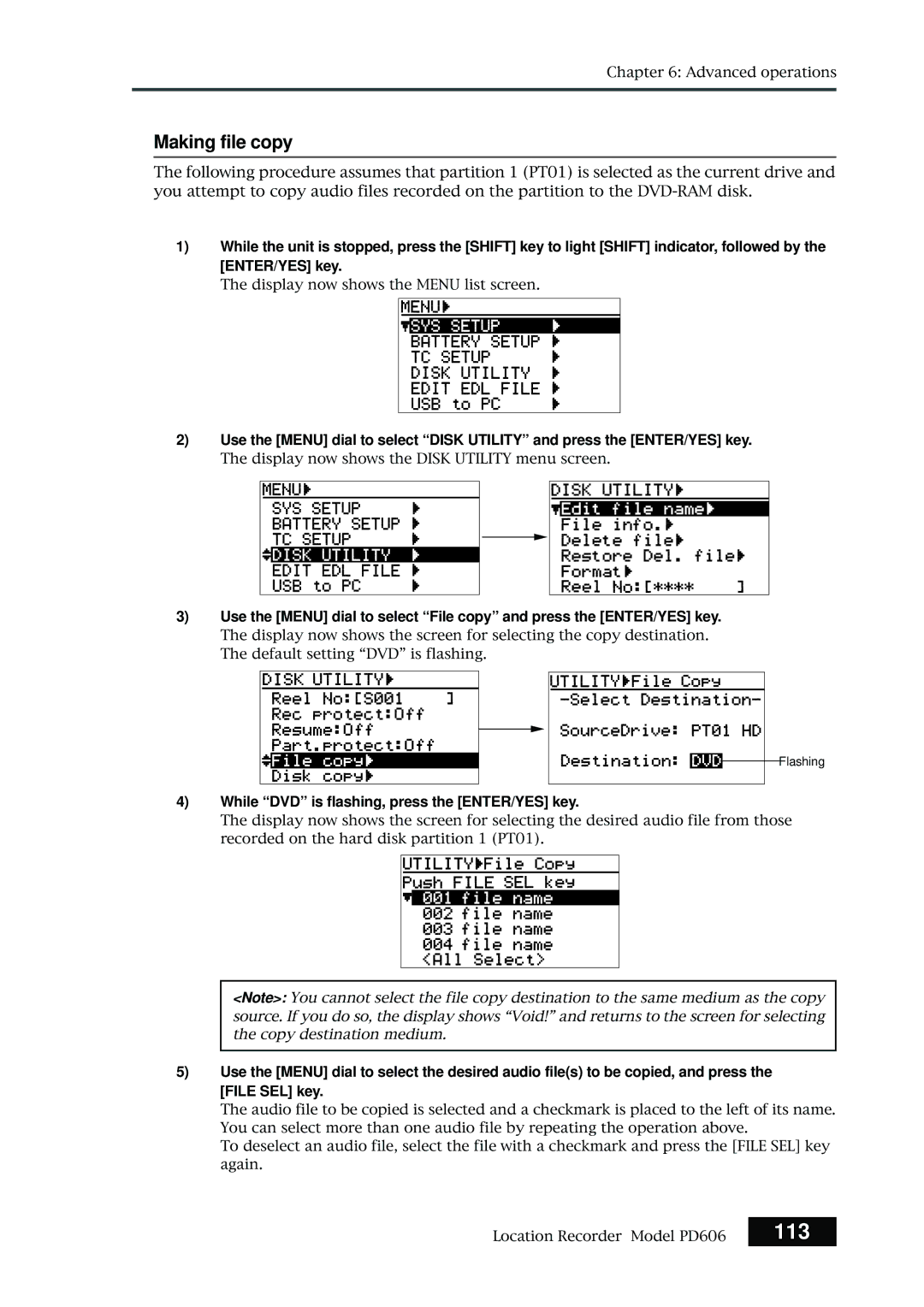
While DVD is flashing, press the ENTER/YES key
Rec area
If you are sure, press the ENTER/YES key
111
112
File copy function
Making file copy
113
When a recorded DVD-RW or CD-RW is set
When a recorded DVD-R or CD-R disk is set
114
After making audio file selection, press the ENTER/YES key
About mirror disk
Formatting in the DDR mode
115
Use the Menu dial to select DDR and press the ENTER/YES key
116
Making dual drive recording
117
Macintosh OSX
118
Macintosh OS
119
Connecting PC to the unit
How to unmount the PD606 from the PC
Example of exporting data to a computer application
120
Example of copying data to a computer hard disk
Click on Convert -, followed by Done indicated by an arrow
121
122
123
Creating and editing ALE files Edit EDL File menu
About an ALE file
Creating a new ALE file
While New file is highlighted, press the ENTER/YES key
125
You can select between On and Off the default is Off
After making necessary settings, press the Exit key
While Video format is highlighted, press the ENTER/YES key
You can select from among 23.97, 30, 24, 29.97
127
Adding audio file entries to an ALE file
While ALL-TAKE.ale is highlighted, press the ENTER/YES key
While New entry is highlighted, press the ENTER/YES key
After adding audio file entries, press the Exit key
How to set Circle Take to a file
Viewing audio file entries
Viewing and editing audio file entries
129
Deleting an audio file entry
Adding an audio file entry to an existing ALE file
Press the Exit key twice
Press the ENTER/YES key to resave the ALE file
131
Editing an ALE file
Editing an ALE file name
After completing editing the name, press the ENTER/YES key
While Remake ALE is highlighted, press the ENTER/YES key
Remaking an ALE file
Select the desired type and press the ENTER/YES key
Audio file entry list in the ALE file is not
Deleting an ALE file
133
After Remake ALE completes, press the Exit key
Press the ENTER/YES key to delete the file
Page
135
Menu mode
Menu list screen Whole Menu list
Shift key
137
Menu name Contents
SYS Setup menu
Press the Exit key repeatedly until you exit the Menu mode
Project name setting Set project name
Characters you can enter using the Menu dial
Characters you can enter using the alphanumeric keys
Date
Default file name setting Default file name
Take
Reel
Any number between 001 and 999 can be entered
141
After entering the scene name, press the ENTER/YES key
Default track name setting Default TrkName
143
Next event number setting Next event No
Recording FS/bit length setting Record FS&Bit
145
Pull up/down setting Pull up/down
Analog
Recording source setting Rec source sel
Digital
147
Digital output signal format selection Digital out
Off Does not create a diagnoses file
Diagnoses file setting Diagnoses
You can select from among On and Off the default is On
149
Peak hold time setting Peak hold
Tone rec On/Off setting
Slate tone/pop tone recording mode setting Tone rec mode
Tone rec time setting
151
End pop tone setting
Pause cancel time setting Pause time
153
USB keyboard type setting Keyboard Sel
Pre recording time setting Pre rec time
155
Maximum file length setting Max file length
Selectable between 2GB and 4GB the default is 2GB
Continuous recording function Auto part. link
Selectable between On and Off the default is Off
Ends
Continues recording on the next partition
157
When Max file length is set to 4GB
Examples
False start mode setting False start
159
Limiter parameter setting Limiter parameter
Selectable between 1 3 and 1 5 the default is 1
Selectable between -12dBFS and -6dBFS the default is -6dBFS
Ratio setting
161
ST BUS OUT nominal level setting Stereo out level
Custom settings for monitoring Monitor custom
163
You can select between On and Off the default is On
Monitor speaker mute setting Speaker mute
165
Error tone output setting Error tone
Write error On or Off setting
Options
Input clip On/Off setting
167
Disk warning time setting
Unit stops when an audio file is played back to the end
Chain play mode setting Chain play
Back to the end
AutoPly
Signal unaffected by the Send Level control is recorded
You can select from among Pre or Post the default is Pre
Pre/post fader selection Disk Feed
169
ROM version checking Version
DC-IN warning
Active battery
171
While BATT. warning is highlighted, press the ENTER/YES key
Battery low voltage warning setting BATT. warning
173
DC-IN low voltage warning setting DC-IN warning
DC-IN and Batt the default is DC-IN
Power supply priority setting Power priority
175
Battery priority setting Active battery
BATT1 and BATT2 the default is BATT1
Power priority BATT., Active battery BATT1
Battery setting examples
Power priority DC-IN, Active battery BATT1
BATT2
177
Battery remaining time BATT. Remain
Currently used battery is highlighted
Battery status BATT. status
179
Age in one minute steps
180
181
System clock selection Sync clock
While Sync Clock is highlighted, press the ENTER/YES key
Video
182
TC frame rate selection Frame rate
183
Generator mode selection Gen mode
184
Internal TC generator setting Set Gen TC
When Rec Run is selected When Free Run is selected
185
Editing the time code value in Rec run mode
Editing the time code value in Free run mode
186
User bit setting Set Gen Ubit
Jamming the time code value in Free run mode
Editing the user bit
187
188
Jam mode setting JAM mode
Used
Is used
189
Time code output source selection Sel. TC Out
Repro
Gen
Press the ENTER/YES key again
Default LTC start time setting Default LTC start
190
191
LTC start time editing Edit LTC start
192
Ubit setting of playback time code RepTC Ubit
MMDDYYff
DDMMYYff
Time code output while paused Rep pause TC
You can select from among On and Off the default is Off
193
Off
194
Automatic recording start by external TC Recin via ExtTC
Unit, the unit automatically starts recording
Unit, the unit does not automatically start recording
195
Internal TC generator power-off timer TC PWR Timer
196
Enter the desired name
Editing a file name Edit file name
197
198
199
Line No Contents Details
Editing descriptor information
200
Adding descriptor information
Deleting descriptor information
Viewing iXML Chunk data information
201
Editing iXML Chunk data information
Select iXML descriptor and press the ENTER/YES key
202
Deleting an unnecessary audio file Delete file
203
Restoring a deleted audio file Restore Del. file
Formatting a disk or a hard disk partition Format
Format Mode
204
Drive
Format mode selection
Volume label setting
Make settings of the items
205
Normal
Physical format on/off setting
206
While Execute is highlighted, press the ENTER/YES key
207
208
Editing the reel number Volume label Reel No
209
Record protection On/Off setting Rec protect
210
Resume function On/Off setting Resume
211
Partition protection On/Off setting Part. protect
212
HDD operating time display HDD Ope. Time
213
Load Setup menu
User box name entry
User box selection
You can select between Box No0 and Box No6
215
Specifications
Inputs/outputs
217
Recording/playback
General
Physical dimensions
Block
Diagram
Index
221
Affect of Immunity on This Equipment
Declaration of EC Directive
For the US Customers only
Fostex America Limited Warranty Shipping
Page
465333