In search results, the distance and bearing to the selected item will be calculated from the current position. In the case of a cursor search, the search results show distance and bearing from the cursor, but an indi- vidual waypoint's information screen shows distance and bearing from the cursor.
Find Addresses
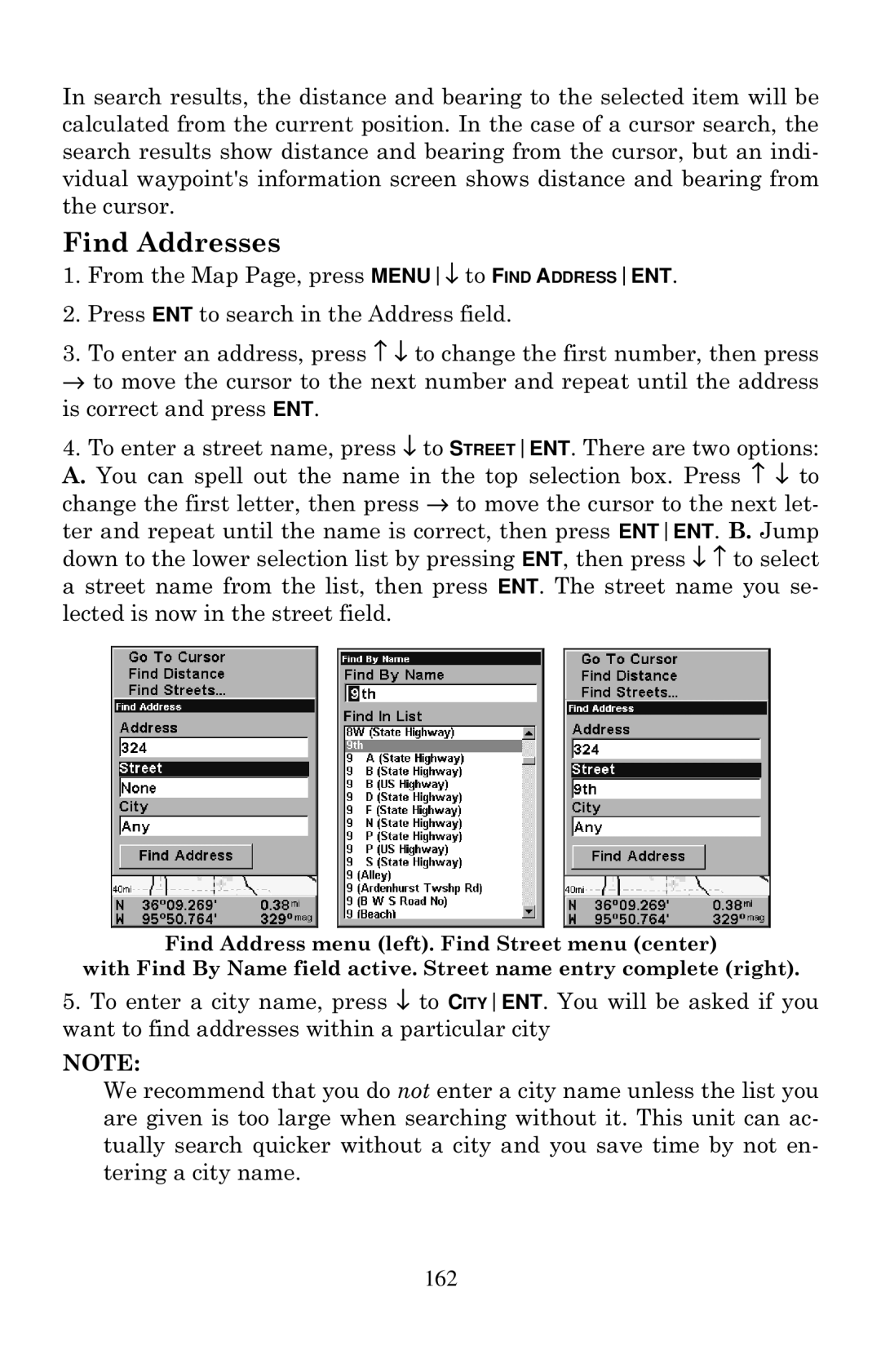
1.From the Map Page, press MENU↓ to FIND ADDRESSENT.
2.Press ENT to search in the Address field.
3.To enter an address, press ↑ ↓ to change the first number, then press → to move the cursor to the next number and repeat until the address is correct and press ENT.
4.To enter a street name, press ↓ to STREETENT. There are two options: A. You can spell out the name in the top selection box. Press ↑ ↓ to change the first letter, then press → to move the cursor to the next let-
ter and repeat until the name is correct, then press ENTENT. B. Jump down to the lower selection list by pressing ENT, then press ↓ ↑ to select a street name from the list, then press ENT. The street name you se- lected is now in the street field.
Find Address menu (left). Find Street menu (center)
with Find By Name field active. Street name entry complete (right).
5.To enter a city name, press ↓ to CITYENT. You will be asked if you want to find addresses within a particular city
NOTE:
We recommend that you do not enter a city name unless the list you are given is too large when searching without it. This unit can ac- tually search quicker without a city and you save time by not en- tering a city name.
162