Xerox 490/980TM Color Continuous Feed Printing System
Page
Table of Contents
Color Calibration Using ColorPort Utility Software
Color Management Overview
Generating the color conversion table
Generating the calibration adjustment tables
CMS Option Tool Overview
Major Functions of the CMS Option Tool
Color Resource Set
CMS Option Tool Setup
Prerequisites to setting up CMS Option Tool
Color Options
Black Overprint Color Characteristics
Printer Name
Print Data
User TRC
Print Mode
Perceptual Default of RGB
Resource Group Name
Absolute
Relative Default of Cmyk
Output Screen Characteristics
Saturation
Custom ink settings
Pre-Printed Paper
Calibration data
Color Management Overview
Measuring devices
Introduction to the CMS Option Tool
Install the CMS Option Tool
CMS Option tool tab menus
After the installation
Uninstall the CMS Option Tool
Cancelling the installation
Select the Print Colorimetric Pattern tab
Using the CMS Option Tool
How to print a colorimetric pattern
Print Colorimetric Pattern
Layout files for the colorimetric patterns
Printer Configuration
Color Conversion Layout Files
Selecting a layout file
Select the Create Calibration Data tab
How to Create Calibration Data
Create Calibration Data
Select the paper type
Upstream printer
Specify data file
Resource set at destination
Execute
Paper Name
Custom Paper
Resource Set at Destination of Downloading
Colorimetric value data for sides
Select Cmyk
Download paper information
Save file as eyeoneisisuped.txt
Registering Custom Paper
Select Save Data
Select Clear Data
Paper Information
Custom Ink Characteristic
Change Paper Properties
Calibration mode
Comment
Download Paper Information
Close
Backup paper information
Save
Save As
Highlight HPAPRINTER1.cntl
Restore of paper information
Color Resource Management
Select Color Resource
Prepare for Color Calibration
Recommended Calibration Conditions
Select this link
Verify Color Calibration Resources
\Imposition Files
\ColorPort Targets
\TRC Viewer
\TOF Mark
\Resource Group Names
\Resource Group Names
Copy Color Calibration Resources
Select Show the Desktop
Download ColorPort Utility Software
Check for Queue and Imposition Files
Check for Existing Imposition Files
Check for Existing Queues
Prepare for Color Calibration
Pre-Calibration4 Engine Density Adjustment
Create an Empty Color Resource
For Simplex Systems
Ensure that Downloading with Calibration is not selected
Pre-Calibration Engine Density Adjustment
For Duplex Systems
Xerox 490/980 Color Continuous Feed Printing System
Import Simplex/Duplex Imposition Files
Set Up Imposition Files
Select Properties located on the bottom of the window
Manipulate the Imported Simplex Imposition File
Double-click DuplexPreCal.forms to open the imposition file
Manipulate the Imported Duplex Imposition File
Create a new Simplex Queue
Create a New Queue
Pre-Calibration Engine Density Adjustment

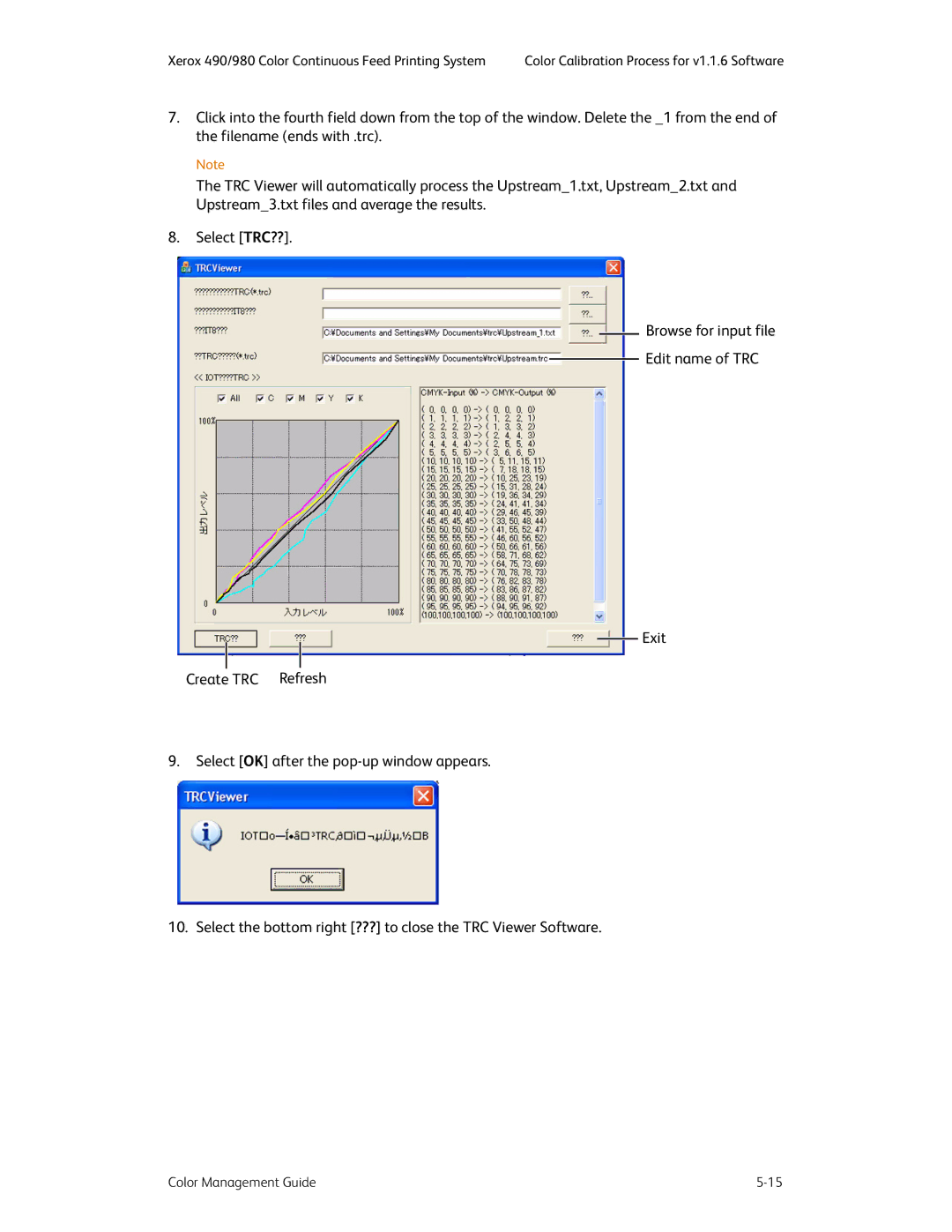
 Browse for input file
 Edit name of TRC