LS-7
Introduction
Trademarks and registered trademarks
Table of contents
Safety precautions
Be careful with the strap
Safety precautions
Handling the recorder
Keep young children and infants away from the recorder
Battery handling precautions
Keep battery out of the reach of children
Safety precautions
Main features
Getting started
Main features
Main features
Checking the contents of the box
Peak indicator light LED LED indicator light LED
= POWER/HOLD switch QBattery cover wUSB connector
Identification of parts
Display LCD panel
Recorder mode display
1Recording media indicator
Identification of parts
# Playback position bar indicator $Icon display P.14
Music mode display
1Recording media indicator
Identification of parts
Identification of parts Icon displayFor all modes
Inserting batteries
Power supply
Close the battery cover
Direction B
Complete the setting
Battery settings
Setting
Recorder P.15
Power supply
Charging by connecting to a computer via USB
Into the AC adapter
Adapter optional to charge
Plug the recorder’s USB cable
Plug the AC adapter into AC outlet
Discharging
Operating temperature
Batteries
Storage for a long period -20C 30C/ -4F 86F
Turning off the power
Turning on/off the power
Turning on the power
Power save mode
Slide the POWER/HOLD switch to
Slide the POWER/HOLD switch to
Set the recorder to Hold mode Exit Hold mode
Hold position Aposition
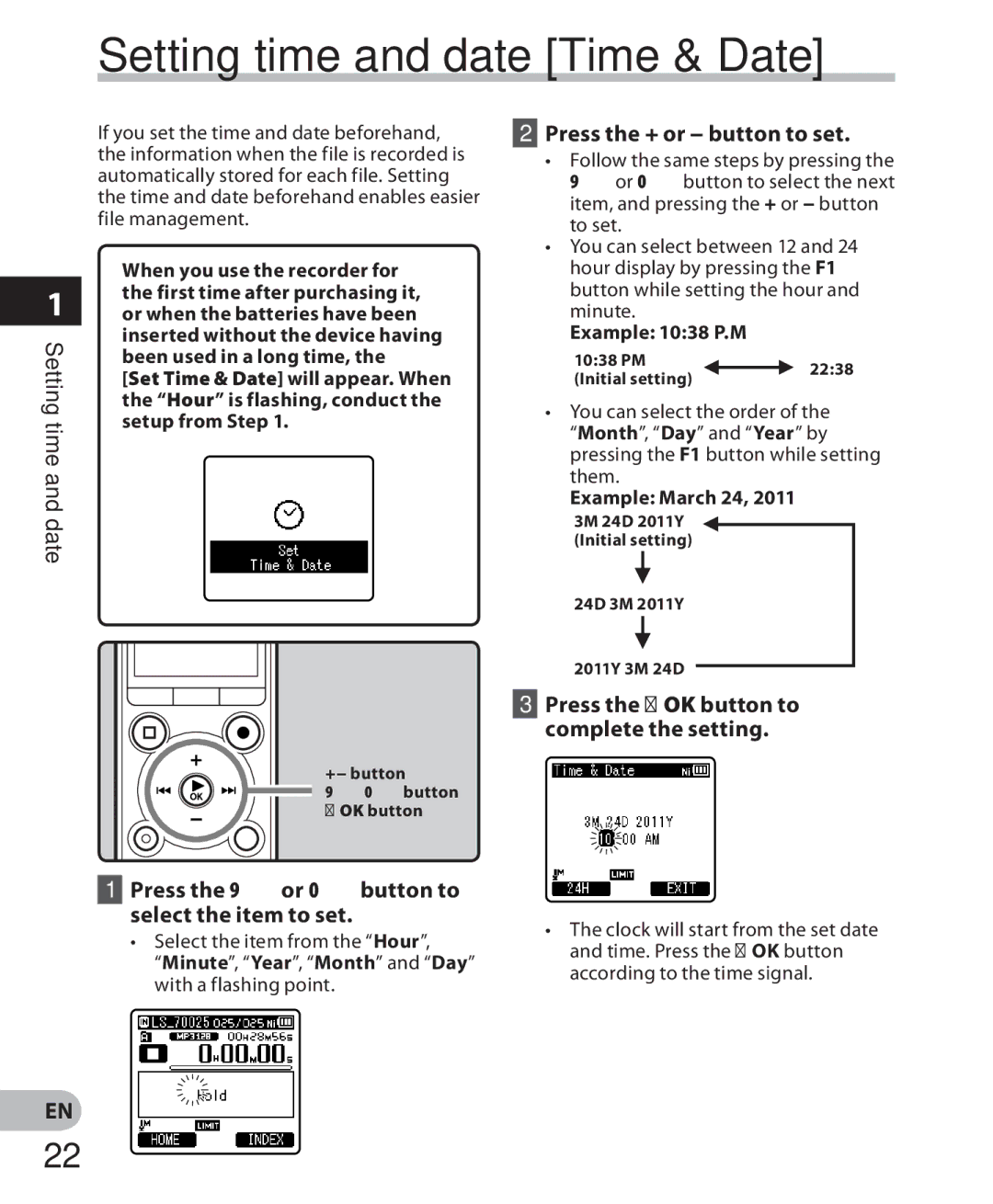
Setting time and date Time & Date
Press the 9or 0button to Select the item to set
Setting time and date Time & Date
Changing the time and date
Inserting and ejecting a microSD card
Inserting and ejecting a microSD card
Inserting a microSD card
Close the card cover securely
Inserting and ejecting a microSD card
Ejecting a microSD card
Home display operations
Press the + or − button to select the mode
Press the List button repeatedly to set the Home display
About the folders for voice recordings
First layer Second layer
About the folder for music playback
Folders
FolderFile
Selecting the folders and files
Select the recording folder
Recording
Press the REC s button to start recording
Press the REC s button to prepare recording
Recording
Recording
Press the Stop 4 button to Stop recording
It is possible to record exceeding 2GB
Press the REC s button again
Settings relating to Recording
To quickly check on the recorded contents
Pause
Press the + or − button to select Rec Scene Recording
Changing the recording scene Rec Scene
Connect the earphone to the EAR jack on the recorder
Listening while audio is recorded
LS7 0001 .MP3
Recommended settings by recording condition
Recording Recommended settings
Condition
Recording from external microphone or other devices
Applicable external microphones optional P.96
Recording the sound of other devices with this recorder
Recording the sound of this recorder with other devices
Range from 00 to
Volume can be adjusted within a
Playback
Stop 4 button + − button `OK button
Playback
Settings relating to playback
Playback through earphone
While
Hold the 9button Hold the 0button
Playback mode, press
9button
While the recorder is during
While the recorder is during stop
Changing the playback speed
Noise Cancel P.57
About the limits of fast playback
Clearing an index mark or a temp mark
Setting an index mark or a temp mark
F2 Index button 90button Erase button
Repeat playback
How to begin segment repeat playback
F1 A-B button
BPress the Stop 4 button
Canceling the segment repeat playback Function
Changing the playback scene Play Scene
CPress the 9button
Erasing files
Erasing
Erasing a folder
Partially erasing a file
Erasing
Play the file you want to partially erase
When Partial erase completed. is
Press the Erase button
Menu setting method
Menu setting method
Press the + or − button to change the setting
Setting menu during recording
Menu setting method
Setting menu during playback Close the menu screen
+ File Menu
Rec Menu
Select the recording rate
Adjust the recording level
Select the recording format
Select Manual or Auto
Low Cut Filter
About the Zoom Mic function
Zoom Mic
300Hz
Adjust the start/stop actuation level
Select On/Off or Standby Sets the Vcva function
Select On or Off
Adjust the voice sync level
Press the 9or 0button to adjust the voice sync level
Sets the detection time
Set the recording settings according to your preferences
When Scene Save is selected
When Scene Select is selected Select a recording scene
Select Scene Select or Scene Save
Press the REC s button
How to enable pre-recording
Plug-inPower
Pre-Recording
Play Menu
Noise Cancel
Voice Filter
Forward/Reverse Skip Playback
Select the desired playback mode Select Repeat or Random
Select Forward Skip or Reverse Skip Set the skip space
Play Scene
When Scene Select is selected Select a playback scene
Set the playback settings according to your preferences
Reverb
Select Lighting Time or Brightness Select the setting
LCD/Sound Menu
Menu settings after resetting initial settings
Device Menu
Format
System Info
Memory Info
Press the + or − button to select the file you want to move
Rearranging files Replace
Press the F2 Exit button to close the menu screen
F2 button + − button `OK button
Press the `OK button to move to the respective setting
Moving/Copying files File Move/Copy
When you select All files
When you select 1file
When you select Selected files
Press the F2 GO button
Stop playback at the divide position
Press the F2 Exit button to complete the setting
Dividing files File Divide
Press the + button to select Start Press the `OK button
On/Off setting
Timer recording Timer Rec
Select Timer Rec from the menu on the Rec Menu
Day setting
Folder setting
Time setting
Rec Mode setting
Mic Sense setting
Select Alarm from the menu on the Play Menu
Alarm playback function Alarm
Volume, Alarm Sound and Playback File
Volume setting
Press the `OK button to move to the respective setting
Start Time setting
Alarm Sound setting
Select the folder using the + or
Guidance Voice Guide
Speed setting
Select Voice Guide from the menu in LCD/Sound Menu
When USB Connect is selected
Changing the USB class USB Settings
Select USB Settings from the menu on the Device Menu
When USB Class is selected
Formatting the recorder Format
Method Select Format from the menu on the Device Menu
Setting method
Menu
Setting
Method
Operating environment
Windows
Macintosh
Precautions on using the recorder connected to a PC
Operating environment
Operating System Display
Functions available in the Olympus Sonority
Using Olympus Sonority
Sonority
Using Olympus Sonority
Installing software
Changing the Installation Destination
Using Olympus Sonority
Exit Olympus Sonority Select Control Panel from Start menu
Uninstalling software
Using Olympus Sonority
Exit Olympus Sonority
Start Olympus Sonority
Copying voice guide data
Connect the recorder to a PC
Copy voice guide data
Or click the button in the Tool Bar
Upgrade function
Start the Olympus Sonority
Select Purchase Olympus Sonority Plus in the Help Menu
Functions available in the Olympus Sonority Plus
Functions available with the music editing plug-in
Search by contents
Using online help
Search by keyword
Windows
Connecting to your PC
Connecting to your PC
Macintosh
Disconnecting from your PC
Connecting to your PC
Data will be destroyed
Transfer the voice files to your PC
Using as external memory of the PC
Using as external memory of the PC
Alarm message list
Alarm message list
Message Meaning Explanation Action
To PC and delete
Can’t make
System file. Connect
Unnecessary file
Symptom Probable cause Action
Troubleshooting
Troubleshooting
Troubleshooting
Troubleshooting Symptom Probable cause Action
Cannot recharge
Unable to set index
Marks, temp marks
Recorder
Accessories optional
Specifications
During playback mode
Specifications
During recording mode Built-in microphone
During recording mode Microphone jack
During playback mode
Guide to battery life
Recording mode Built-in stereo microphone Earphone playback
Alkaline batteries
MP3 format
100
Linear PCM format
WMA format
101
Linear PCM format
Declaration of Conformity
Technical assistance and support
Canadian RFI
Olympus Imaging Corp