Storing an AutoDial number
Displaying an AutoDial number
Using Ring Again
Enter the Ring Again Activate Flexible Feature Code
Activating Ring Again
Calling a Ring Again party after notification
Press the Ring Again Deactivate FFC
Using Last Number Redial
Deactivating Ring Again before notification
Storing a Speed Call number
Using Speed Call
Making a call using Speed Call
Using System Speed Call
Using HotLine
Press the System Speed Call
Controller SScCtl soft key
Using Intercom Calling
Making an intercom call
Managing calls while not on a call
Using Automatic Answerback
Answering a call
Using Call Pickup
Activating Automatic Answerback
Deactivating Automatic Answerback
Answering a call in your own call pickup group
Answering a call in another call pickup group
Enter the Pickup Directory Number
Using Call Hold
Managing calls during a call
Using Call Waiting
Placing a call on hold
Retrieving a call on hold
Answering an call during another call
Transferring a call to a third party
Transferring a call
Returning to the original call
Using Timed Reminder Recall
Transferring a call using Timed Reminder Recall
Using Attendant Recall
Parking a call on a DN Not System Park DN or own DN
Using Call Park
Parking a call on the System Park DN
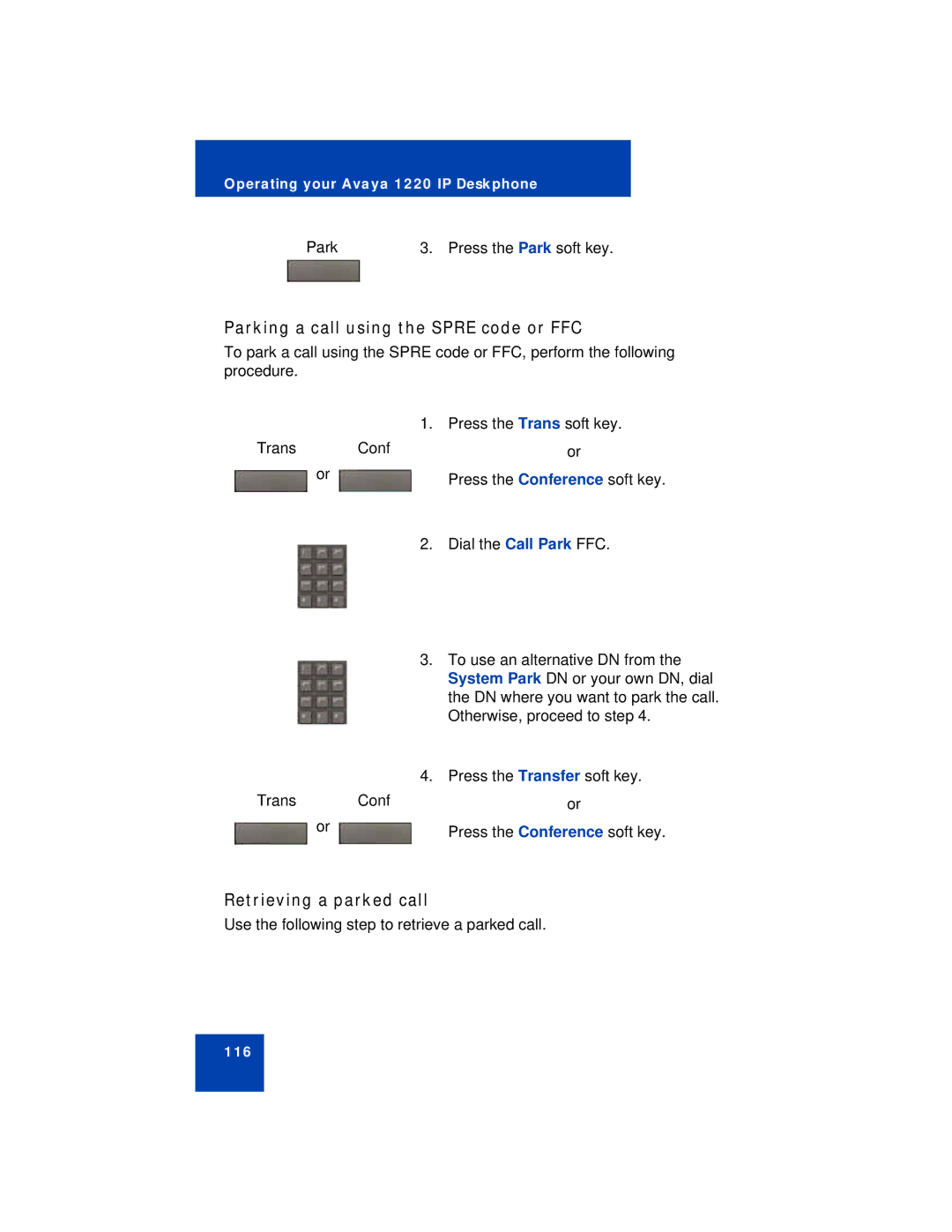
Parking a call using the Spre code or FFC
Retrieving a parked call
Recording a Calling Party Caller Number
Transfer on
Displaying call details
Using Call Forward
Managing calls while away from your desk
Activating Call Forward
Deactivating Call Forward
Using Internal Call Forward
Reinstating a Call Forward number
Forwarding internal calls only
Call Forward Activate FFC
Using Remote Call Forward
Deactivating Internal Call Forward
Reinstating Internal Call Forward number
Activating Remote Call Forward
Deactivating Remote Call Forward
After you hear the dial tone, dial your DN Press the # key
Managing multiparty calls
Using Call Join
Setting up a Conference Call
Goodbye key
Corporate Directory or Personal
Directory , Redial List , and Callers List
Viewing active conferees
Using Conferee Selectable Display
Disconnecting a conferee
Using Group Call
Calling group members
Conference Count Display returns an
Call FFC
Answering a group call
Ending a group call
Using Make Set Busy
Managing calls while busy at work
Call Deflect
Activating Make Set Busy
Call deflect
Configuring Automatic Wake-Up
Hotel applications
Entering Automatic Wake-Up call
Dial the Automatic Wake-Up Request FFC
Cancelling Automatic Wake-Up call
Dial the Automatic Wake-Up Quit FFC
Activating Message Registration
Verifying Automatic Wake-Up call
Reading meters
Dial the Automatic Wake-Up Verify FFC
Changing meter
Entering cleaning status
Using Maid Identification
Resetting a meter to zero
136
Using Room Status
Displaying room status
Changing the status of a room
Using Radio
Paging Features
Using Call Page Connect to make an announcement
Dial the Radio Paging Access FFC
Using Automatic Preselection Meet-Me
Using Automatic Post-selection
Answering a Radio
Dial the Radio Page Answer FFC. You hear the paging tone
Call Override Features
Using Voice Call
Making a voice call
Responding to a voice call
Overriding a busy signal
Using Forced Camp-on feature
Using Forced Camp-on
Answering a call camped-on to your extension
Using Enhanced Override
Using AutoDial Transfer
Using Centrex Services
Using Centrex or Exchange Line Switchhook Flash
Tracing with the Call Trace key
Miscellaneous call features
Tracing calls
Using Call Trace without a Call Trace key
Charging a call or charging a forced call
Charging a call in progress
Dial the Call Detail Recording FFC
Charging a transferred call to an account