Visor Handheld User Guide
Software diskettes available
Copyright
Disclaimer and limitation of liability
Contents
Common Tasks
Managing Your Applications
Overview of Basic Applications
Application Specific Tasks
Communicating Using Your Handheld
Setting Preferences for Your Handheld
Advanced HotSync Operations
Appendix B Troubleshooting Tips
Appendix D Non-ASCII Characters for Login Scripts
Warranty and Other Product Information
Appendix a Maintaining Your Handheld
About This Guide
Page
Getting to know your Visor handheld
What is a Visor handheld?
Chapter
System requirements
Windows minimum requirements
Macintosh minimum requirements
Optional equipment
Upgrade information
Locating front panel controls
Visor components
Each handheld must have a unique name
Power
Application
Buttons
Scroll
Using the backlight
Protective cover
Locating back panel components
Installing the batteries
Tapping and typing
Tap with the stylus to get things done
Icons Abc 123 Check box Pick list
Elements of the handheld interface
Menu bar
Opening applications
Next
Previous
Arrows
Using menus
Graffiti menu commands
Choosing a menu
Displaying online tips
Command
Three ways to enter data
Onscreen keyboard
Graffiti writing
Press the Memo Pad application button Tap New
Using Palm Desktop software
Importing data
Customizing your handheld
Palm Desktop software
With Palm Desktop software, you can do the following
Connecting the cradle
Installing Palm Desktop software
Using your handheld with Microsoft Outlook Windows only
Using your handheld with another PIM
Installing a Springboard module
Using Graffiti writing to enter data
Writing Graffiti characters
Lift stylus here Start stroke at heavy dot
Graffiti tips
Graffiti alphabet
Writing capital letters
Writing numbers
Caps Shift
Caps Lock
Number
Graffiti numbers
Writing punctuation marks
Writing symbols and extended characters
Additional Graffiti punctuation
Additional non-English characters
Writing accented characters
Accent strokes
Navigation strokes
Graffiti ShortCuts
Move cursor right Move cursor left
Next Field Address Book only
Using the onscreen keyboard
Entry ShortCut
Using your computer keyboard
Importing data
To import data
Using the Applications Launcher
Switching between applications
Selecting applications
Categorizing applications
Changing the Applications Launcher display
Choosing preferences
Installing and removing applications
Installing add-on applications
Chapter
Installing games
Removing applications
Removing Palm Desktop software
Security, you can do the following
Assigning a password
Security
Changing or deleting a password
Locking your handheld
Recovering from a forgotten password
Overview of Basic Applications
Date Book
Date Book, you can do the following
Date Book Plus
Date Book Plus, you can do the following
Address Book
Address Book, you can do the following
To Do List
To Do List, you can do the following
Memo Pad
Memo Pad, you can do the following
Calculator
Calculator, you can do the following
CityTime
CityTime, you can do the following
Expense
Expense, you can do the following
Overview of Basic Applications
Common Tasks
Creating records
Edit menu
Editing records
Entering text
Undo
Cut
Copy
Paste
Deleting records
Other ways to delete records
Purging records
Exchanging and updating data HotSync operations
Performing a HotSync operation for the first time
HotSync button
Categorizing records
System-defined and user-defined categories
To move a record into a category
To define a new category
To rename a category
Finding records
Looking up Address Book records
Using Find
Using Phone Lookup
Phone Lookup tips
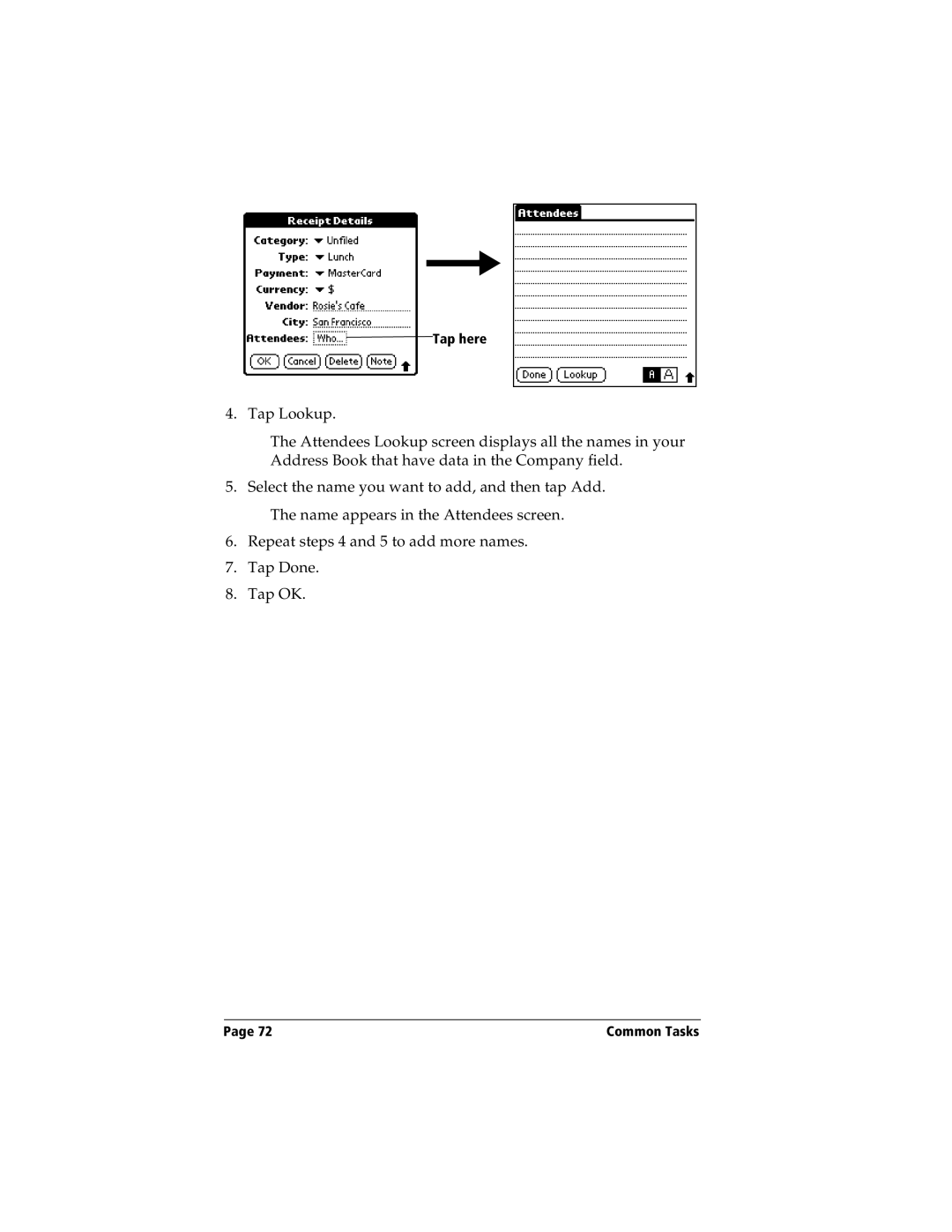
Looking up names to add to expense records
Tap here
Sorting lists of records
Making records private
Hiding private records
Enter your password, and then tap Show
Attaching notes
Choosing fonts
Common Tasks
Application Specific Tasks
Scheduling an event
Tap the time of an event
To schedule an event for another day
Tap a blank area on the screen to deselect the untimed event
Setting an alarm for an event
Rescheduling an event
Scheduling repeating or continuous events
Considerations for repeating or continuous events
Changing the Date Book view
Working in Week View
Tips for using Week View
Spotting event conflicts
Tips for using Month View
Working in Month View
Date Book menus
Record menu Options menu
Chapter
Preferences
Book