Power button
W . d e l l . c o m s u p p o r t . d e l l . c o m
PCI
PCI Express x1
June NF132
Contents
Advanced Troubleshooting
Connecting and Disconnecting Drive Cables
Using Microsoft Windows XP System Restore
Resolving Software and Hardware Incompatibilities
100
Clearing Forgotten Passwords and Cmos Settings
102
Glossary Index
Contents
Finding Information
What Are You Looking For? Find It Here Warranty information
Finding Information
Use the Service Tag to
When you use
Service Code to direct
Microsoft Windows License Label
Click the arrow icon
Click the topic that describes your problem
Follow the instructions on the screen
Finding Information
Setting Up a Printer
Connecting a USB Printer
Setting Up and Using Your Computer
Printer Cable
Connecting to the Internet
USB connector on computer USB printer cable
Setting Up Your Internet Connection
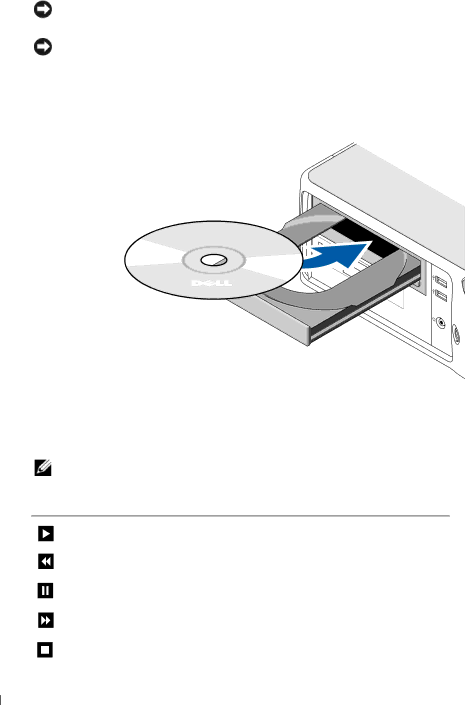
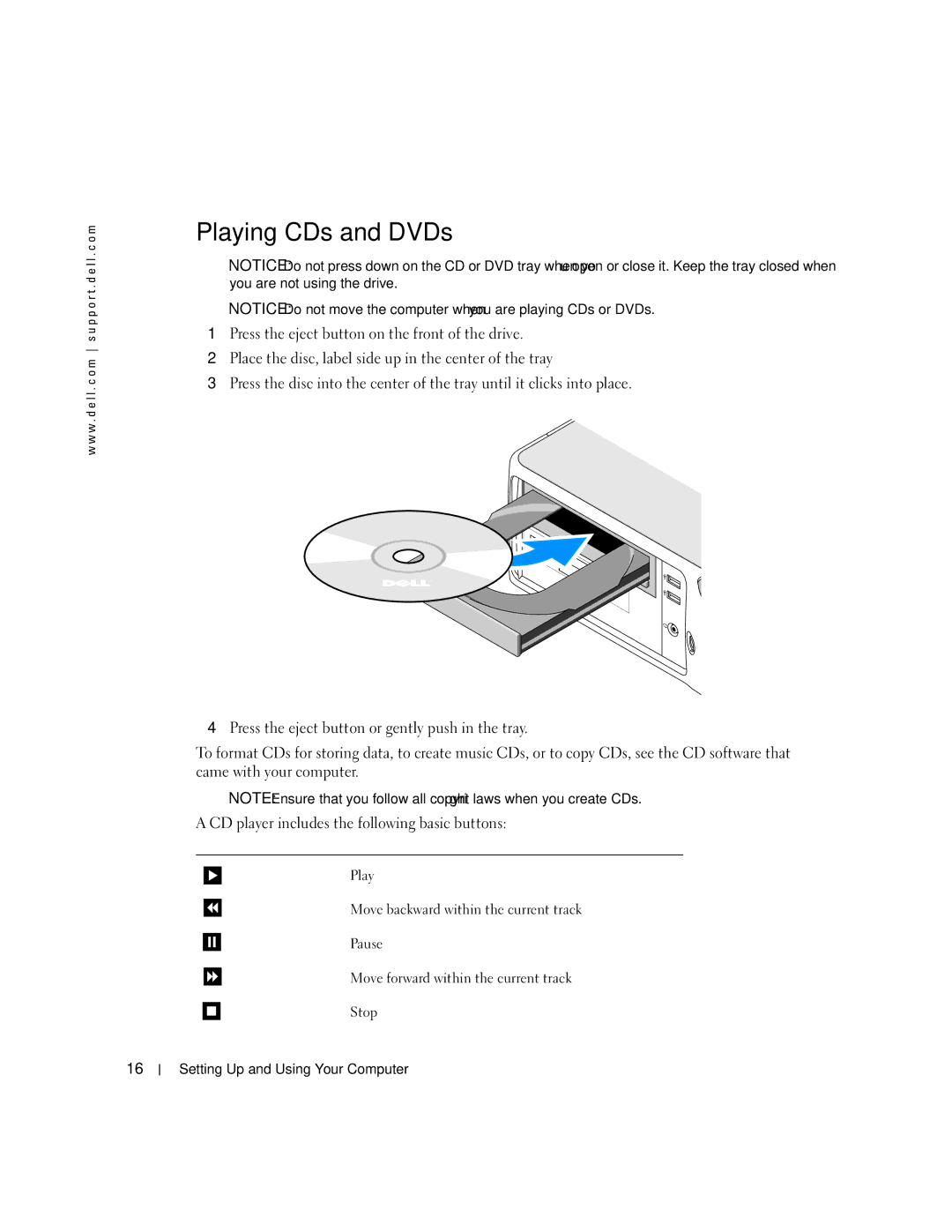
Playing CDs and DVDs
Adjusting the Volume
DVD player includes the following basic buttons
How to Copy a CD or DVD
Adjusting the Picture
Copying CDs and DVDs
Using Blank CDs and DVDs
Media Type Read Write Rewritable
Using a Media Card Reader Optional
Helpful Tips
Setting Up and Using Your Computer
Setting Up a Home and Office Network
Connecting to a Network Adapter
Network Setup Wizard
Network adapter connector on computer
Standby Mode
Power Management
Hibernate Mode
Power Options Properties
Power Schemes Tab
Advanced Tab
Hyper-Threading
Hibernate Tab
Setting Up and Using Your Computer
Troubleshooting Tips
Battery Problems
Drive Problems
Solving Problems
CD and DVD drive problems
Problems writing to a DVD-RW drive
Mail, Modem, and Internet Problems
Hard drive problems
Error Messages
Use these characters in filenames
Media Card Reader Problems
Keyboard Problems
Lockups and Software Problems
Computer does not start up
Computer stops responding
Program stops responding
Program crashes repeatedly
Program is designed for an earlier Windows operating system
Solid blue screen appears
Memory Problems
Other software problems
Mouse Problems
Network Problems
Power Problems
Printer Problems
Scanner Problems
Sound and Speaker Problems
No sound from speakers
No sound from headphones
Video and Monitor Problems
If the screen is blank
If the screen is difficult to read
Solving Problems
Diagnostic Lights
Light Pattern Problem Description Suggested Resolution
Reinstall an additional module. Continue
Reinstalled all modules without error
Module/memory connector placement
Ensure that no special memory
Devices installed on your computer
Determine whether a conflict exists by
Then restart the computer
Repeat this process for each card. If
Dell Diagnostics Main Menu
Dell Diagnostics
Option Function
Drivers
What Is a Driver?
Tab Function
Reinstalling Drivers
Using Windows XP Device Driver Rollback
Identifying Drivers
Windows XP
Resolving Software and Hardware Incompatibilities
Manually Reinstalling Drivers
Restoring Your Operating System
Creating a Restore Point
Using Microsoft Windows XP System Restore
Restoring the Computer to an Earlier Operating State
Undoing the Last System Restore
Using Dell PC Restore by Symantec
Enabling System Restore
Removing Dell PC Restore
Removing and Installing Parts
Before You Begin
Recommended Tools
Turning Off Your Computer
Before Working Inside Your Computer
Front View of the Computer
System
System shutdown
Back View of the Computer
Removing the Computer Cover
VGA video connector
Cards the bottom slot cannot be used
Inside View of Your Computer
Security cable slot Cover release latch
Removing and Installing Parts
System Board Components
Memory
DDR2 Memory Overview
Matched pair of memory modules in Dimm connectors 1
Memory connector closer to Securing clips
Installing Memory
Processor Removing and Installing Parts
Cutouts Notch Memory module
Cards
Removing Memory
Installing an Expansion Card
Removing and Installing Parts
Removing and Installing Parts
Removing an Expansion Card
Drives
Connecting Drive Cables
IDE Drive Addressing
Power Cable Connector
Drive Interface Connectors
Serial ATA Connector
Hard Drive
Connecting and Disconnecting Drive Cables
Removing a Hard Drive
Installing a Hard Drive
Hard drive Release tabs Plastic hard-drive bracket
Replace the computer cover
Floppy Drive
Removing a Floppy Drive
Installing a Floppy Drive
Media Card Reader
Removing a Media Card Reader
Media Card Reader
Installing a Media Card Reader
DVD Drive
Installing a DVD Drive
Removing a DVD Drive
Battery
Replacing the Battery
Replacing the Computer Cover
Removing and Installing Parts
Removing and Installing Parts
Processor Processor type
Specifications
System clock MHz data rate Video Type Integrated Appendix
Connectors Two Connector size Pins
PCI Express Connector One Connector size Pins
Panel connector for headphones
Audio Type
Connectors System board connectors Primary IDE drive
Controls and Lights Power control Push button Power light
Serial ATA
FlexBay Drive
36.1 cm 14.2 inches
11.4 cm 4.5 inches
39.9 cm 15.7 inches
07 kg 20 lb
System Setup
Entering System Setup
System Setup Screen
Overview
System Setup Options
System
Drives
Acoustics mode setting
Quiet The hard drive operates at its most quiet setting
System Password option
Manufacturer
Boot Sequence
Option Settings
Changing Boot Sequence for the Current Boot
Changing Boot Sequence for Future Boots
Clearing Forgotten Passwords and Cmos Settings
Jumper Setting Description
Jumper Locations
Jumpered Unjumpered Appendix
Clearing Password Settings
Clearing Cmos Settings
Cleaning Your Computer
Computer, Keyboard, and Monitor
Mouse
Floppy Drive
Definition of Dell-Installed Software and Peripherals
Dell Technical Support Policy U.S. Only
CDs and DVDs
100