Checking Your Wireless Network Card
Wireless Local Area Network
What You Need to Establish a Wlan Connection
Start Button and Connect To Option
Order Confirmation for Your Computer
Right-clickWireless Network Connection Click Properties
102
103
Connecting to a Wlan
Click Start→ Settings→ Control Panel→ Network Connections
Determining the Wireless Network Device Manager
104
105
Completing the Connection to the Wlan
106
Mobile Broadband or Wireless Wide Area Network
Checking Your Dell Mobile Broadband Card
Connecting to a Mobile Broadband Network
107
Click Start→ All Programs→ Dell Wireless
Dell Wi-Fi Catcher Network Locator
Enabling/Disabling the Dell Mobile Broadband Card
108
109
110
Securing Your Computer
Passwords
Security Cable Lock
111
112
If Your Computer Is Lost or Stolen
113
114
Dell Technical Update Service
Troubleshooting
Dell Diagnostics
116
117
118
Dell Diagnostics Main Menu
119
Dell Support
Dell Support Center
120
121
Dell PC Tune-Up
Dell Network Assistant
Dell PC Checkup
DellConnect
Click Self Help→ Network /Internet→ Network Management
123
Drive Problems
Hard drive problems
Optical drive problems
Click Properties→ Tools→ Check Now
Mail, Modem, and Internet Problems
125
126
Windows XP Click Start→ All Programs→ Modem Helper
127
Error Messages
128
129
130
131
Click Uninstall
132
ExpressCard Problems
Keyboard Problems
Ieee 1394 Device Problems
External Keyboard problems
133
134
Unexpected characters
Computer does not start
Lockups and Software Problems
Computer stops responding
Program stops responding or crashes repeatedly
Solid blue screen appears
Dell MediaDirect problems
136
137
Other software problems
138
Memory Problems
Mobile Broadband Wireless Wide Area Network Wwan
Network Problems
139
140
Power Problems
141
Printer Problems
Click Properties and click Ports
Scanner Problems
Windows XP 142
No sound from integrated speakers
Sound and Speaker Problems
No sound from external speakers
143
No sound from headphones
Remote Control Problems
144
145
Touch Pad or Mouse Problems
If the display is blank
Video and Display Problems
If the display is difficult to read
146
Drivers
What Is a Driver?
If only part of the display is readable
147
Windows XP Click Start→ Control Panel
Identifying Drivers
Click Properties→ Device Manager
148
Using Windows Device Driver Rollback
Reinstalling Drivers and Utilities
Properties Click the Drivers tab→ Roll Back Driver
149
At the Welcome Dell System Owner screen, click Next
Using the Drivers and Utilities Media
150
151
Manually Reinstalling Drivers
Fix a Problem section, click Hardware Troubleshooter
Troubleshooting Software and Hardware Problems
Windows XP Click Start→ Help and Support
152
Restoring Your Microsoft Windows Vista Operating System
Using Windows Vista System Restore
153
Click Start → Help and Support
Creating a Restore Point
Restoring the Computer to an Earlier Operating State
154
Click Next→ Finish
Restoring the Computer to the Default Factory Configuration
Click Undo my last restoration, and then click Next
155
Before You Begin
Using the Operating System Media
157
Reinstalling Windows Vista
Starting System Restore
Using Microsoft Windows System Restore
Restoring Your Microsoft Windows XP Operating System
159
Using Dell PC Restore
160
161
162
Before You Begin
Adding and Replacing Parts
Recommended Tools
163
Before Working Inside Your Computer
Turning Off Your Computer
164
165
Removing the Hard Drive
Hard Drive
166
167
Returning a Hard Drive to Dell
Replacing the Hard Drive
168
Removing the Optical Drive
Optical Drive
169
Replacing the Optical Drive
Central Control Cover
170
Replacing the Central Control Cover
Removing the Central Control Cover
171
Removing the Keyboard
Keyboard
172
173
Replacing the Keyboard
Removing the Memory Module
Memory
174
175
176
Replacing the Memory Module
177
Modem
178
Subscriber Identity Module
Wireless Mini-Cards
179
180
Removing a Wlan Card
181
Replacing a Wlan Card
182
Internal Card with Bluetooth Wireless Technology
183
184
Removing a Mobile Broadband or Wwan Card
185
Replacing a Wwan Card
Removing the FCM
Flash Cache Module
186
187
Replacing the FCM
Removing the Coin-Cell Battery
Coin-Cell Battery
188
189
Replacing the Coin-Cell Battery
190
191
Dell QuickSet Features
192
Identifying Your Computer
Traveling With Your Computer
Packing the Computer
193
Traveling by Air
Travel Tips
194
Obtaining Assistance
Getting Help
195
DellConnect Online Services
Technical Support and Customer Service
196
AutoTech Service
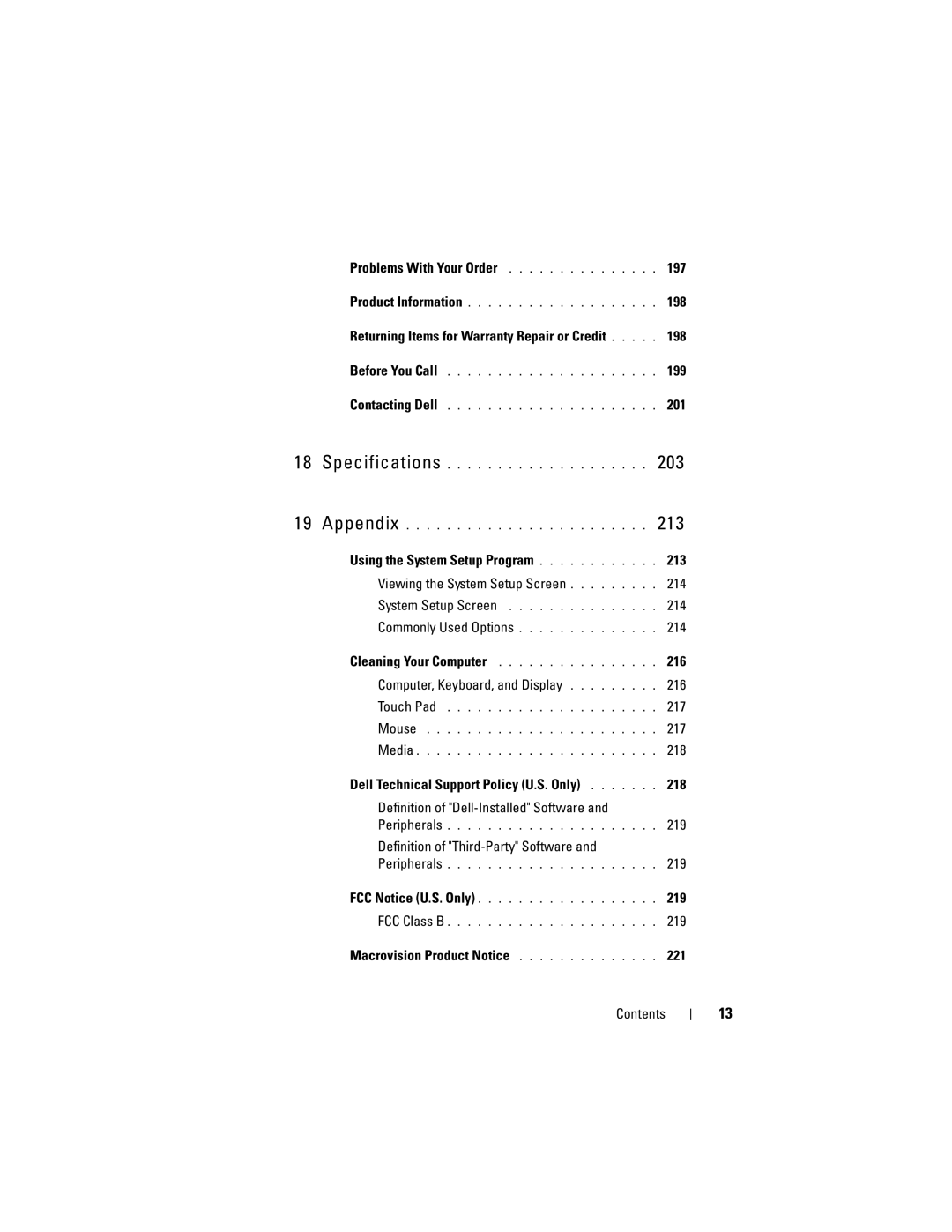
Problems With Your Order
Automated Order-Status Service
197
198
199
Before You Call
200
201
Contacting Dell
202
203
Specifications
Sdio
204
USB
205
Lvds
206
Wxga
207
208
209
210
211
212
Appendix
Using the System Setup Program
213
System Setup Screen
Viewing the System Setup Screen
Changing the Boot Sequence
Commonly Used Options
215
Computer, Keyboard, and Display
Cleaning Your Computer
216
Cleaning an Optical Mouse
Cleaning a Non-Optical Mouse
Touch Pad
Mouse
Media
Dell Technical Support Policy U.S. Only
218
FCC Notice U.S. Only
Definition of Dell-Installed Software and Peripherals
Definition of Third-Party Software and Peripherals
FCC Class B
PP26L
220
221
Macrovision Product Notice
222
223
Glossary
224
225
226
227
228
229
230
231
232
233
234
235
236
237
238
239
240
241
Index
See also hard drive See also optical drive 242
243
244
245
246
SIM. See Subscriber Identity Module
247
See also Mobile Broadband 248