WAN and System Configuration
The other columns show:
■The time of day that the connection will Begin At
■The duration of the connection (HH:MM)
■Whether it’s a recurring Weekly connection or used Once Only
■Which connection profile (Conn. Prof.) is used to connect
■Whether the scheduled connection is currently Enabled
The router checks the date and time set in scheduled connections against the system date and time.
Adding a scheduled connection
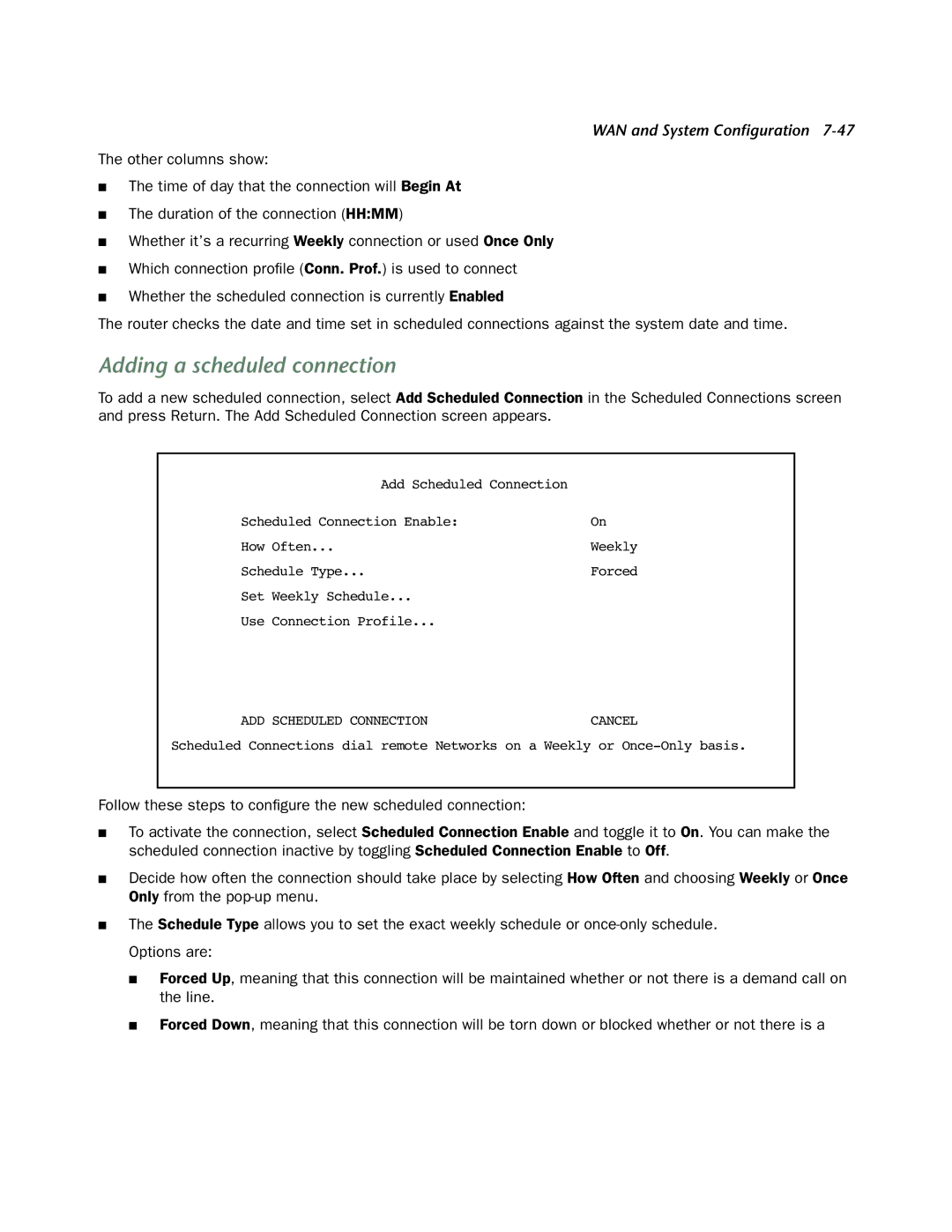
To add a new scheduled connection, select Add Scheduled Connection in the Scheduled Connections screen and press Return. The Add Scheduled Connection screen appears.
Add Scheduled Connection |
|
Scheduled Connection Enable: | On |
How Often... | Weekly |
Schedule Type... | Forced |
Set Weekly Schedule... |
|
Use Connection Profile... |
|
ADD SCHEDULED CONNECTION | CANCEL |
Scheduled Connections dial remote | Networks on a Weekly or |
Follow these steps to configure the new scheduled connection:
■To activate the connection, select Scheduled Connection Enable and toggle it to On. You can make the scheduled connection inactive by toggling Scheduled Connection Enable to Off.
■Decide how often the connection should take place by selecting How Often and choosing Weekly or Once Only from the
■The Schedule Type allows you to set the exact weekly schedule or
■Forced Up, meaning that this connection will be maintained whether or not there is a demand call on the line.
■Forced Down, meaning that this connection will be torn down or blocked whether or not there is a