VB150
Exclusion of Liability
Introduction
Copyright Information
Trademark Notices
Checking the Package Contents
Contents
103
101
104
107
Using the Still Picture Recording Function
Viewer for PC Settings
Using the Motion Detection Function
Introduction
This document Picture Recording User’s Guide
How to Read This Manual
Guide to Creating Web Pages for Video Distribution
Viewer Software
Safe Use of Equipment
Important Warnings
Important Operational Instructions
FCC Notice
Important Safety Instructions
Safe Use of Equipment
Page
Cleaning the Equipment
Maintenance
Page
Before Using the VB150
Panorama picture creation function and various settings
Compatible with wireless LANs
Camera position preset function
WebView Livescope built
View restriction function
Easy setting and administration
Built-in Web server and FTP server
Plenty of expandability
Video Distributor
System Overview
Viewer Software Supplied
Operating Environment
VB Administration Tools Ver .1 → P.59
VBCollector Ver .1 → dPicture Recording User’s Guide P.13
Viewer for Java Ver
Compatible Cameras Sold separately
Viewer Software for Monitoring Use Sold separately
Compatible Networks
Compatible PC Cards Sold separately
System Components and Their Operation
100/10 BT Ethernet connector
Factory defaults reset switch
Camera control connector CC1, CC2
PC card slot B
Page
Setting Up the VB150
Connecting the camera
Setup Workflow
Checking operation
Camera connection is now complete
Connecting the camera
Initializing the VB150
Precautions for Turning the VB150 On and Off
Click to select
Initial settings are now complete
Operation checking is now complete
Checking operation
We recommend that you create a panorama picture → P.65
Example of Viewer for Java
Detail Settings
Detail Settings
Accessing the Settings Title
Settings Title
Parallel
Settings Title
Administration Account
System Settings
Settings Web page URL
Others
Ethernet
Network Settings
Wireless LAN
Installation location and communications security
With the new IP address → P.34
Connections
PPP
Primarily CallPPP
Connection Keeping
Static Route Control
Camera and Video Settings
Common Settings
Settings for cameras 1 to
View Restriction
Connected to 2 camera control connectors
Connected to 1 camera control connector
Example of 4 cameras cascade
Example of 2 cameras cascade
Touching it, be sure to reboot the VB150. → P.57
View Restriction Settings
Controllable Range and Video Capture Range
Controllable Range and Video Capture Range for Each Camera
About View Restriction
Common Setting
Preset Settings
Presets Up to 8 presets can be specified
Web Pages for Video Distribution P.9
Picture Recording Common Settings
Picture Recording and External Device I/O Settings
Start up the Viewer for PC then check the Size value
→dPicture Recording Users Guide P.13
Description Values
Specifying parameters in Picture Mail messages
External Device Common Settings
Use the Motion Detection Setting Tool → P.80
For picture recording and external device
Control based on motion detection
Picture Recording Triggered by External Devices
Been reached
Method varies with the environment being used
Example
Picture Recording and Output by
Authorized/Restricted Host Specification → P.52
Access Control Settings
Authorized User Account → P.52
Users can be registered
Authorized/Restricted Host List Descriptions
Example 1 To prohibit access from a host
Listing Format
Listing Guidelines
Page
Webview Livescope Settings
Miscellaneous Settings
Mail
Http Server
Flash memory card is inserted into the slot on the VB150
Log.0... are created
Log
Miscellaneous
Administration Tools Settings
On-board File System Information
Slot A/B
VB Administration Tools
Overview of VB Administration Tools
VBAdmin Startup Panel → P.63
Panorama Creation Tool → P.65
Motion Detection Setting Tool → P.80
Preset Setting Tool → P.75
Admin Viewer → P.92
View Restriction Tool → P.70
Installing VB Administration Tools
Be installed → P.19
To Install
WebView Livescope Helper Viewer Ver .1 or earlier
VB Administration Tools Ver.1.0
WebView Livescope Camera Server
WebView Livescope Manager
To Start Up
Starting Up VB Administration Tools
Viewer and Admin Viewer can be started up at the same time
Panorama Creation Tool
Without a panorama picture
With a panorama picture
Panorama shot, be sure to click this button
Panorama Creation Tool Display Screen
Display ranges of the panorama pictures are different
Capturing Panorama Pictures
VC-C4 panorama picture
VC-C4R panorama picture
To Delete
Updating/Deleting Panorama Pictures
Reconnecting
Opening/Saving Pictures
Displaying Connection Information
View Restriction Tool
View Restriction Tool Display Screen
To save the settings to the VB150
View Restriction Tool
Setting View Restrictions
Changing Settings from the View Restriction Preview Frame
To Make Settings
Restriction on from the Privilege menu → P.94
Preset Setting Tool
Reflecting preset settings to the viewer
Setting presets using the Preset Setting Tool
Preset Setting Tool Display Screen
Page
Changing Settings from the Preset Preview Frame
Setting Presets
Connected
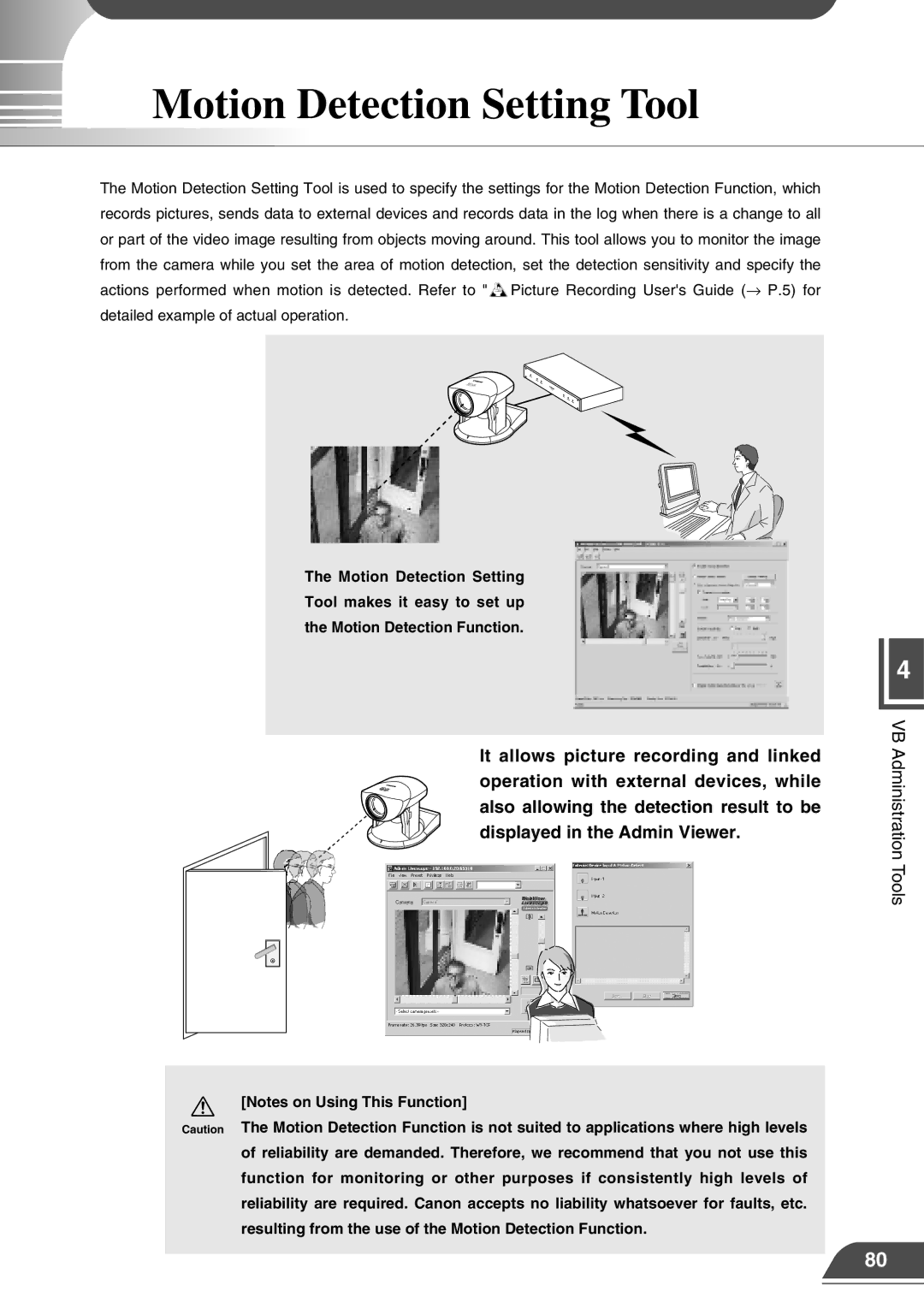
Motion Detection Setting Tool
Motion Detection Setting Tool Display Screen
Motion Detection Setting Tool
Specifying the Motion Detection Function Settings
Continuous motion detection
Scheduled motion detection
Choose -Not Specified- in the Detection preset selection box
Setting the detection location and area
Setting the sensitivity
Setting the motion detection parameters
Setting the area ratio
Setting the duration
Setting the Action Performed
Displaying Motion Detection Status of the Server
Errors
Motion detection status of the server display may not match
Motion detected peak display in this tool
Saving Settings to the VB150
Setting the Frame Rate
Log Viewer
Downloading Log Files
To Download
Using selection criteria to display logs
Viewing the Log
To Set Selection Criteria
Recording
Application Log messages related to applications → P.23
Http Server Log messages related to the Http server → P.27
These log messages refer to the system’s Http server
Admin Viewer
Starting Up Admin Viewer
About the special privileges of administrators
Operating External Devices
Displaying and saving the external device input status
To Set External Device Input
Enabling/Disabling View Restrictions
To Enable or Disable View Restrictions
Operating External Device Output
To Set External Device Output
Advanced Camera Control
Operating a Camera
Clicking the screen to control the camera
Controlling NU-700
Appendix
Troubleshooting
Cannot control the camera
Wireless LAN card does not work and communication fails
Cannot record or search pictures
This file
Wire connection of the camera control cable RS-232C
Specifications
External Device I/O Terminals
External Device Input Terminals In1, In2
External Device Output Terminals Out1, Out2
Viewer for Java
System Configuration
Viewer for PC
VB150
Sample LAN Environment Configuration
Sample Network Configurations
Sample Dialup Environment Configuration
Be sure to assign a fixed IP address on the VB150
Sample ISP Environment Configuration
Sample LAN plus Dialup Environment Configuration
Sample Wireless LAN Environment Configuration
Upgrading the Firmware Remotely
Use the procedure below to perform the remote upgrade
Obtain the new firmware
Launch the vb150rfu.exe program on the enclosed CD-ROM
Initializing settings other than system/network settings
Restoring the Factory Default Settings
Initializing all settings
Factory default settings using the Restore button → P.109
Setting Item Setting 1 y m d Item setting 2 y m d
Factory Default Setting
110
Procedure for Using Flash Memory Cards
Using a PC Card
Insert the flash memory card Into the VB150
To use a Web browser as an FTP client
Connection information
Index
113
114
Imprimé AU Japon