Messages
1.8 Remove
:Select this menu to remove the current slide or an object included in the current slide (represented by Image/Video/Sound).
1.9 Move
:Select this menu to move to the previous or the next slide.
1.* Exit
:Select this menu to stop creating the current message and return to the previous screen.
Send a multimedia message straight from your camera, camcorder or sound recorder.
1. After taking a picture with the camera, recording a video with the camcorder or recording sound with the Sound Recorder.
2. Select Send.
3. Select Via Multimedia msg.
4. The selected image, video, or sound is inserted into the Multimedia msg.
5. Select Send Message from the Options Menu or press the right soft key > The message is transmitted.
4.1.2.1 Viewing MMS messages
To preview MMS message
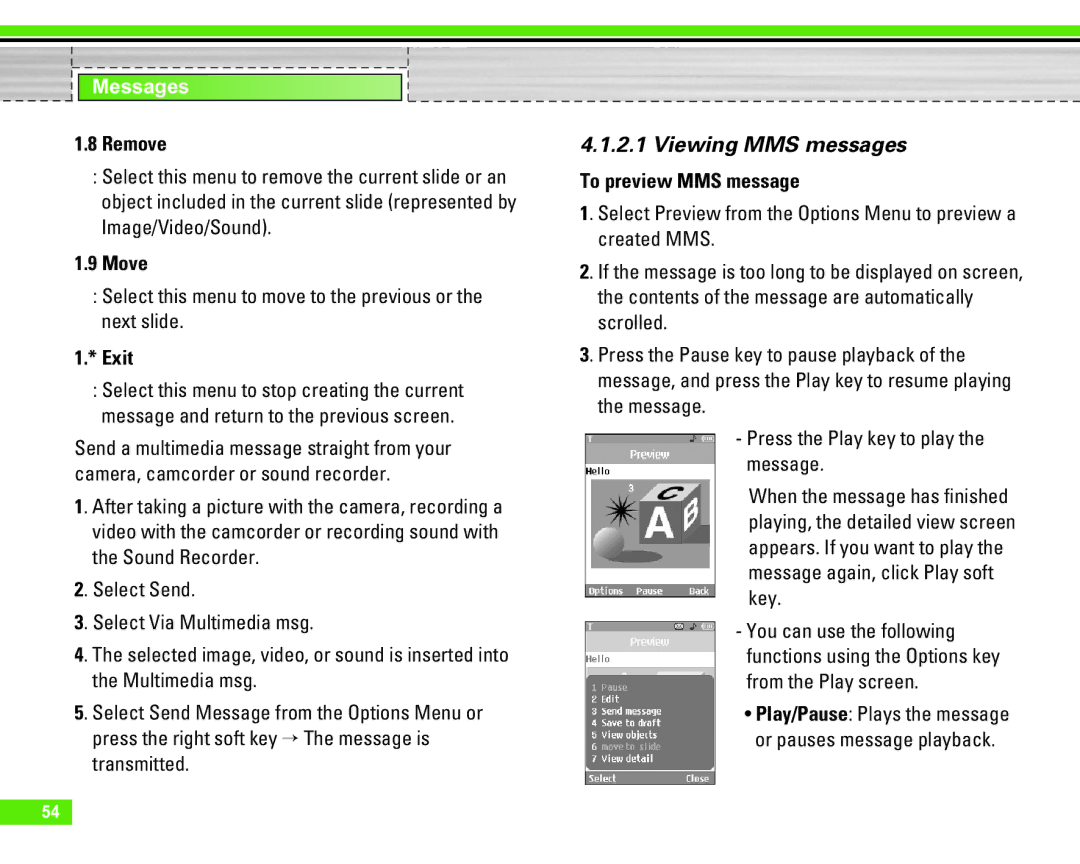
1. Select Preview from the Options Menu to preview a created MMS.
2. If the message is too long to be displayed on screen, the contents of the message are automatically scrolled.
3. Press the Pause key to pause playback of the message, and press the Play key to resume playing the message.
-Press the Play key to play the message.
When the message has finished playing, the detailed view screen appears. If you want to play the message again, click Play soft key.
-You can use the following functions using the Options key from the Play screen.
•Play/Pause: Plays the message or pauses message playback.
54