Selecting the Reception Mode
FAX only mode
EXT. TEL mode
Select the reception mode
Using FAX only Mode
Changing the number of rings
Using EXT. TEL Mode
If you hear a fax tone, press on the machine
Press to select RECEIVE. Replace the extension phone
Reception Ratio
Press Auto to select automatic
Reduction, or 100% to select full
Size printing Press repeatedly to exit
Substitute Reception to Memory
Special Fax Functions
Polling Requesting a Fax Transmission
100
Being Polled Memory Polling
101
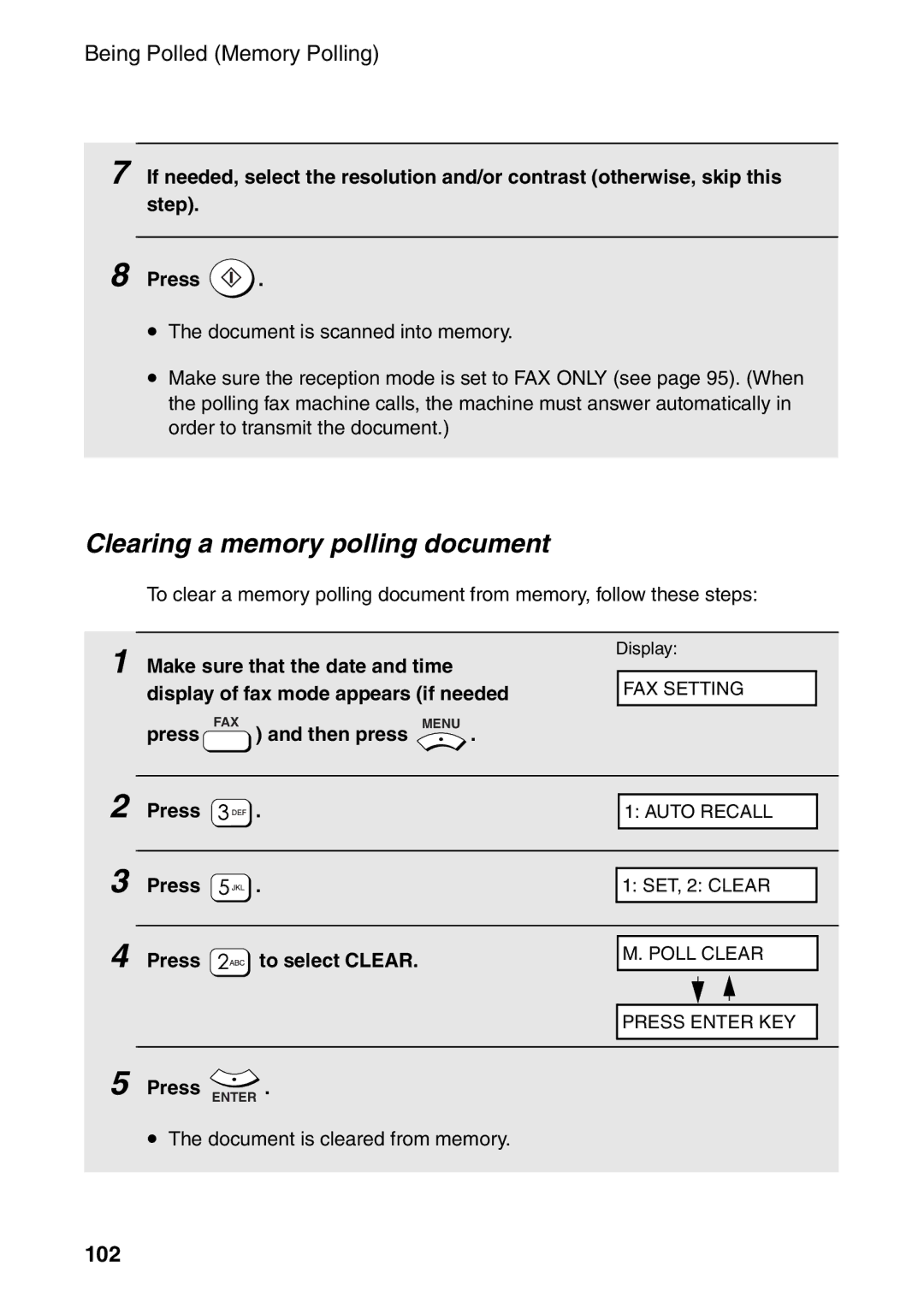
Clearing a memory polling document
102
Cancelling a print job
Printing
Printing a Document From an Application
103
Selecting Print Settings
104
Printing Preferences from the Printers and Faxes folder
Setup tab
105
Select the Paper Size and Paper Source
Advanced tab
106
107
Printing on Envelopes and Cards
108
109
Scanning
Scanning From a Twain Application
110
Scanning From a Twain Application
111
112
113
Scanning From a WIA Application Windows XP/Me only
114
Place the original on the document glass
Start your WIA-compliant application on your computer
115
Click the File menu and select From Scanner or Camera
116
Scanning From the Scanner Wizard Windows XP/Me only
117
Scanners and Cameras
Scanning From the Operation Panel
118
Selecting Button Manager to handle scanner events
119
Windows→ XP/Me
Cameras
120
121
Control Panel, double-clickScanners and Cameras
Send to this application, select Sharp Button Manager
To select scan mode
Scanning a document from the operation panel
122
Configuring Button Manager settings
123
124
When FAX is selected as the application
125
When OCR is selected as the application
126
When Filing is selected as the application
127
Printing Lists
Activity List
128
Press Menu and then Z
Setup List
Timer List
Telephone Number List
Group List
Transaction Report
130
Headings in the Transaction Report
Transaction Report print condition
131
Press a number from To select the condition for printing
Auto print-out of Activity List
132
Press To turn on auto print, or
To turn it off
Maintenance
Cleaning the Scanning Glasses and Rollers
Cleaning the scanning glass in the auto document feeder
133
Cleaning the document glass
134
Cleaning the print rollers
Cleaning the housing
135
Replacing the Toner Cartridge
136
Continue from on page 19 to install the new toner cartridge
Replacing the Drum Cartridge
Viewing the total number of pages printed
137
Replacing the drum cartridge
138
139
Troubleshooting
Problems and Solutions
Line error
Problem Solution
Dialling and fax transmission problems
141
Fax reception problems
142
Copying problems
143
General problems
144

 .