W . d e l l . c o m s u p p o r t . d e l l . c o m
Abbreviations and Acronyms
Contents
Changing the Display Settings
One Monitor With a DVI Connector
Power Management Options
Power Options Properties
Mail, Modem, and Internet Problems
CD and DVD drive problems
Keyboard Problems
Media Card Reader Problems
No sound from headphones Video and Monitor Problems
Sound and Speaker Problems
Dell Diagnostics Main Menu
Reinstalling Drivers and Utilities
Memory Installation Guidelines 108
Power Supply DC Connector Pin Assignments
Installing a Second Hard Drive 125
102
Installing the Processor Fan
Replacing the Power Supply
Installing the System Board
Removing the Processor Fan
Technical Support and Customer Service 183
Clearing Forgotten Passwords 176
Automated Order-Status Service 185 Contents
167
Glossary
Finding Information
What Are You Looking For? Find it Here Warranty information
Use the Service Tag to identify your
Service Code
Enter the Express Service Code to direct
Your call when contacting support
Provides critical updates for your
Reinstall the DSS utility. DSS
Your computer and operating System and installs the updates
What Are You Looking For? Find it Here
Click Help and Support
Help and Support
Setting Up and Using Your Computer
Service Tag Located on top of the chassis towards the rear
Front View of the Computer
CD or DVD drive
Headphone connector
Ieee 1394 connector
Power button
Power light
Back View of the Computer
Back Panel Connectors
Connector
Light
Microphone
USB
VGA video
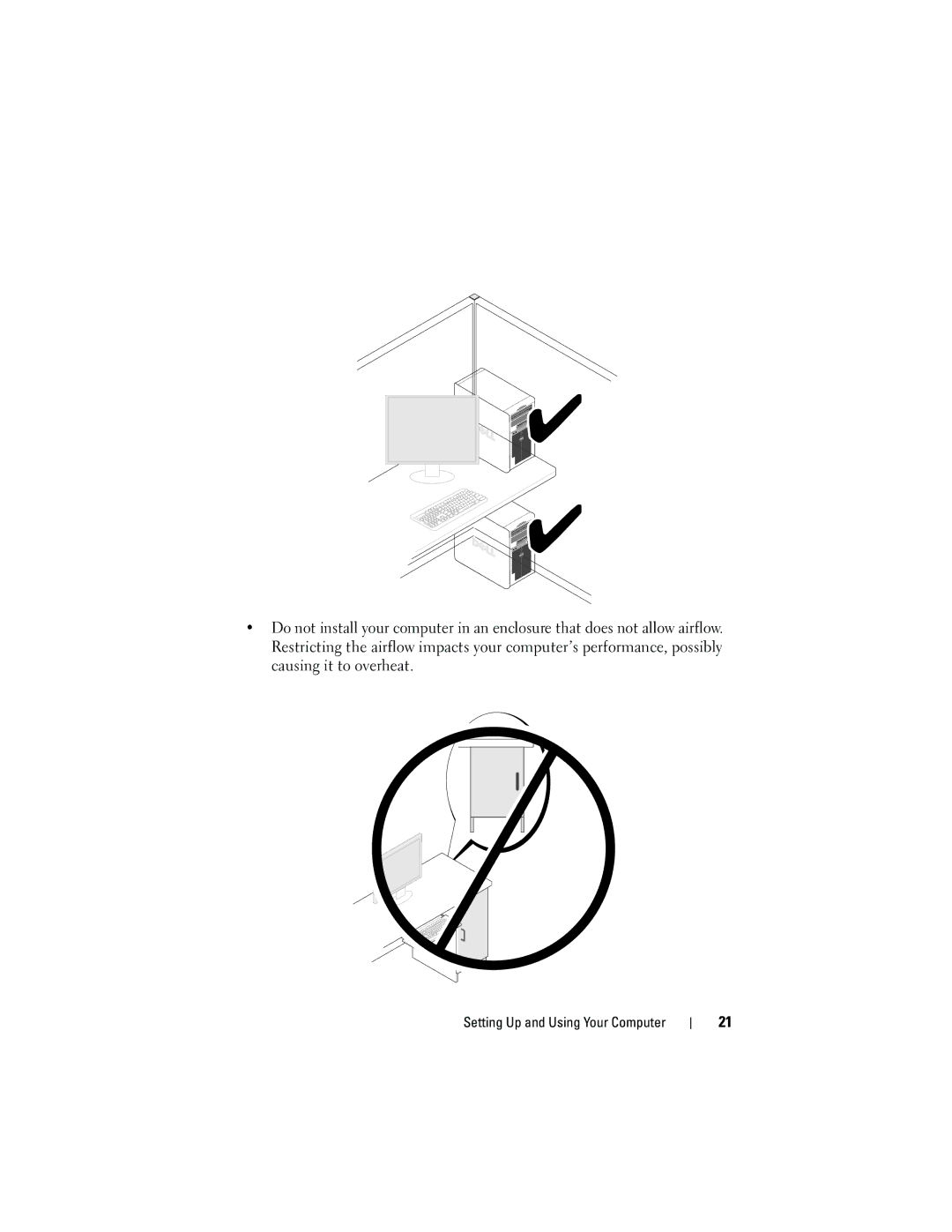
Installing Your Computer in an Enclosure
Setting Up and Using Your Computer
Setting Up a Printer
Connecting a USB Printer
Printer Cable
Windows XP
Control Panel Printers and Faxes Add a printer to start
Windows Vista
Playing CDs and DVDs
DVD player includes the following basic buttons
Adjusting the Volume
Adjusting the Picture
Copying CDs and DVDs
How to Copy a CD or DVD
Using Blank CDs and DVDs
Windows Vista
Media Type Read Write Rewritable
DVD-Writable Drives
Helpful Tips
Using a Media Card Reader Optional
Connecting Two Monitors With VGA Connectors
Connecting Two Monitors
May not be present on your computer
Connecting a TV
Changing the Display Settings
Power Management
Power Management Options in Microsoft Windows XP
Standby Mode
Hibernate Mode
Power Options Properties
Power Schemes Tab
Hibernate tab
Power Management Options in Windows Vista
Advanced Tab
Hibernate Tab
Standby Mode
Power Plan Properties
Power Management Modes
Click Change Advanced Power Settings
Advanced Tab
Enabling Cool ’n’ Quiet Technology
About RAID Configurations For Windows Vista only
RAID Level 1 Configuration
Setting Your Computer to RAID-Enabled Mode
Configuring Your Hard Drives for RAID
Using the Nvidia MediaShield ROM Utility
Using Nvidia MediaShield
Rebuilding a RAID Configuration
Transferring Information to a New Computer
Click Next
Tools Windows Easy Transfer
All Programs Accessories System
Setting Up a Home and Office Network
Connecting to a Network Adapter
Network Setup Wizard
Click Checklist for creating a network
Connecting to the Internet
Click Connect to the Internet
Setting Up Your Internet Connection
If you have a CD, click Use the CD I got from an ISP
101
Inside View of Your Computer
System Board Components
102
311
Cpufan
103
Power Supply DC Connector Pin Assignments
DC Power Connector P1 13 14 15 16 17 18 19 20 21 22 23
104
105
Pin Number Signal name Wire Color Wire Size
106
DC Power Connector P2 Pin Number Signal Name AWG Wire
DC Power Connector P7 Pin Number Signal Name
Memory
107
108
Memory Installation Guidelines
109
Installing Memory
Cutouts Memory module Notch Crossbar
Cards
Removing Memory
111
112
PCI and PCI Express Cards
113
114
115
Removing and Installing Parts
117
If you removed an add-in network connector
Bezel
Removing the Bezel
118
Replacing the Bezel
Align and insert the bezel clamps in the bezel clamp slots
119
120
Drives
Drive Interface Connectors
Connecting Drive Cables
Serial ATA Connector
Recommended Drive Cable Connections
Hard Drives
Connecting and Disconnecting Drive Cables
123
Removing and Installing Parts
125
Installing a Second Hard Drive
Removing and Installing Parts
127
Floppy Drive
Not present on all computers
129
Screw slots
131
132
Replacing the Drive Panel Insert
133
Media Card Reader
Removing and Installing Parts
135
136
CD or DVD Drive
137
Removing and Installing Parts
139
Removing and Installing Parts
141
Battery
Replacing the Battery
142
Power Supply
Replacing the Power Supply
143
Power supply Screws
Processor
Removing the Processor
145
Removing and Installing Parts
147
148
Installing the Processor
149
Removing and Installing Parts
Panel
Removing the I/O Panel
151
Installing the I/O Panel
153
Removing the Processor Fan
Processor Fan
155
Fan Fan cover guide Fan cover grips
157
Installing the Processor Fan
Fan Fan cover Heat sink
159
Chassis Fan
Removing the Chassis Fan
161
Replacing the Chassis Fan
Removing the System Board
System Board
163
System Board Screws
Replacing the Computer Cover
Installing the System Board
165
Move the computer to the upright position
166
167
Specifications
168
Audio
Expansion Bus
Drives
169
Power supply wattage rating
Power
170
Controls and Lights
171
Physical
Environmental
Entering System Setup
System Setup
Overview
172
System Setup Screen
System Setup Options
Displays Bios Info and the Service Tag
173
174
175
Boot Sequence
Clearing Forgotten Passwords
177
Clearing Cmos Settings
File Download window appears
Flashing the Bios
Computer, Keyboard, and Monitor
Cleaning Your Computer
Mouse
179
Dell Technical Support Policy U.S. Only
CDs and DVDs
180
FCC Notice U.S. Only
Definition of Dell-Installed Software and Peripherals
Definition of Third-Party Software and Peripherals
FCC Class B
Dcma
182
Getting Help
Technical Support and Customer Service
Obtaining Assistance
183
DellConnect Online Services
AutoTech Service
Problems With Your Order
Automated Order-Status Service
Product Information
Returning Items for Warranty Repair or Credit
Before You Call
186
187
Diagnostics Checklist
Contacting Dell
Glossary
189
190
Product ID
191
Device driver See driver
192
193
194
195
196
Module bay See media bay
197
NIC See network adapter
198
199
200
201
202
203
Video resolution See resolution
204
Index
205
206
207
208
209
210
211
212