●The page size
●The page rotation, if any
 NOTE: In the paper source options, you can turn automatic rotation on or off by means of a check box. See Paper source options on page 28.
You can modify these proposed settings. If you have changed a setting and want to restore the automatic value, press the AUTO button.
Edit a job
●By selecting one or more pages and changing the print settings
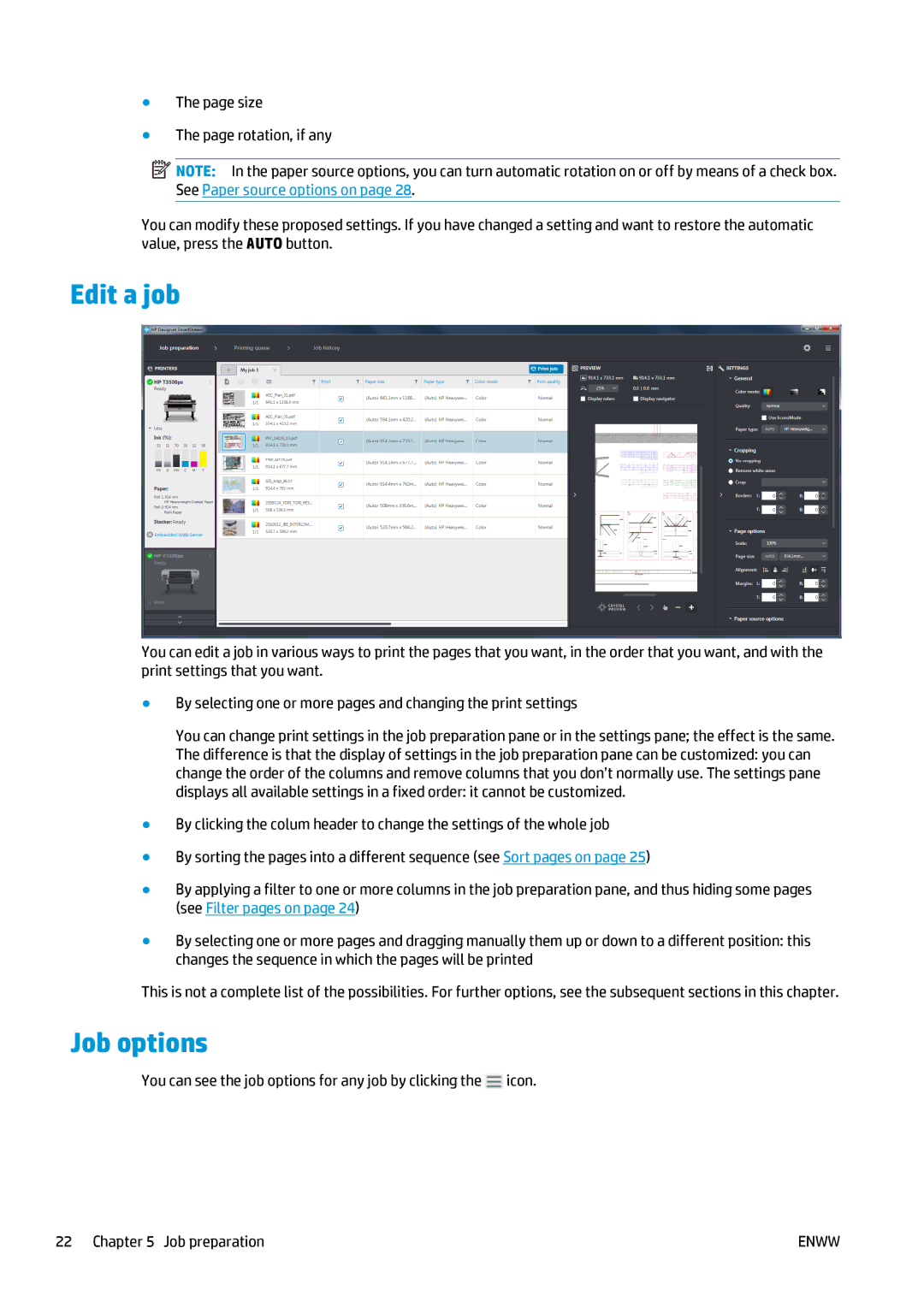
You can change print settings in the job preparation pane or in the settings pane; the effect is the same. The difference is that the display of settings in the job preparation pane can be customized: you can change the order of the columns and remove columns that you don’t normally use. The settings pane displays all available settings in a fixed order: it cannot be customized.
●By clicking the colum header to change the settings of the whole job
●By sorting the pages into a different sequence (see Sort pages on page 25)
●By applying a filter to one or more columns in the job preparation pane, and thus hiding some pages (see Filter pages on page 24)
●By selecting one or more pages and dragging manually them up or down to a different position: this changes the sequence in which the pages will be printed
Job options
You can see the job options for any job by clicking the  icon.
icon.
22 Chapter 5 Job preparation | ENWW |