Chapter 12: Managing Tasks
●
131
Disabling the Task Manager
The Task Manager is enabled by default. If you do not wish to schedule
tasks on a selected system, you can disable it.
Note:
If you disable the Task Manager, no scheduled tasks will run on
that system.
To disable the Task Manager:
1
In the tool bar, click
Configure
, select the system whose Task Manager
you want to disable, then click
Tasks
(as shown on
).
2
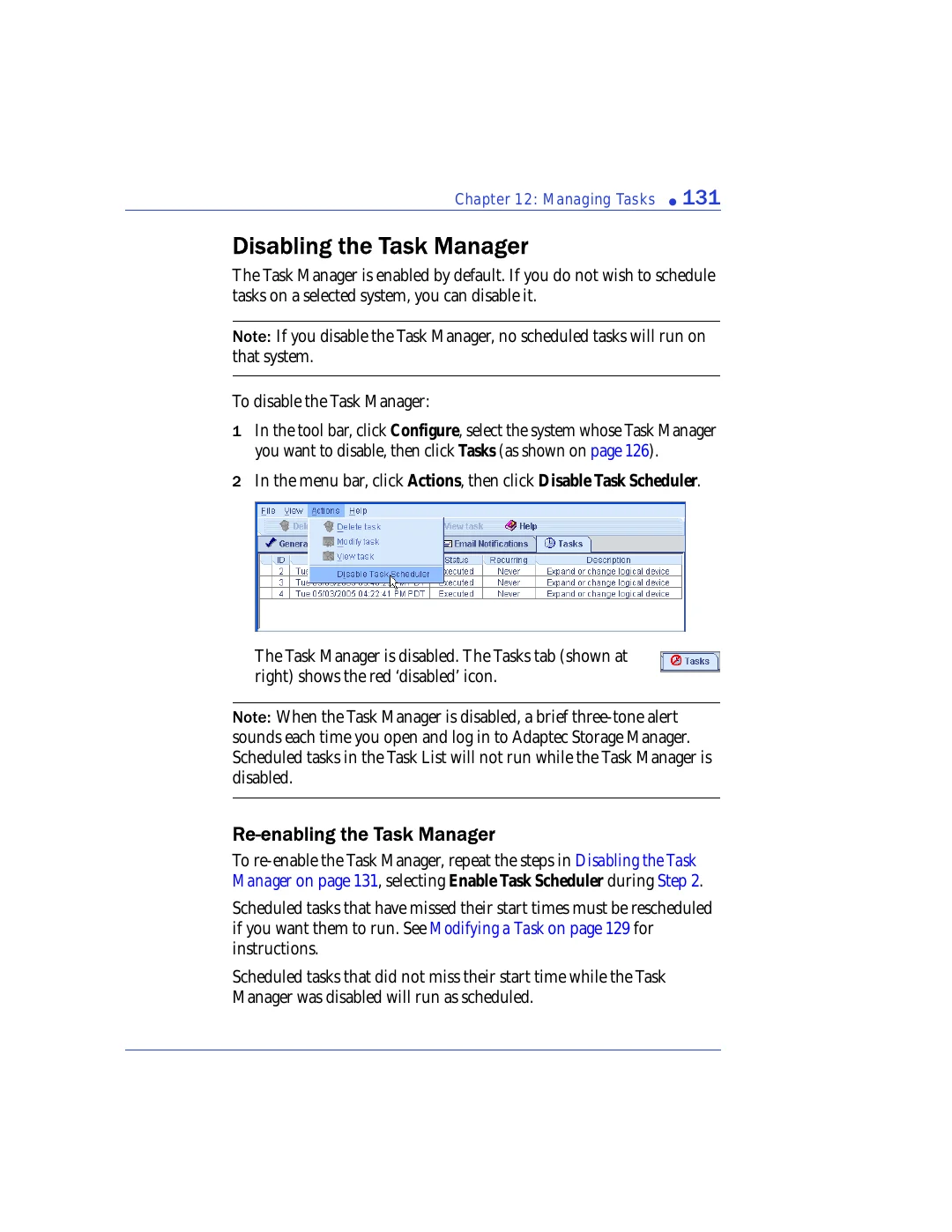
In the menu bar, click
Actions
, then click
Disable Task Scheduler
.
The Task Manager is disabled. The Tasks tab (shown at
right) shows the red ‘disabled’ icon.
Note:
When the Task Manager is disabled, a brief three-tone alert
sounds each time you open and log in to Adaptec Storage Manager.
Scheduled tasks in the Task List will not run while the Task Manager is
disabled.
Re-enabling the Task Manager
To re-enable the Task Manager, repeat the steps in
, selecting
Enable Task Scheduler
during
.
Scheduled tasks that have missed their start times must be rescheduled
if you want them to run. See
instructions.
Scheduled tasks that did not miss their start time while the Task
Manager was disabled will run as scheduled.