Step 3: Exploring Adaptec Storage Manager
●
42
Hold your cursor over any disk drive to see its status, port number,
and maximum speed. You can also click the arrow, shown at right,
to see this same information for all the disk drives at the same time. To
reveal further information, use the View buttons to change how the
disk drives are displayed, as described in
.
A disk drive shaded in light blue is not part of any logical drive. A
disk drive shaded half light/half dark blue (as shown at right) has
some space allocated to a logical drive, and some space available.
To view the logical drives associated with a particular disk drive, see
Using Logical Devices View on page 42
Using Logical Devices View
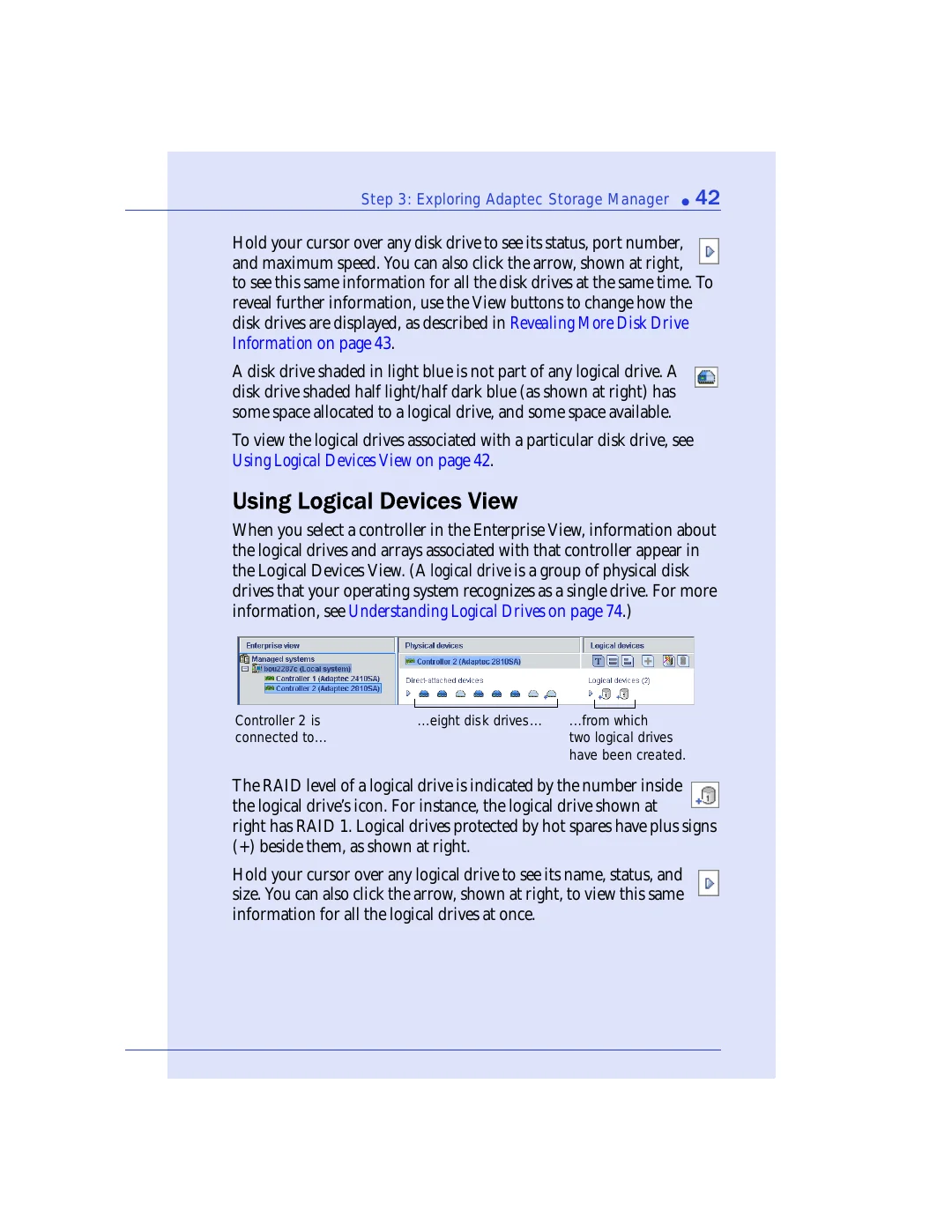
When you select a controller in the Enterprise View, information about
the logical drives and arrays associated with that controller appear in
the Logical Devices View. (A logical drive is a group of physical disk
drives that your operating system recognizes as a single drive. For more
information, see
Understanding Logical Drives on page 74
The RAID level of a logical drive is indicated by the number inside
the logical drive’s icon. For instance, the logical drive shown at
right has RAID 1. Logical drives protected by hot spares have plus signs
(+) beside them, as shown at right.
Hold your cursor over any logical drive to see its name, status, and
size. You can also click the arrow, shown at right, to view this same
information for all the logical drives at once.
...eight disk drives...
Controller 2 is
connected to...
...from which
two logical drives
have been created.