FaxCentre User Guide
AL7 1BU England
Table of Contents
Paper and Other Media
Copy
Maintenance
New Drum Clean Drum
Problems at Installation
Copying Problems
Printing Problems
Faxing Problems Solution Chart
01UG.book Page vi Wednesday, March 7, 2007 300 PM
Welcome
Introduction
Xerox FaxCentre
Specification Note
About This Guide
Italic Typeface
Bracket Text Typeface
Related Information Sources
Information available for the product consists
Customer Support
Safety Notes
Electrical Supply
Electrical Safety Information
Operator Accessible Areas
Maintenance
Cleaning Your Product
Do These
Operational Safety Information
Disconnect Device
Do Not Do These
Maintenance Information
Ozone Safety Information
Laser Safety Information
Consumables
Radio Frequency Emissions
United States and Canada
Product Safety Certification
Agency Standard
Regulatory Information
FAX Function
Data Coupler Information
Canada
Environmental Compliance
Canada
Illegal Copies
Previous military service
01UG.book Page 18 Wednesday, March 7, 2007 300 PM
Product Recycling and Disposal
01UG.book Page 20 Wednesday, March 7, 2007 300 PM
Getting Started
Scanner Module
Unpacking
Tape
CD Contents
Drivers CD
Scanning Software CD
CD Installation
Can be installed on your PC
On the CD
¾ Select your preferred language
Machine Overview
Options
Component Location
Side Cover
Module Paper Release Lever Tray Front Cover
Optional
Rear View
Functions Enable One Touch Keys
Control Panel Overview
FaxCentre 2218 Control Panel
Navigation keys Display Status keys
Resolution
Sided
Collated
Copy
Job Status
Manual Group
Manual Dial
Phonebook
Clear/Clear All AC
Confirmation
One-touch keys
Define or edit the fax number and ID for a key
Installing Drum and Toner Cartridges
Side cover
¾ Open the front cover
Upward until it locks into place
¾ Close the front cover and the side cover
Xerox
Telephone Line
Making Connections
Document Feeder
USB or Parallel Port Cable
Powering On the Machine
¾ Connect the AC Power Cord to
On I position
Machine displays ’Warming Up Please Wait...’
Rear Guide
Loading Paper
An additional ¾ Pull open the Paper Tray. Paper Tray is
Corner Snubbers
¾ Do not fill above the Maximum Fill Line
Max Fill Line
01UG.book Page 20 Wednesday, March 7, 2007 300 PM
Machine Setup
Status
Machine Setup Options
LTR / A4 / LGL / Folio
Off
15 / 30 / 60
Low
High Off
Inch
Slow
Discard Size
System Requirements
Installing Software
Installing Drivers
Installing Drivers in Windows
Windows 98/Me/NT 4.0/2000/XP
Macintosh
Linux
Click Next to install your selections
¾ Click Next
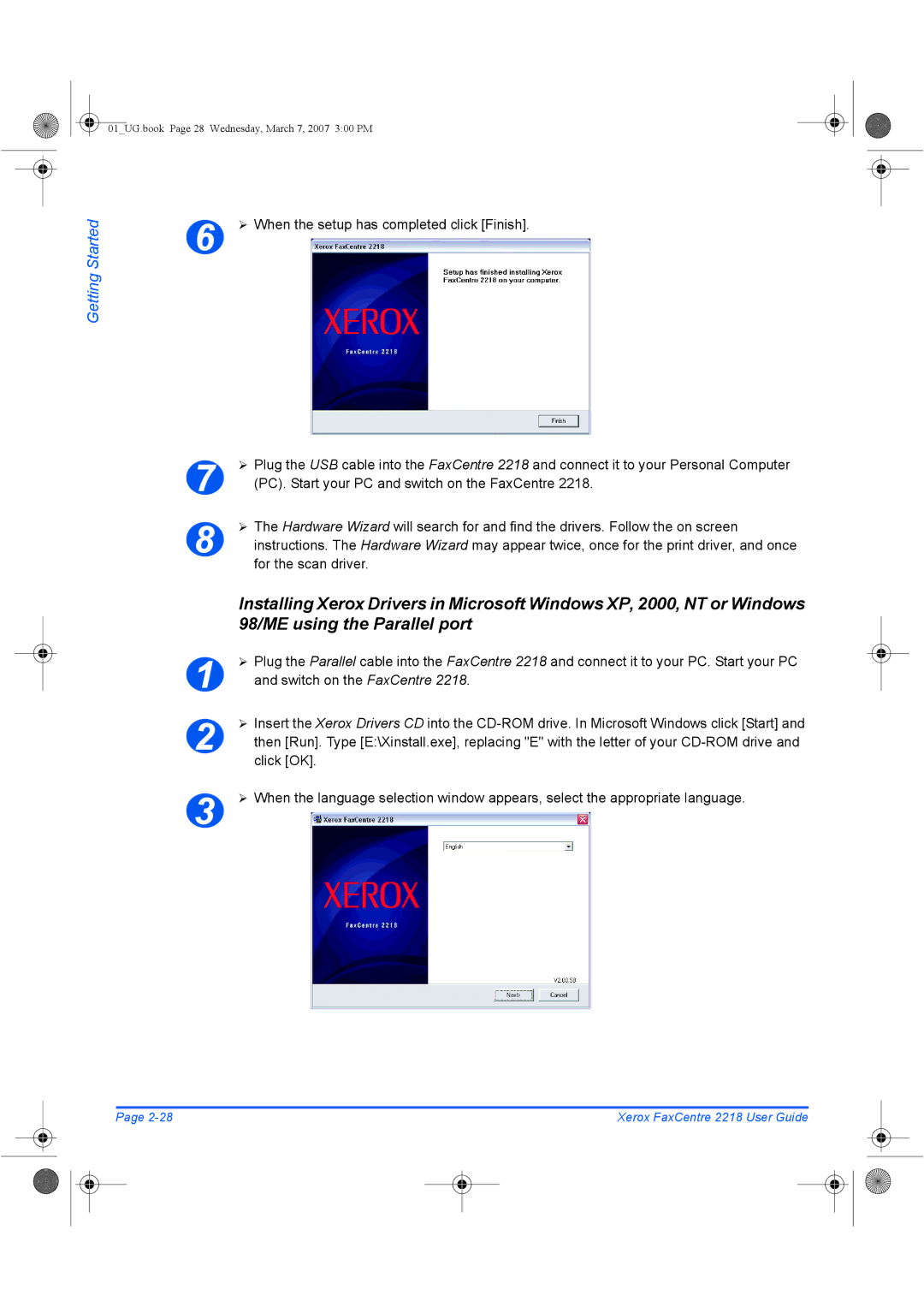
01UG.book Page 28 Wednesday, March 7, 2007 300 PM
01UG.book Page 29 Wednesday, March 7, 2007 300 PM
Next
PC. Start your PC and switch on the FaxCentre
¾ The Add New Hardware Wizard will display. Click Next
Click Next when prompted then click Finish
Scan driver for the FaxCentre 2218 is now loaded
Add Printer icon
Win9x directory and click OK
¾ Choose Yes to print a test page and click Finish
Installation process is now complete
Test Print or Scan
Test Print
Test Scan
01UG.book Page 34 Wednesday, March 7, 2007 300 PM
Paper and Other Media
Using the Paper Trays
Preparing Paper for Loading
Loading the Paper Trays
Until it locks into position
Guide
Rear
Insert it into the required
¾ Ensure that the paper is
Max Fill Line Corner Snubbers
Using the Bypass Tray
Paper Supply key until
Required tray is lit on the Status Map
Status Map
Loading the Bypass Tray
Paper Support Bypass Tray
Enter
Setting the Paper Size
Display shows Tray 1 Size on the bottom line
¾ Press Enter
Selection
Media Specifications
Media Sizes and Types
Media Size
Paper Tray Bypass Tray Plain paper
01UG.book Page 10 Wednesday, March 7, 2007 300 PM
01UG.book Page 11 Wednesday, March 7, 2007 300 PM
01UG.book Page 12 Wednesday, March 7, 2007 300 PM
Fax
Faxing Procedure
Load the Originals
Document Feeder
¾ Remove all staples and paper clips prior to loading
Fax mode Fax key remains illuminated When selected
Select the Fax key
Document Glass
Align with the registration arrow in the rear left corner
Numeric Keypad Clear/Clear All
Select the Fax Features
Enter the Fax Number
Press Start
Job Status
Enter
Job Status Enter Navigation Keys
Keypad Dialing
Dialing Methods
Dialing Method Instructions
One Touch Dialing
Speed Dialing
Dialing from the Phonebook
Manual group dialing
Charge Code
Manual Dialing
Redial
Basic Fax Features
Feature Description
Contrast Settings
Text
Mixed
Photo
Sided
Yes
Special Fax Features
Menu/Exit Enter Navigation Keys
Toll Save
Memory Fax
Delay Fax
Priority Fax
Polling
TX Poll
Poll
Batch TX
Secure Receive
Print
Configure PC Fax
Example of configuring PC Fax on a network Xp
PC Fax
¾ Select the Network radio button ¾ Select Browse
Without having a Network Kit installed on the machine
To Send a PC Fax
Cover
Wizard will pop-up
Feature Instructions
Recipients
01UG.book Page 20 Wednesday, March 7, 2007 300 PM
Fax Forwarding
Choices are
Mailbox Setup
Create a Mailbox
Press Enter. Repeat steps 6
Delete a Mailbox
To delete a mailbox
Mailbox Procedures
Storing Documents in a Mailbox
Store in the mailbox
¾ Press the Menu/Exit key
Printing Mailbox Contents
Deleting Mailbox Contents
Key and press Enter
Polling from a Mailbox
¾ Select Poll From and press Enter
Sending to a Mailbox
Fax Setup Options
Changing the Fax Setup Options
Enter Machine Status
Fax Setup Options
Edit
Phonebook Setup Speed Dials
New
Phonebook Setup Group Dials
Phonebook Setup One Touch Keys
High
On-Err
Up to 5 digits
Dial Mode
Fax Auto Tray
All
Tone
Drpd Mode
Set
Copy
Copying Procedure
Select Copy Mode
Current Reduction Number of Copies Enlarge Setting Copy Key
Select the Paper Supply
If using the Bypass, remember to load the required stock
Navigation Keys Enter
Select the Copy Features
¾ Press the Copy feature key required on the Control Panel
Scan Another? option
Enter the Quantity
¾ Press Start to begin the copy job
25 400%
Basic Copy Features
Reduce/Enlarge
Clone
Auto Fit
Long
Short
Paper Supply
Bypass
ID Card Copy
Special Copy Features
Feature Options To Select
Edges
Binder
Holes
Book
Back
Both
Front
Transparencies
Create Booklet
Compatible Features
Feature
Copy
=Compatible =Incompatible
01UG.book Page 14 Wednesday, March 7, 2007 300 PM
Print
Printing a Document
Printer Settings
Accessing Printer Settings
Windows 98/Me
Windows NT
Windows XP
PCL Driver
Layout Tab
Paper Tab
Print Quality Mode
Toner Save Mode
Image Options Tab
Image Quality
Collate
Output Options Tab
Print Order
Add, Update and Delete
Watermark Tab
Current Watermarks
Font Attributes
About Tab
01UG.book Page 12 Wednesday, March 7, 2007 300 PM
Scan
Twain Scanner Program
Twain Scanning Procedure
Open the Image Editing Application
Select the Scan Features
Select Preview
Select Scan
Save the Image
Prescan Scan
Scanning Using the WIA Driver
WIA Scanning Procedure
¾ 7 ¾
01UG.book Page 8 Wednesday, March 7, 2007 300 PM
Machine Administration
Report Description
Reports
Reports Available
Machine Status
Printing Reports
Reports
Installing ControlCentre
Using ControlCentre
ControlCentre
Running ControlCentre
Firmware Update Tab
Phonebook Tab
PCL Button
Click on the Printer tab to set default print options
Printer Tab
Setting Departments
Department Codes
Printing Department Data
¾ Select the required report and press Enter
Managing Departments
¾ To clear the Journal, select Journal and press Enter
Changing the Master Code
¾ To remove the Master Code, select Delete and press Enter
Enable Passcode Protection
Machine Setup Protect All Allow All Allow Tray Sizes
Passcode Protection
Function Permissions
Fax Setup
Sys. Admin Tools
Change the Passcode
Reports
¾ Enter the new passcode and press Enter
¾ Select the option required and press Enter
Clear Memory
Clearing the Memory
Maintenance Tools
¾ Select Maintenance and press Enter
Check the Serial Number
¾ Select Serial Number and press Enter
Notify Toner Low
New Drum
Clean Drum
¾ Select Clean Drum and press Enter
FaxCentre 2218 will print a special cleaning
Billing Counters
¾ Select Billing Counters and press Enter
¾ Select the required Counter and press Enter
¾ Select DT Detection and press Enter
¾ Select On using the navigation tools
Dial Tone Detection DT Detection
Off and press Enter
Enabling or Disabling Auxiliary Access
¾ Select Auxiliary Access and press Enter
01UG.book Page 22 Wednesday, March 7, 2007 300 PM
Maintenance
Cleaning
CVT Glass
Control Panel and LCD
Outside Areas of the Machine
Ordering Supplies
Customer Replaceable Unit Part Number
Toner Cartridge
Drum Cartridge
Toner Save Mode
Customer Replaceable Units
Toner Cartridge
Expected Cartridge Life
To Re-distribute the Toner
Machine returns to standby
Setting the Product to Send Toner Low Information
Drum Cartridge
Replacing the Drum Cartridge
¾ Pull out the used drum cartridge
01UG.book Page 10 Wednesday, March 7, 2007 300 PM
Troubleshooting
General
Fault Clearance
Document Jams
Input Misfeed
Cover
¾ Feed the documents back into the Document Feeder
Exit Misfeed
Right and out of the Document
Roller Misfeed
Reload the documents
When pulled, pull the release
Paper Jams
Paper Feed Area
Lever to open the side cover
¾ Open the front cover ¾ Pull down on the Fuser Lever
Paper Exit Area
Close the cover
¾ Turn the Jam Remove Lever back to the original position
¾ Close the front cover and side cover
Sided Jam
Bypass Tray Jam
¾ Remove the jammed paper
Paper out of the machine
Customer Support
LCD Error Messages
Display Meaning Solution
Line Error
LSU Error
Polling Error
Non-Xerox Toner Cart
Power Failure
No. Not Assigned
No Paper
RX Tray Full
Problem and Solutions Charts
Problems at Installation
Copying Problems
Condition Suggested Solution
Printing Problems
Half of the page is blank
Printing is too slow
Black staining
Character voids
Faxing Problems Solution Chart
Problem Suggested Solution
Received original is printed
Dark and is illegible or black
Stripes are printed on
Original
01UG.book Page 20 Wednesday, March 7, 2007 300 PM
Specifications
Specifications
PCL6
Printer Specifications
Emulation
Fax Specifications
Scanner and Copier Specifications
General Specifications
Source Media Types Sizes Thickness
Plain paper, OHP film, Label, Envelope, Card, Postcard
Paper Type L mm L Inch
01UG.book Page 8 Wednesday, March 7, 2007 300 PM
Index
Index
01UG.book Page 3 Wednesday, March 7, 2007 300 PM
Fax 11-4 General 11-6 Paper 11-7 Printer
Canada 1-5,10-10 US 1-5,10-10
Index Xerox FaxCentre 2218 User Guide

 6
6 3
3