Audio
Contents
105
104
106
108
Important safety instructions
Important safety instructions
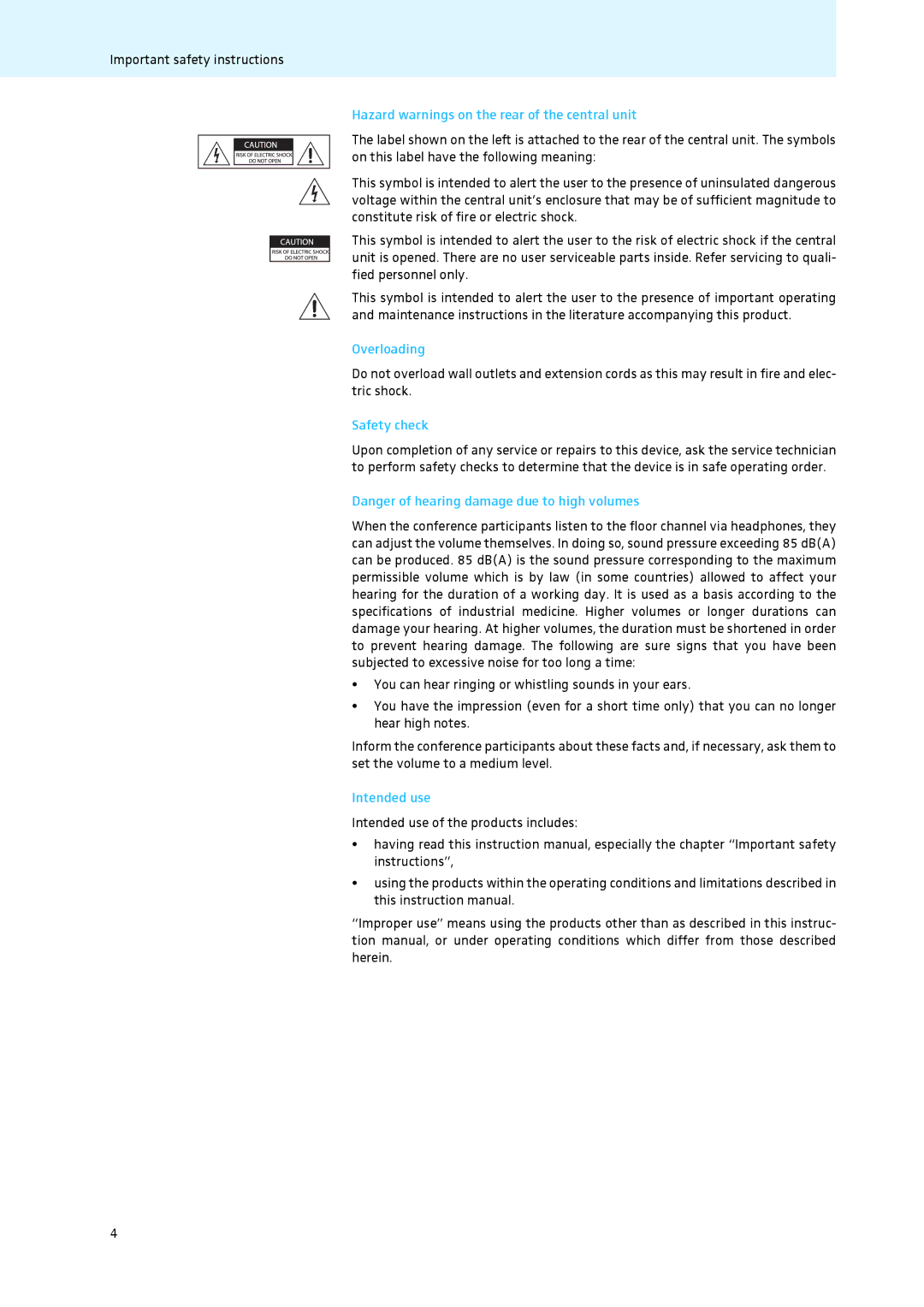
Hazard warnings on the rear of the central unit
Safety check
Overloading
Intended use
Sennheiser ADN conference system
Sennheiser ADN conference system
Central unit Cat. No
Available system components scope of delivery
Mains cable for central unit
System cable
Overview of the components
Overview of the components
ADN D1 delegate unit
ADN C1 chairman unit
Hazard warnings Type plate
ADN CU1 central unit
Overview of the ADN CU1 display panel
Direct Access, Override, Request
Text/icon
Possible display/function
SDC CBL RJ-45 system cables
Conference Manager software
Structuring and controlling the conference system
Structuring and controlling the conference system
Structuring the conference system
Voltage supply = 52.8
Function Operating menu Conference Manager software
Configuring and controlling the conference system
Configuring the conference
Rack mount ears
Putting the conference system into operation
Preparing the central unit for use
Preparing the conference units for use
Connecting the central unit to the mains
Connecting the conference units to the central unit
Setting up the conference system
Installing the cable holder
Cable
On the central unit
Preparing to use the Conference Manager software
Device Requirements
Keyboard layouts on
Switching the conference system on/off
Deactivating the lock mode of the central unit
Using the central unit
Functions of the keys
Action Functions
Overview of the operating menu
Configuring the conference system via the central unit
Configuring the conference system via the central unit
Display Function of the menu item Option/display
Diagnostics
Loudspeakers Volume Floor
Temperature
Reset Break
Working with the operating menu
Canceling an entry
Adjusting the conference settings Conference
Adjusting the conference mode Conference Mode
Direct Access mode and Override mode
Situation
Behavior Direct Access mode
Event
Behavior
Setting the speaking time limit- Talk Time Limit
Possible settings On and Off
Setting the advance warning time Premonition Time Limit
Adjustment range 00 .. , adjustable in steps of 10 seconds
Speaking time limit Premonition Time Limit
Cancel
Advance warning time Effect
Behavior Continue
Setting the function of the priority key
Setting Behavior of the signal light ring
Off
Re-initializing the conference units Re-Init
Submenu Menu item Function
Adjusting the audio settings Audio
Floor/Loudspeakers Volume
Adjusting settings for the floor channel Floor/Loudspeakers
Menu item Function
Floor/Loudspeakers Equalizer
Linear Division setting
Behavior DB per Mic ... -3.0 dB per Mic setting
Icon Meaning
Checking the system and detecting problems System
Error
System Load Temperature Bus Statistics
Display
Remedy
Icons appear
Wrong cabling the microphone LED Signal light ring
Error and Short-circuit caused by
Structural change icon M
Are displayed
Display Meaning and causes
System analysis Diagnostics submenu
Displaying the temperature status Temperature
You can manually reset the error counter Break Counter see
Adjusting the language Language
Adjusting the contrast of the display panel Contrast
Adjusting further settings Settings
Adjusting network settings Network submenu
Activating the lock mode Lock
Matically granted speaking privileges
Running a conference
Running a conference
Deactivating the microphone/Cancelling a request to speak
Signal light ring Light up red. Loudspeaker
Operating a delegate unit
Taking the floor/Making a request to speak
Operating a chairman unit
Connecting headphones
Setting the headphone volume
Granting speaking privileges
Muting all delegate units temporarily priority function
Setting the volume of the conference units’ built-in
Loudspeakers
Using the Conference Manager software
Preparing the central unit’s integrated software for use
Connecting and configuring the screen, mouse, and keyboard
Preparing the Windows version of the software for use
System requirements
Installing the Conference Manager software
Window appears
Windows XP Windows Vista
Tions window appears
This connection uses
Double-click Local Area Connec Tion
Internet Protocol Version 4 TCP
Windows PC is assigned a dynamic IP address in the network
Windows XP
Settings to be adjusted via the central unit see
Windows
Windows PC is assigned a static IP address in the network
Windows version of the software
Starting/exiting the software
Central unit’s integrated software
Overview of the software
Menu Submenu Function
Menu bar a
Button Function
Selecting operating modes and views
Views of the software depending on the operating mode
Highlighted in blue
Selecting Click the Setup button
Page
Using the Conference Manager software
Windows software
Menu bar, click Edit Full Screen
Settings can be adjusted
Using a password
Set Password window appears
To enter a new password
Select the Obtain an IP Address automatically option button
Adjusting network settings
Loading the factory default settings
Connecting the software to the central unit
Using the conference system and the software
Creating a new configuration
Eliminating connection problems
Disconnecting the connection to the central unit
Loading a configuration Actions
Select the Save Conference Document on CU option button
Saving a configuration
To save a newly created configuration on the central unit
Select the Save as Local Conference Document option button
Closing a configuration
Deleting a configuration from the central unit
Using the Conference Manager software
Page
Page
Click Add Multiple
Creating and positioning a
Freeform path
Rotating objects
Moving graphic objects
Defining the fill color
Please note when defining fill, line and border attributes
Click Add to Custom Colors
Color is added to the list of standard colors
Changing the font size
Changing the font type
Page
Button Objects are aligned to
Automatically aligning objects
Moving objects forwards/backwards
Undoing/redoing actions Click the Room View button
Page
Changing the size of the canvas Click the Room View button
They cannot be edited Click the Room View button
Locking objects and library panels
Name
Double-click a delegate name
Change the name
Add Delegate window closes
Delegates Lists folder
Initializing the conference units Setup operating mode
Import Participant Data window appears
Overview of the conference unit icons
Conference units
Conference units see next section
Chairman unit icon and drag it on the canvas see
On the icon
Conference unit go
Setting Orientation/visibility
Adjusting the conference mode
Adjusting the conference settings Setup operating mode
Check box Behavior
Check box Behavior when a request to speak is made
Speak list if available
All Micros OFF button
Check box Function of the All Micros OFF button
Adjusting the audio settings
Menu, you have to deactivate the lock mode see
Operating menu
CU Lock Status
Channel is reduced by the adjusted value
Audio signal of another conference unit is fed to the floor
Try out the different settings by activating the maximum
Volume level of the floor channel is automatically reduced
Controlling and monitoring a conference Live operating mode
Page
Element Function/Meaning
Monitoring a conference
Icon Function/Meaning
Controlling a conference
Bar graph Meaning
Micro
Activating/deactivating the audio input/output
Adjusting settings during a running conference
Audio input/output Activated Deactivated
Audio input OUT audio output
Made see
Using the log and diagnosis function Event Log
Exiting the Live operating mode
Column Meaning/Function
Cleaning and maintaining the conference system
Cleaning and maintaining the conference system
Updating the firmware of the conference system
Updating the firmware of the conference system
Conference system
If a problem occurs
Problem Possible cause Possible solution
Conference Manager software
Problem Possible cause Possible solution See
Accessories
Accessories
Specifications
Specifications
ADN D1 and ADN C1 conference units
Loudspeaker
XLR OUT
Appendix
ADN CU1 mounting dimensions Factory default settings
Menu item/description Factory default settings
Keyboard layouts
113
Microsoft Software License Terms
114
115
Manufacturer Declarations
Warranty
Compliance with the following requirements
CE Declaration of Conformity
Index
Index
120
System analysis
Microphone activating 45 deactivating Microphone Limit 27
Sennheiser electronic GmbH & Co. KG