Abbreviations and Acronyms
Dell Latitude D600 Systems Users Guide
About Your Computer
Front View
Device status lights
Page
Keyboard status lights
Left View
Right View
Audio connectors
Back View
USB connectors
Parallel connector
Video TV-out connector
Modem connector RJ-11 optional
Network connector RJ-45
Bottom View
Back to Contents
Class a Class B
Appendix
Macrovision Product Notice
FCC Notices U.S. Only
Warranty and Return Policy
Alert Description
Alert Standard Format ASF
Dell QuickSet Battery Meter
Using a Battery
Battery Performance
Checking the Battery Charge
Charge Gauge
Charging the Battery
Microsoft Windows Power Meter
Low-Battery Warning
Removing and Installing a Reserve Battery
Removing a Battery
Installing a Battery
Storing a Battery
Using the Module Bay
Checking the Charge on the Second Battery
About the Module Bay
If the Device Screw Is Installed
If the Device Screw Is Not Installed
Microsoft Windows XP
Windows
Windows XP
Windows
Using the CD or DVD Tray
Using CDs or DVDs
Adjusting the Volume
Adjusting the Picture
Volume Meter
Windows
Cleaning Your Computer
Back to Contents
Starting the Dell Diagnostics
Using the Dell Diagnostics
When to Use the Dell Diagnostics
Features of the Dell Diagnostics
Tab Function
Option Function
Setting Display Resolution
Using the Display
Adjusting Brightness
Switching the Video Image
Under Pick a category, click Appearance and Themes
Windows
Click Properties
Reinstalling Software
Reinstalling Drivers and Utilities
Manually Reinstalling Drivers for Windows XP
Click Roll Back Driver
Using the Windows XP Device Driver Rollback
Manually Reinstalling Drivers for Windows
Resolving Software and Hardware Incompatibilities
Windows XP
Click Performance and Maintenance and click System
Click the System Restore tab
Using Microsoft Windows System Restore
Creating a Restore Point
Click the Performance and Maintenance
Undoing the Last System Restore
Reinstalling Windows XP
Reinstalling Windows
Enabling Hibernate Mode
Finding Information
Find It Here
Support.dell.com
Click Users and system guides and click Users guides
Users Guide
Back to Contents
Ftp.dell.com
Online Services
Getting Help
Technical Assistance
Technical Support Service
Problems With Your Order
AutoTech Service
Automated Order-Status Service
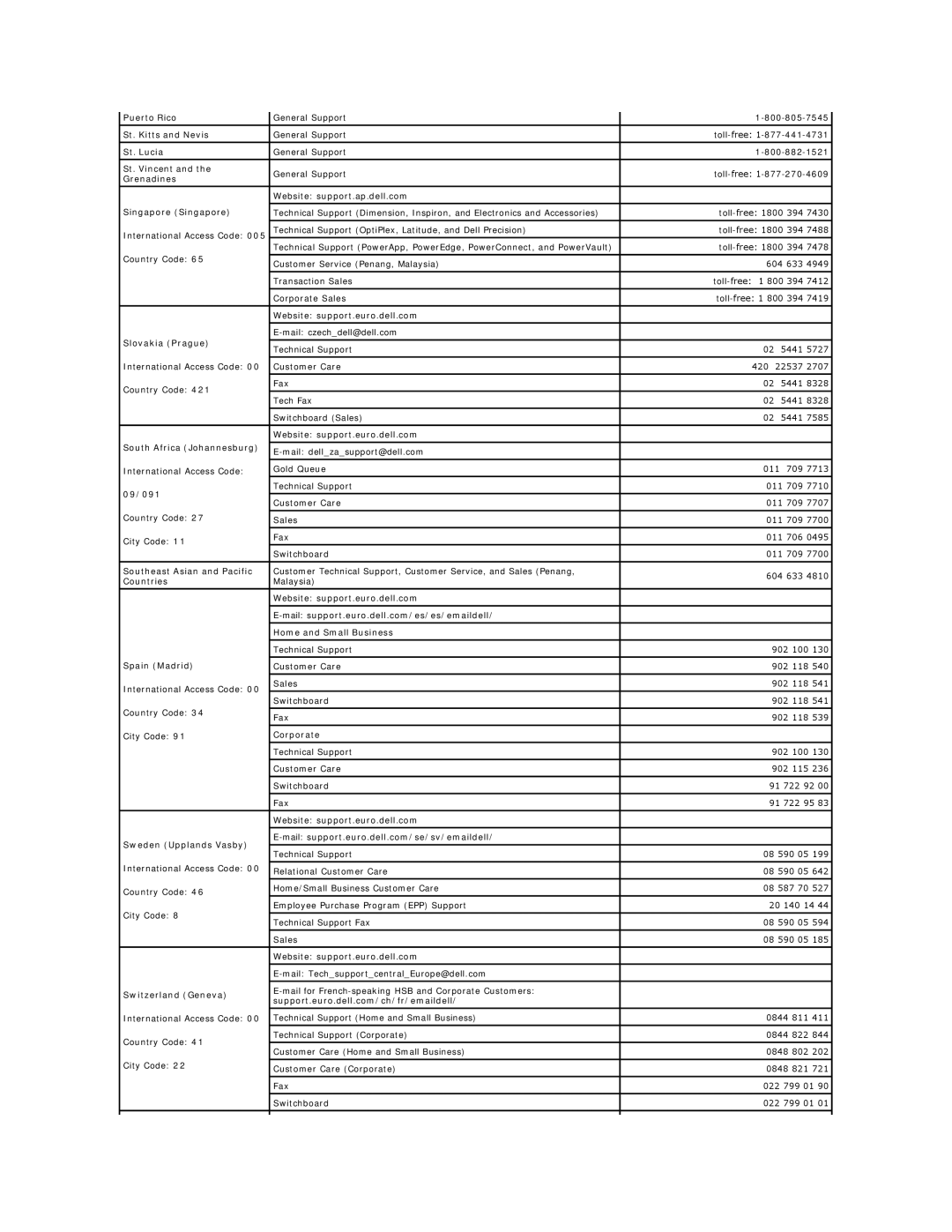
Contacting Dell
Before You Call
Website support.euro.dell.com
Aruba
Australia Sydney
0011
Czech Republic Prague
China Xiamen
Colombia
Costa Rica
Website support.euro.dell.com Greece
France Paris Montpellier
Corporate
Germany Langen
Korea Seoul
Jamaica
Website support.jp.dell.com
Japan Kawasaki
Netherlands Amsterdam
Mexico
Montserrat
Netherlands Antilles
St. Vincent
Puerto Rico
St. Kitts and Nevis
St. Lucia
Turks and Caicos Islands
Website support.ap.dell.com Taiwan
Website support.ap.dell.com Thailand
Trinidad/Tobago
Virgin Islands General Support Venezuela
Glossary
Page
Docking device See APR
Device driver See driver
Page
Page
Page
Page
NIC See network adapter
Page
Page
System tray See notification area
Video resolution See resolution
Back to Contents
Using the Keyboard and Touch Pad
Numeric Keypad
Keyboard Shortcuts
Microsoft Windows Logo Key Functions
Radios Including Wireless Networking and Bluetooth
Power Management
Speaker Functions
Track Stick
Changing the Track Stick Cap
Customizing the Touch Pad and Track Stick
Using an Administrator Password
Passwords
About Passwords
Using a Primary Password
Assigning an Asset Tag
Using a Hard Drive Password
Viewing Existing Asset Tag and Service Tag
Assigning an Asset Tag
Asset Tag Options
Deleting an Asset Tag
Assigning an Owner Tag
Deleting an Owner Tag
Page
PC Card Blanks
Using PC Cards
Installing a PC Card
PC Card Types
Removing a PC Card or Blank
Setting Sleep Modes
Power Management
Power Management Tips
Power Management Wizard
Completing the Power Management Wizard
Power Management Modes
Selecting a Power Scheme
Setting Battery Alarms and Actions
Power Options Properties
Disable audio notification when performance changes
Hibernate Tab
Intel SpeedStep Technology Tab
Adjust the power properties See Power Management
Solving Problems
Power Problems
Error Messages
Page
Click Add or Remove Programs
Operating system not found Contact Dell
Video and Display Problems
If the display is blank
Click Change or Remove Programs
If only part of the display is readable
Sound and Speaker Problems
If you have a problem with integrated speakers
If the display is difficult to read
Click Device Manager Double-clickDVD/CD-ROM drives
Printer Problems
If you have a problem with external speakers
Reinstall the sound audio driver See Reinstalling Software
Verify that Windows recognizes the printer
Modem and Internet Connection Problems
Reinstall the printer driver See Reinstalling Software
Check the printer cable
Touch Pad or Mouse Problems
Check the touch pad settings
Verify that the modem is communicating with Windows
Unexpected Characters
External Keyboard Problems
Drive Problems
Reinstall the touch pad driver See Reinstalling Software
If you cannot play a CD, CD-RW, DVD, or DVD+RW
Reinstall the drive
Check the drive for errors
If you cannot save a file to a floppy disk drive
If you hear an unfamiliar scraping or grinding sound
PC Card Problems
Smart Card Problems
If you have problems with a hard drive
Program stops responding
Network Problems
General Program Problems
Program crashes
If Your Dell Computer Gets Wet
Error messages appear
If You Drop or Damage Your Computer
Resolving Other Technical Problems
Right-Clicking the QuickSet Icon
Dell QuickSet Features
Clicking the QuickSet Icon
Double-Clicking the QuickSet Icon
Adding Memory
Adding and Replacing Parts
Adding a Mini PCI Card
Page
Replacing the Hard Drive
Captive screw
Connecting a Television to the Computer
Removing and Replacing the Hinge Cover and Keyboard
Video Connection
Page
Composite Video Connection
ATI Video Controller
Enabling the Display Settings for a Television
Safety Instructions
Overview
Using the System Setup Program
Viewing the System Setup Screens
System Setup Screens
Changing Printer Modes
Changing COM Ports
Enabling the Infrared Sensor
Back to Contents
Using Smart Cards
Installing a Smart Card
About Smart Cards
Smart card
Specifications
Display
Communications
Video
Audio
Track Stick
Battery
Keyboard
Touch Pad
Environmental
Physical
Dell Latitude D600 Systems Users Guide
Travel Tips
Traveling With Your Computer
Identifying Your Computer
Packing the Computer
If Your Computer Is Lost or Stolen
Connecting to a Wireless Local Area Network
Connecting to a Wireless Network in Microsoft Windows XP
Determining Your Network Type
Back to Contents
Help and Support Center
Switching to Classic View
Desktop Cleanup Wizard
About Microsoft Windows XP
Program Compatibility Wizard
Files and Settings Transfer Wizard
User Accounts and Fast User Switching
Special Considerations With Fast User Switching
Internet Connection Firewall