Projecting a Reversed/Inverted Image
Projection from behind the screen
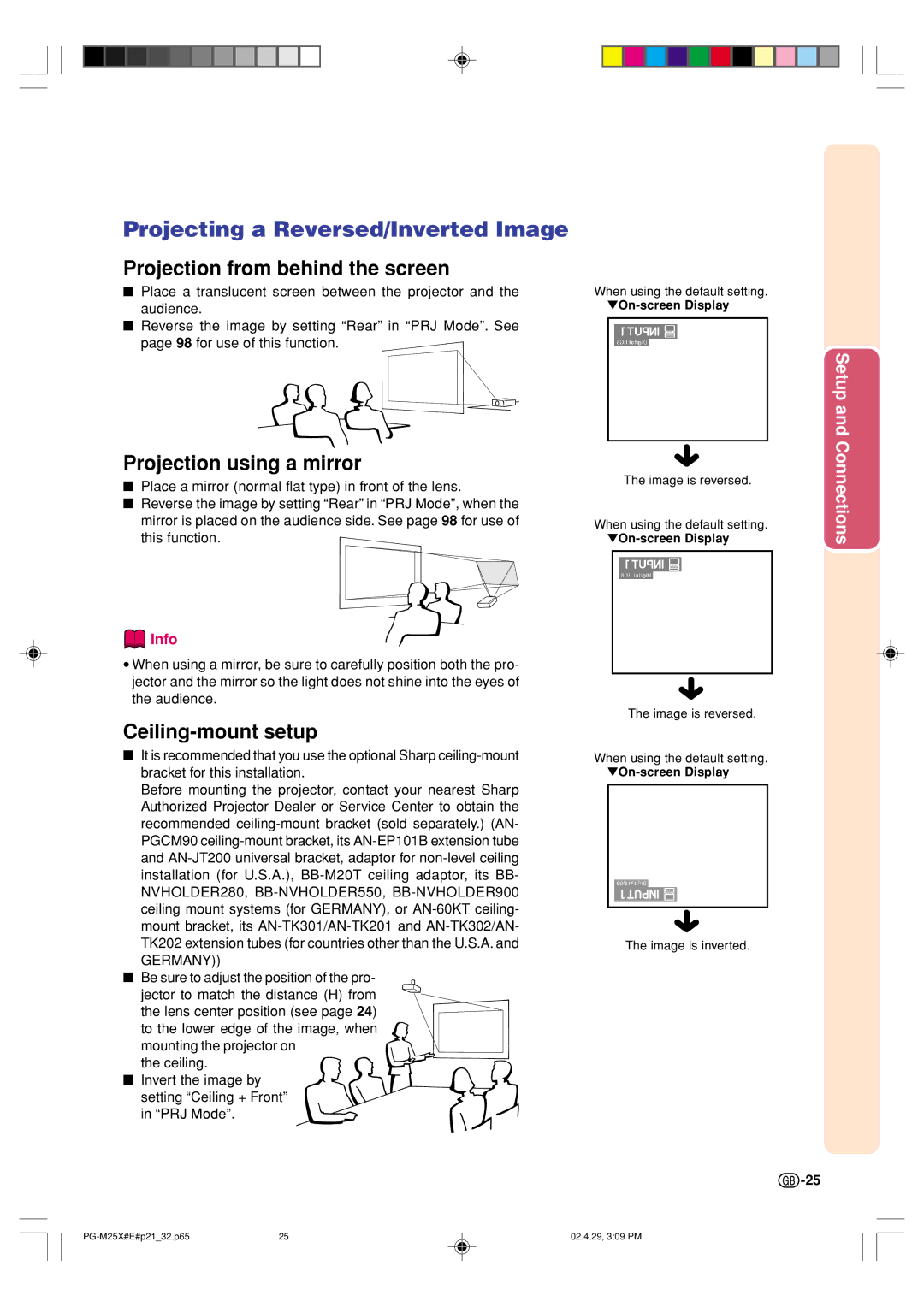
■Place a translucent screen between the projector and the audience.
■Reverse the image by setting “Rear” in “PRJ Mode”. See page 98 for use of this function.
Projection using a mirror
■Place a mirror (normal flat type) in front of the lens.
■Reverse the image by setting “Rear” in “PRJ Mode”, when the mirror is placed on the audience side. See page 98 for use of this function.
 Info
Info
•When using a mirror, be sure to carefully position both the pro- jector and the mirror so the light does not shine into the eyes of the audience.
Ceiling-mount setup
■It is recommended that you use the optional Sharp
Before mounting the projector, contact your nearest Sharp Authorized Projector Dealer or Service Center to obtain the recommended
■Be sure to adjust the position of the pro- jector to match the distance (H) from the lens center position (see page 24) to the lower edge of the image, when
mounting the projector on the ceiling.
■Invert the image by
setting “Ceiling + Front” in “PRJ Mode”.
When using the default setting.
|
|
|
| Setupand |
| Connections | |||
|
| The image is reversed. |
|
|
When using the default setting. |
|
| ||
|
|
|
|
|
|
|
|
|
|
The image is reversed.
When using the default setting.
The image is inverted.
 -25
-25
25 | 02.4.29, 3:09 PM |