Windows Help
HP Deskjet D2500 Printer series
Visual
Accessibility
Hewlett-Packard Company notices
Acknowledgements
Contents
Printer software
Maintenance
Printing tips
Troubleshooting
Technical information
HP support
Section
Welcome
HP inkjet supplies recycling program
Special features
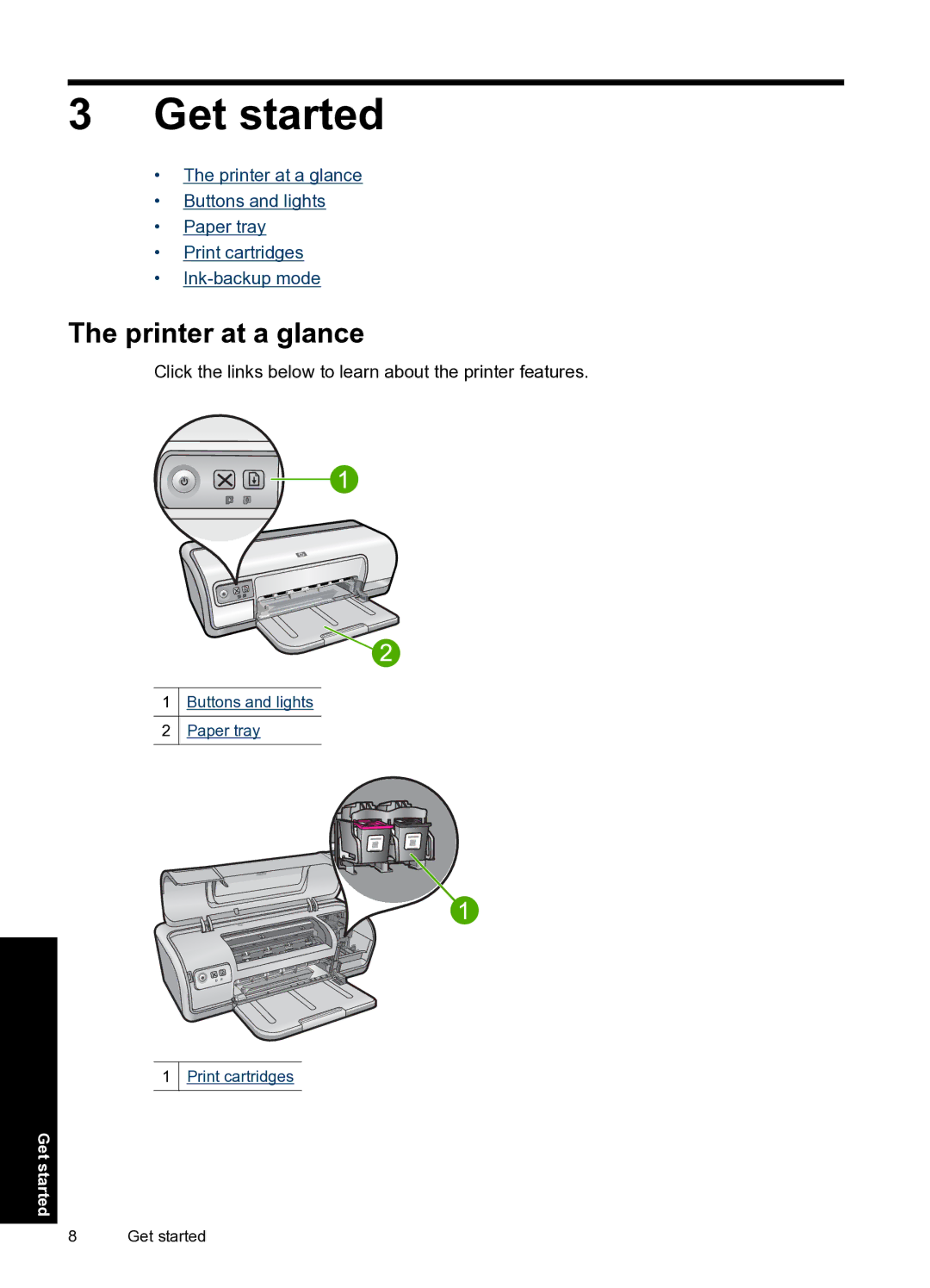
Printer at a glance
Get started
Buttons and lights
Cancel button
Power button and light
Print Cartridge Status lights
Resume button and light
To unfold the paper tray
Paper tray
Unfold the paper tray
Use the paper tray
To fold the paper tray
Fold the paper tray
Replace print cartridges
Print cartridges
To remove plastic tape from a print cartridge
Ink-backup mode
Exit ink-backup mode
Ink-backup mode output
USB
Connect the printer
Print borderless photos
Learn how to print photos
Learn how to perform other photo printing tasks
Print photos
Orientation Portrait or Landscape
Print photos with a border
Prepare to print
Print
Click the Printing Shortcuts tab
Print photos on plain paper
Paper Size Letter or A4 Orientation Portrait or Landscape
To change the HP Real Life Technologies setting
HP Real Life Technologies photo fix
Exif Print
Storage
Save money and ink when printing photos
Store and handle photo paper
To print Exif Print-enhanced photos
Save money and ink when printing photos
Print e-mail
Print other documents
Print documents
Print letters
Print envelopes
Print index cards and other small media
Print postcards
Print labels
Print transparencies
Two-sided printing Manual
Print brochures
Print Quality Best
Print Quality Normal
Print greeting cards
Print booklets
Greeting cards
Left Edge Booklet Right Edge Booklet
Print posters
Paper Type Plain paper Orientation Portrait or Landscape
Print iron-on transfers
Click Printer Features, and then set Mirror Image to On
Printing shortcuts
Printing tips
Print a test
To create a printing shortcut
Create printing shortcuts
Delete printing shortcuts
Use printing shortcuts
Click Document Options, and then click Layout Options
Set the page order
Fast/Economical printing
To set the page order
To print in grayscale
Print multiple pages on a single sheet of paper
Print in grayscale
To print multiple pages on a single sheet of paper
To print a two-sided document
Two-sided printing
General Everyday printing
Print preview
Select a paper type
Set a custom paper size
Maximum dpi
Print resolution
Change the print speed or quality
To resize a document for a different paper size
To print in Maximum dpi mode
Resize a document
Bound two-sided documents
Flip Pages Up Preserve Layout
Print a Web
To print a two-sided document with a tablet binding
To print a Web
Presentation printing
Printer software
Make the HP Deskjet the default printer
Set default print settings
To open the Printer Properties dialog box
To change the default print settings
Printer Properties dialog box
Whats This? help
Download printer software updates
Choose original HP cartridges for how you print
Maintenance
Install print cartridges
Choose the right print cartridges
Printing with one print cartridge
Installation instructions
To install a print cartridge
Selection numbers
Slide the print cartridge out of the carriage
To align print cartridges
Align print cartridges
View estimated ink levels
Automatically clean print cartridges
To remove smudges, stains, or dried ink from the exterior
Manually clean print cartridges
Maintain the printer body
Remove ink from your skin and clothing
Maintain print cartridges
To prepare to clean
To manually clean print cartridge contacts
To open the printer Toolbox
Printer Toolbox
To order print cartridges from your desktop
Shop for ink supplies
Incorrect print cartridge or print cartridge missing
Troubleshooting
Error messages
Print cartridge error messages
Non-HP print cartridges
Print cartridge problem message
Print cartridge carriage is stuck
Print cartridge is in the wrong slot
Low on ink
Printing in ink-backup mode
Original HP ink depleted
Paper Mismatch or Paper Size message
Solution 1 Press the Resume button
Solution 2 Set the paper size in Microsoft Word
To set the paper size in Microsoft Word
Installation problems
There was an error writing to USB port
Out of paper
Unknown Device message displays
Installation program stops
Solution To resolve the problem
Solution
Printer name does not appear
To reinstall the printer software
Printer lights are on or flashing
Resume light is flashing
Power light is flashing
Print Cartridge Status lights are on or flashing
Both Power and Resume lights are flashing
Unable to print
Printer does not print
Verify the following
Solution 2 Print a test
Solution 1 Make sure the printer is turned on
To disconnect and reconnect the USB cable
Solution 3 Clear the print queue
Solution 4 Check the printer cable connection
To clear the print queue
To verify the print driver
Solution 5 Verify the printer driver configuration
To verify that the product is set as the default printer
To check if the printer is paused or offline
Solution 6 Check if the printer is paused or offline
To stop and restart the print spooler
Solution 7 Clear the print queue manually
Solution 8 Restart the print spooler
To clear the print queue manually
To print from Notepad
Document prints slowly
If the printer still does not print
To verify the software application
Resolving print cartridge error messages
Print cartridge problems
To determine which cartridge is having the problem
To verify and install the correct print cartridges
Solution 1 Remove and reinstall the print cartridges
Print cartridge carriage is stalled
Solution 2 Clean the print cartridge contacts
Solution 3 Print in ink-backup mode
To turn off the printer
Solution 1 Turn the power off and on
Solution 2 Clear any paper jams
To move the printer carriage
Solution 3 Move the printer carriage
Paper jam
Paper problems
Printer does not feed paper
To check the paper in the paper tray
Solution 1 Make sure the paper tray is not empty
Solution 2 Check the rear door of the printer
Solution 3 Check the paper
To set the paper size
Paper type
Solution 4 Use the HP Paper Feed Cleaning Kit
Solution 6 Contact HP support for service
Solution 5 Clean the rollers
To clean the rollers
Check the printer properties
Photos do not print correctly
Printer prints on multiple sheets at once
Check the paper tray
Image is printed at an angle
Problems with borderless documents
Borderless printing guidelines
Photo has an unwanted border
Fading occurs on the edges of a photo
Wrong, inaccurate, or bleeding colors
Solution 1 HP recommends using genuine HP print cartridges
Print quality is poor
Solution 3 Check the paper type
Solution 2 Check the paper loaded in the input tray
Solution 6 Clean the print cartridges
Solution 5 Check the print settings
Ink is not filling the text or graphics completely
Solution 2 Check the print settings
Solution 1 Check the paper type
Solution 4 Clean the print cartridges
Printouts have horizontal streaks or lines
Solution 2 Check the print quality setting
Solution 3 Rotate the image
Solution 1 Make sure the paper is loaded correctly
Solution 5 Clean the print cartridges
Solution 4 Clean the print cartridge nozzles
Printouts are faded or have dull colors
Solution 1 Check the print settings
Solution 2 Check the paper type
Solution 3 Clean the print cartridges
Printouts have vertical streaks
Solution 2 Check the resolution of the image
Printouts seem blurry or fuzzy
Ink streaks on the back of the paper
Solution 2 Make sure only one type of paper is loaded
Solution 3 Check the rear door
Printouts are slanted or skewed
Paper is not picked up from the input tray Solution
Solution 1 Print on a page of plain paper
To remove excess ink using plain paper
Solution 2 Wait while the ink dries
Text and images are misaligned
Document is printed off-center or at an angle Solution
Document is misprinted
Document does not reflect the new print settings
If you continue to have problems
Envelope is printed at an angle Solution
HP support
Ink cartridge warranty information
After the phone support period
Phone support period Placing a call
Technical information
Printer specifications
Recycling program
Material safety data sheets
Paper use
Plastics
Technical information
Environmental product stewardship program 111
FCC statement
Regulatory notices
Regulatory notices 113
HP Deskjet D2500 Printer series declaration of conformity
Index
Index
USB
118