Page
Dial the fax number on the number keypad
Sending a Fax
From the Front Panel
From the SmarThru Program
When the Scan Wizard window opens, select Scan to FAX
Faxing a Document
Button after the fax number Recipient list. Click Next
Quick Tour
Copying a Document
Scanning a Document
Double-click on the image to edit
Printing a Document
Page
Setting Ringer Volume
Setting Up Stand- alone Fax System
Use Lighten for documents with high contrast or dark images
Setting the Default Resolution and Contrast
Press Menu repeatedly to find ‘DEF. REDUC/ENLAR’
Setting Default Copy Options
Press Menu to find ‘DEF. COLLATE’
Setting Up the Drpd Distinctive Ring Pattern Detection
Setting Alert Tones
Stand-alone Fax
Preparing Documents for Faxing or Copying
Sending a Fax
Resolution
Setting Document Resolution and Contrast
Normal works well for normal documents
Contrast
Loading Documents
Sending a Fax Automatically
Canceling a Transmission
Confirming a Transmission
Automatic Redial
Last Number Redial
Sending a Fax After Talking
About Reception Modes
Receiving a Fax
Receiving Automatically in ANS/FAX Mode
Receiving Automatically in FAX Mode
Loading Paper for Receiving Faxes
When you receive a call, the answering machine will answer
Receiving Manually in TEL Mode Using an Extension Phone
Once again
Copying Overview
Making a Copy
Making a Single Copy
Copy quantity 1 to 99 copies of the document can be made
Using Advanced Copy Features
Stand-alone Fax
Automatic Dialing
How To Enter a Name Using the Number Keys
Entering Alphanumeric Characters
Keypad Character Assignments
For a longer pause, press Redial/Pause twice
One-Touch Dialing
Editing Name
Inserting a Pause While Entering a Number
Sending a Fax Using a One-Touch Number
When you have finished editing, press Start/Enter
Editing a Number for One-Touch Dialing
Speed Dialing
Using Address Label
Press and hold Speed for about 2 seconds
Enter the number you want to store, then press Start/Enter
If you do not want to assign a name, skip this step
Sending a Fax Using a Speed Number
Editing a Number for Speed Dialing
Press Search/Delete on the front panel
Searching for a Number in the Memory
Searching Sequentially through the Memory
Searching with a Particular First Letter
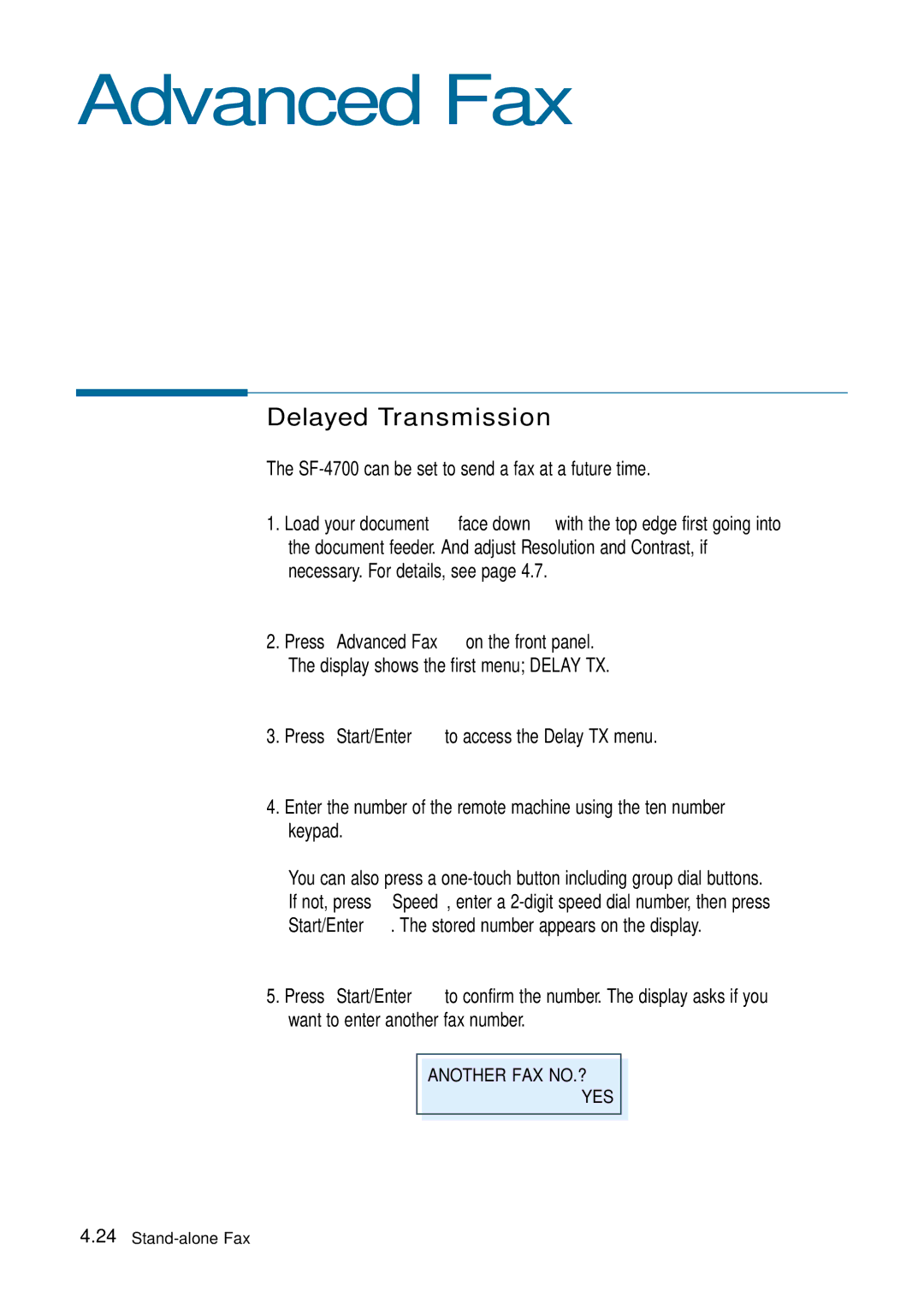
SF-4700 can be set to send a fax at a future time
Advanced Fax
Current 1030 AM
Memory Transmission
Polling
‘TO Poll RX Press START’
Press Start/Enter to confirm
Group Dialing for Multi-Address Transmission
Sending a Fax Using Group Dialing Multi-Address Transmission
Adding Documents To a Scheduled Operation
Additional Functions
System Data List
Power Failure Report
Schedule Job Information
Multi-Communication Report
Setting User-Selectable System Options
Enter the desired code 0 to 9 on the number keypad
Original Received data
Select on to enable. Select OFF to disable
Printing
Selecting Print Media
Print Media
What to Consider
Selecting Media Types
Memory, then restore the document
Check your scan glass for marks, and clean it
You cannot poll another
Machine Code
After receiving a PC fax
Jobs. Retry when the current printing is finished
Data, it is not printed
Immediately
Printer Problems
Setting in the Printer Properties dialogue box
Software paper size settings
Setting from the available choices
If possible
Coated Paper
Print Quality Problems
Change the Print Quality to a higher resolution
Effect, the scanner unit may need service
Paper over and printing on the other side
Let the ink dry before handling the paper
Printout is curled
Is skewed
Will cause the paper to curl
Also, rotate the paper 180 in the tray
Documentation that came with your computer
Scanning Problems
Screen
Current job is complete, try again
Under Program Manager
Halftone or B/W when selecting scan options
Connected, power is on
Image Product specifications
Restart your computer
OCR Problems
Connecting Other Device to Phone Line Specifications
Deciding What to Connect
Connecting Other Devices to the Phone Line
Special Situations
Connecting Other Devices, Overview
Front to Front
Specifications
Printer
Consumables
Fax
Scanner
General
Important Precautions and Safety Information
Safety Informations
Case of Interference
Fax Branding
FCC Identification Number
Telephone Company Information
Index
See driver
OCR
Electronics