HP Compaq Business PC Maintenance and Service Guide
Page
Iii
About This Book
Iv About This Book
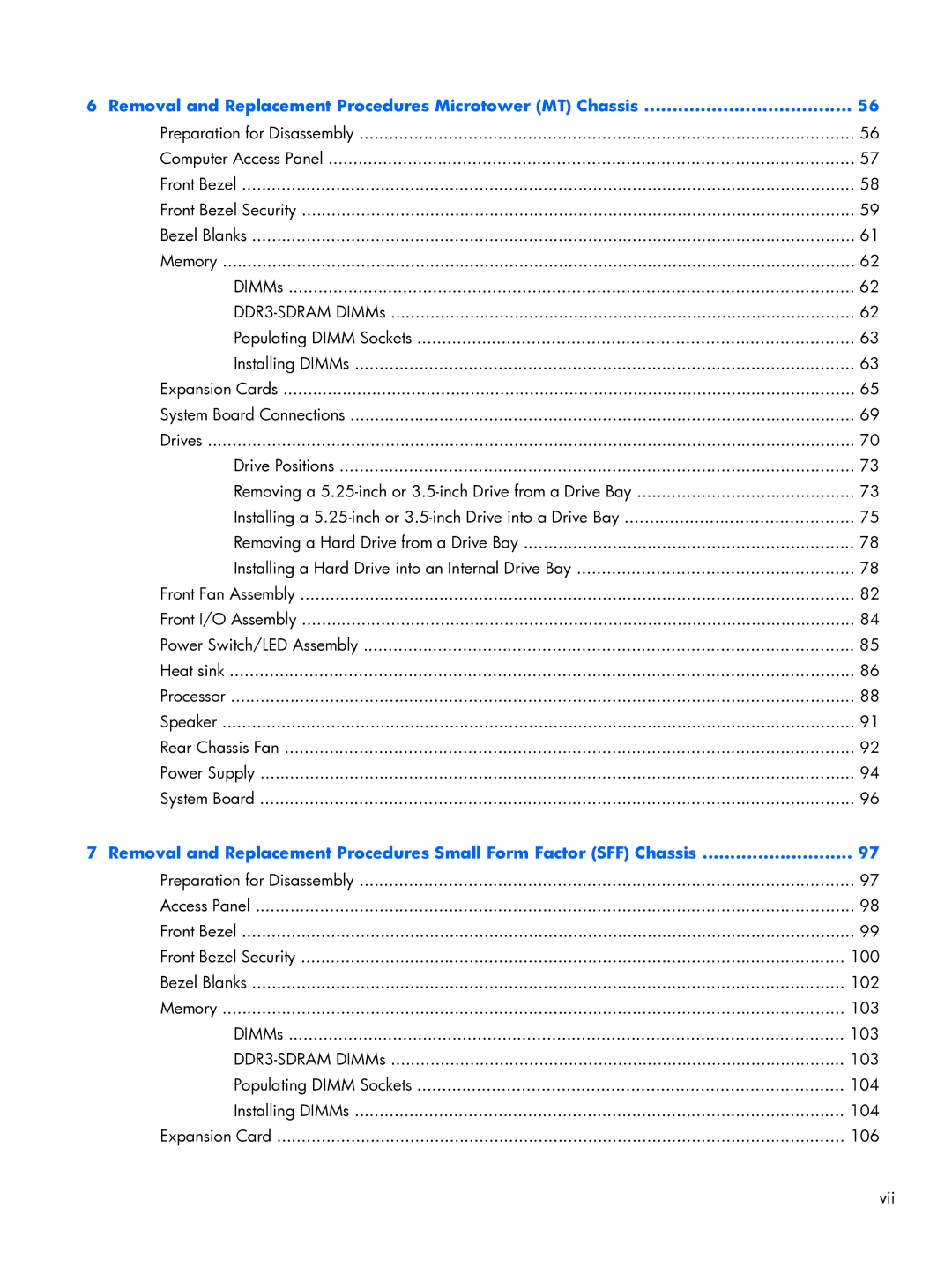
Table of contents
Page
Removal and Replacement Procedures Microtower MT Chassis
Troubleshooting Without Diagnostics 140
Contacting Customer Support 181
Post Error Messages 182
MT Specifications 223 SFF Specifications 225
Appendix D Power Cord Set Requirements 221
Standard Configuration Features
Product Features
Microtower MT Front Panel Components
Product Features
1Front Panel Components
Small Form Factor SFF Front Panel Components
Small Form Factor SFF Front Panel Components
2Front Panel Components
Rear Panel Components
Microtower MT Rear Panel Components
Small Form Factor SFF Rear Panel Components
Small Form Factor SFF Rear Panel Components
6Microtower Serial Number and Product ID Location
Serial Number Location
Activating and customizing the software in Windows
Activating and Customizing the Software
Activating the Windows operating system
Installing or upgrading device drivers
Downloading Windows 7 updates
Customizing the monitor display
Click Settings Change PC Settings
Downloading Windows 8 updates
Computer Setup F10 Utilities
Computer Setup F10 Utility
Computer Setup F10 Utilities
Using Computer Setup F10 Utilities
Computer Setup F10 Utility
Computer Setup-File
2Computer Setup-File
Exit
Computer Setup-Storage
3Computer Setup-Storage
Configuration
Storage Options Sata Emulation
Removable Media Boot
Boot Order
Shortcut to Temporarily Override Boot Order
4Computer Setup-Security
Computer Setup-Security
Slot Security
Network Boot
Device Security
USB Security
Security
Virtualization Technology Directed I/O
System Security
DriveLock Security
Secure Boot
Management
Computer Setup-Power
5Computer Setup-Power
Option Description OS Power
Thermal
Computer Setup-Advanced
6Computer Setup-Advanced for advanced users
Hardware Power
Onboard Devices
Bios Power-On
Bus Options
Device Options
VGA Configuration
Recovering the Configuration Settings
AMT Configuration
Microtower MT chassis spare parts
Illustrated parts catalog
Computer major components
Illustrated parts catalog
Intel Celeron processors
Item Description Spare part number
Cables
Misc parts
Drives
Optical drive
Misc boards
Spare part Description Number
Sequential part number listing
Microtower MT chassis spare parts
Illustrated parts catalog
Microtower MT chassis spare parts
Description Spare part number Front bezel
Small Form Factor SFF chassis spare parts
Small Form Factor SFF chassis spare parts
Cables
Misc parts
Chassis stand
Description Spare part number Speaker
Printer port, PCI card
Rubber feet
Drives
Misc boards
Small Form Factor SFF chassis spare parts
Illustrated parts catalog
Small Form Factor SFF chassis spare parts
Illustrated parts catalog
Relative Humidity Event 55% 40% 10%
Electrostatic Discharge Information
Generating Static
Electrostatic Discharge Information
Personal Grounding Methods and Equipment
Preventing Electrostatic Damage to Equipment
Method Voltage
Grounding the Work Area
Recommended Materials and Equipment
Static Shielding Protection Levels
Operating Guidelines
Routine Care
General Cleaning Safety Precautions
Cleaning the Computer Case
Cleaning the Keyboard
Power Supply Fan
Service Considerations
Cleaning the Monitor
Cleaning the Mouse
Hard Drives
Cables and Connectors
Tools and Software Requirements
Screws
Serial ATA Hard Drive Characteristics
Lithium Coin Cell Battery
Sata Hard Drives
Sata Data Cable
Sata Hard Drive Cables
Smart ATA Drives
Cable Management
Preparation for Disassembly
Removal and Replacement Procedures Microtower MT Chassis
Description Spare part number Access panel 646825-001
Computer Access Panel
Front Bezel
Remove the access panel Computer Access Panel on
Front Bezel Security
Page
5Removing a Bezel Blank Bezel Blanks
Bezel Blanks
DIMMs
Memory
DDR3-SDRAM DIMMs
Populating Dimm Sockets
Installing DIMMs
Page
Expansion Cards
Page
Page
Page
System Board Connections
System Board Connector System Board Label Color Component
1System Board Connections
Drives
Media
Guide Screw Device
13Extra Guide Screw Locations
2Drive Positions
Drive Positions
Removing a 5.25-inch or 3.5-inch Drive from a Drive Bay
Remove the front bezel Front Bezel on Drives
Page
16Removing the Drives
Installing a 5.25-inch or 3.5-inch Drive into a Drive Bay
Page
Page
Removing a Hard Drive from a Drive Bay
Installing a Hard Drive into an Internal Drive Bay
22Sliding the 2.5-inch Drive in the Adapter Bracket Drives
Page
Page
Description Spare part number Front fan assembly 585884-001
Front Fan Assembly
Page
Description Spare part number Front I/O assembly 646827-001
Front I/O Assembly
Power Switch/LED Assembly
Description Spare part number Heat sink 645326-001
Heat sink
Page
Description Spare part number Intel Core i7 processor
Processor
Remove the access panel Computer Access Panel on
Page
Refer to Helpful Hints on page 141 in this guide
Helpful Hints
Page
Select Control Panel
Solving General Problems
1Solving General Problems
Computer date and time display is incorrect Cause Solution
Poor performance Cause Solution
144 Troubleshooting Without Diagnostics
There is no sound or sound volume is too low Cause Solution
Cannot remove computer cover or access panel Cause Solution
Under Windows System, click Run
Go to Start All Programs Accessories
Run
All apps icon
146 Troubleshooting Without Diagnostics
2Solving Power Problems
Solving Power Problems
Power supply shuts down intermittently Cause Solution
148 Troubleshooting Without Diagnostics
3Solving Hard Drive Problems
Solving Hard Drive Problems
150 Troubleshooting Without Diagnostics
Device Configuration
Storage Boot Order
Computer seems to be locked up Cause Solution
Can not write to the media card Cause Solution
Solving Media Card Reader Problems
152 Troubleshooting Without Diagnostics
4Solving Media Card Reader Problems
Solving Media Card Reader Problems 153
154 Troubleshooting Without Diagnostics
Solving Display Problems
5Solving Display Problems
Solving Display Problems
Select ImageControl/ Horizontal Position or Vertical
156 Troubleshooting Without Diagnostics
Dim characters Cause Solution
Image is not centered Cause Solution
Out of Range displays on screen Cause Solution
Certain typed symbols do not appear correct Cause Solution
158 Troubleshooting Without Diagnostics
Device Security System Audio
Solving Audio Problems
6Solving Audio Problems
Sound cuts in and out Cause Solution
Line-in jack is not functioning properly Cause Solution
160 Troubleshooting Without Diagnostics
Control Panel, and then select Device Manager
7Solving Printer Problems
Solving Printer Problems
Control Panel , and then select Device Manager
Printer will not print Cause Solution
162 Troubleshooting Without Diagnostics
Printer will not turn on Cause Solution
Printer prints garbled information Cause Solution
Solving Keyboard and Mouse Problems 163
Solving Keyboard and Mouse Problems
8Solving Keyboard Problems
9Solving Mouse Problems
164 Troubleshooting Without Diagnostics
Security USB Security
Solving Hardware Installation Problems
Solving Hardware Installation Problems 165
10Solving Hardware Installation Problems
Computer will not start Cause Solution
166 Troubleshooting Without Diagnostics
11Solving Network Problems
Solving Network Problems
Wake-on-LAN feature is not functioning Cause Solution
168 Troubleshooting Without Diagnostics
Manager
Network status link light never flashes Cause Solution
Diagnostics reports a failure Cause Solution
170 Troubleshooting Without Diagnostics
New network card will not boot Cause Solution
Solving Memory Problems
Memory count during Post is wrong Cause Solution
172 Troubleshooting Without Diagnostics
12Solving Memory Problems
Out of memory error Cause Solution
Cause Solution
Solving Processor Problems
13Solving Processor Problems
Poor performance is experienced Cause Solution
Security Network Boot
Solving CD-ROM and DVD Problems
174 Troubleshooting Without Diagnostics
14Solving CD-ROM and DVD Problems
Cannot eject compact disc tray-load unit Cause Solution
Movie will not play in the DVD drive Cause Solution
USB flash drive not found identified Cause Solution
Solving USB Flash Drive Problems
176 Troubleshooting Without Diagnostics
15Solving USB Flash Drive Problems
Unable to connect to the Internet Cause Solution
Solving Front Panel Component Problems
Solving Internet Access Problems
Solving Front Panel Component Problems 177
Select Start Control Panel
178 Troubleshooting Without Diagnostics
Click Internet Options
ROM issue Post error has occurred
Solving Software Problems
System files may be damaged
180 Troubleshooting Without Diagnostics
Contacting Customer Support
Post Error Messages
Control panel message Description Recommended action
Post Numeric Codes and Text Messages
Post Numeric Codes and Text Messages
1Numeric Codes and Text Messages
Control panel message Description
Verify monitor is attached and turned
Reseat CPU or chassis fan
Reconfigure card resources and/or run
Post Error Messages
Bios
General error during MEBx execution