Configuring basic PIM sync settings
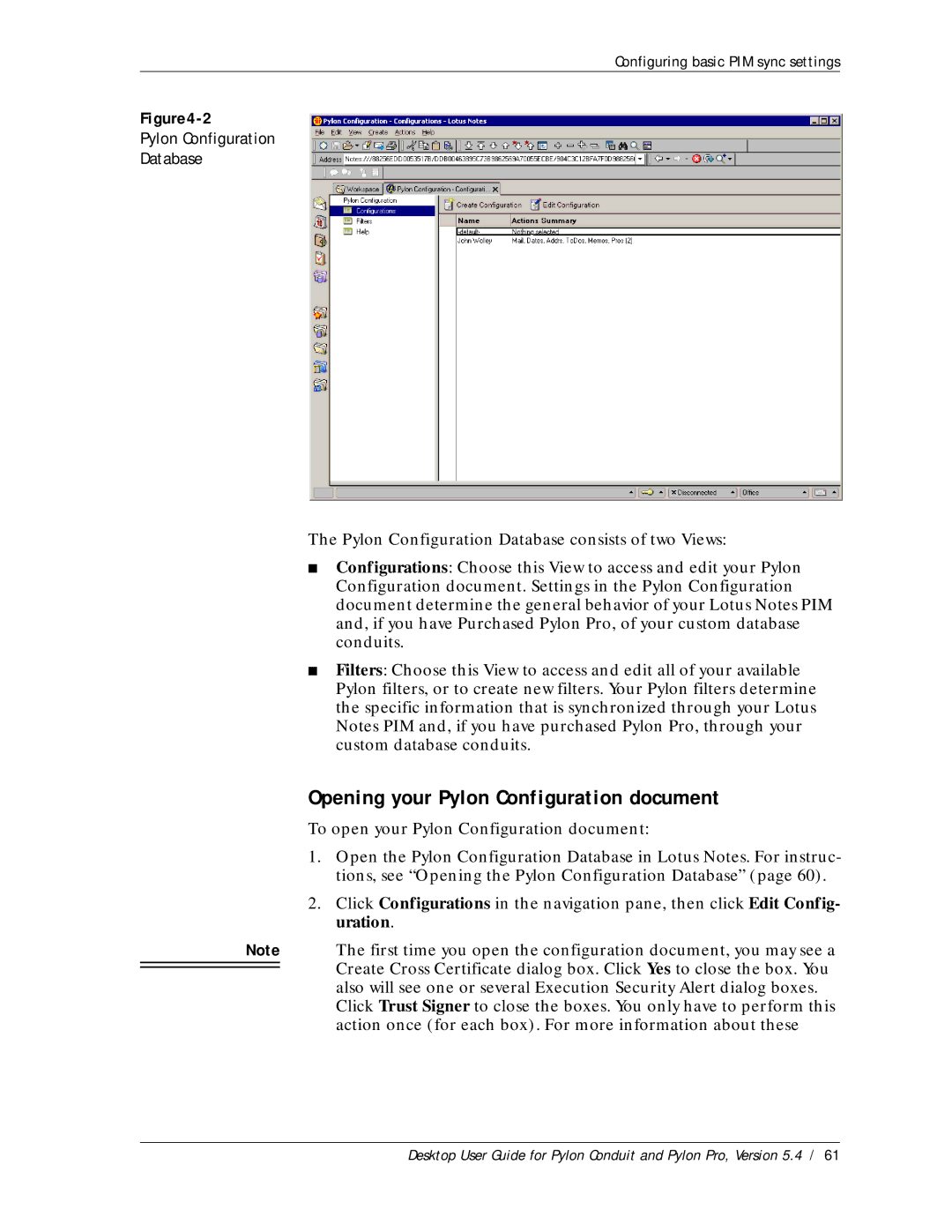
Pylon Configuration
Database
The Pylon Configuration Database consists of two Views:
■Configurations: Choose this View to access and edit your Pylon Configuration document. Settings in the Pylon Configuration document determine the general behavior of your Lotus Notes PIM and, if you have Purchased Pylon Pro, of your custom database conduits.
■Filters: Choose this View to access and edit all of your available Pylon filters, or to create new filters. Your Pylon filters determine the specific information that is synchronized through your Lotus Notes PIM and, if you have purchased Pylon Pro, through your custom database conduits.
Opening your Pylon Configuration document
To open your Pylon Configuration document:
1.Open the Pylon Configuration Database in Lotus Notes. For instruc- tions, see “Opening the Pylon Configuration Database” (page 60).
2.Click Configurations in the navigation pane, then click Edit Config- uration.
Note The first time you open the configuration document, you may see a  Create Cross Certificate dialog box. Click Yes to close the box. You
also will see one or several Execution Security Alert dialog boxes. Click Trust Signer to close the boxes. You only have to perform this action once (for each box). For more information about these
Desktop User Guide for Pylon Conduit and Pylon Pro, Version 5.4 / 61