Removing and Replacing Front-Panel Inserts

To remove the front-panel insert for a drive bay you intend to use, first remove the front bezel as instructed in “Removing the Front Bezel” in Chapter 7. Then, facing the inside of the front bezel, press against the center of the insert with your thumbs until the insert bows suffi- ciently to loosen the tabs on the sides of the insert (see Figure 9-2). Pull the insert out of the bezel.

tabs

Figure 9-2. Removing a Front-Panel Insert

To replace a front-panel insert, position the insert over the bay opening from the inside of the front bezel and carefully press the insert into place. A tab on each side of the insert snaps into a corresponding latch on the inside of the front bezel.

power input connector on the drive

DC power cable (from the power supply)

Figure 9-3. Power Connectors

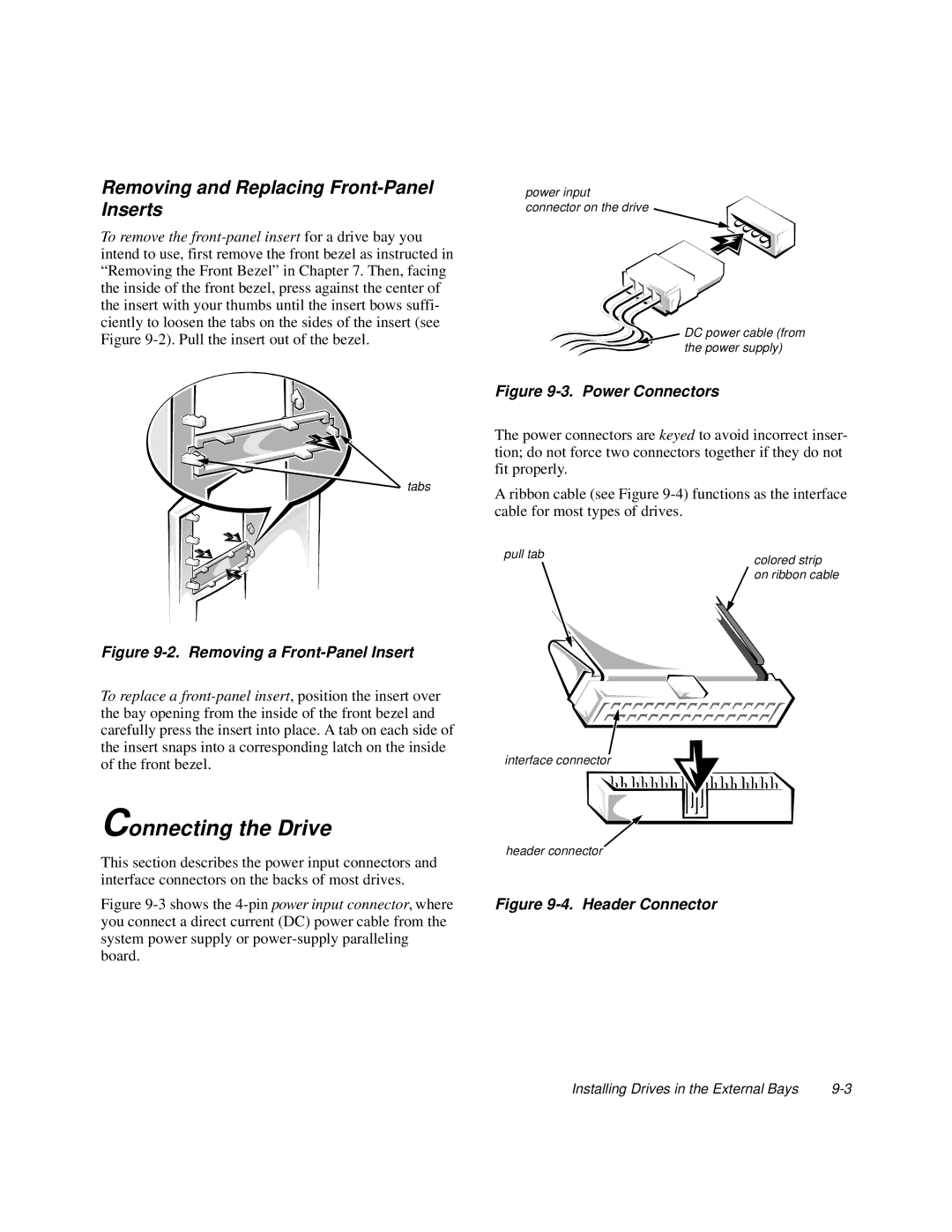
The power connectors are keyed to avoid incorrect inser- tion; do not force two connectors together if they do not fit properly.

A ribbon cable (see Figure 9-4) functions as the interface cable for most types of drives.

pull tab

colored strip


on ribbon cable

interface connector

Connecting the Drive

This section describes the power input connectors and

header connector


interface connectors on the backs of most drives.


Figure 9-3 shows the 4-pin power input connector, where

Figure 9-4. Header Connector

you connect a direct current (DC) power cable from the


system power supply or power-supply paralleling


board.


Installing Drives in the External Bays

9-3

Page 97
Image 97
Dell 6100, 200 manual Connecting the Drive, Removing and Replacing Front-Panel Inserts