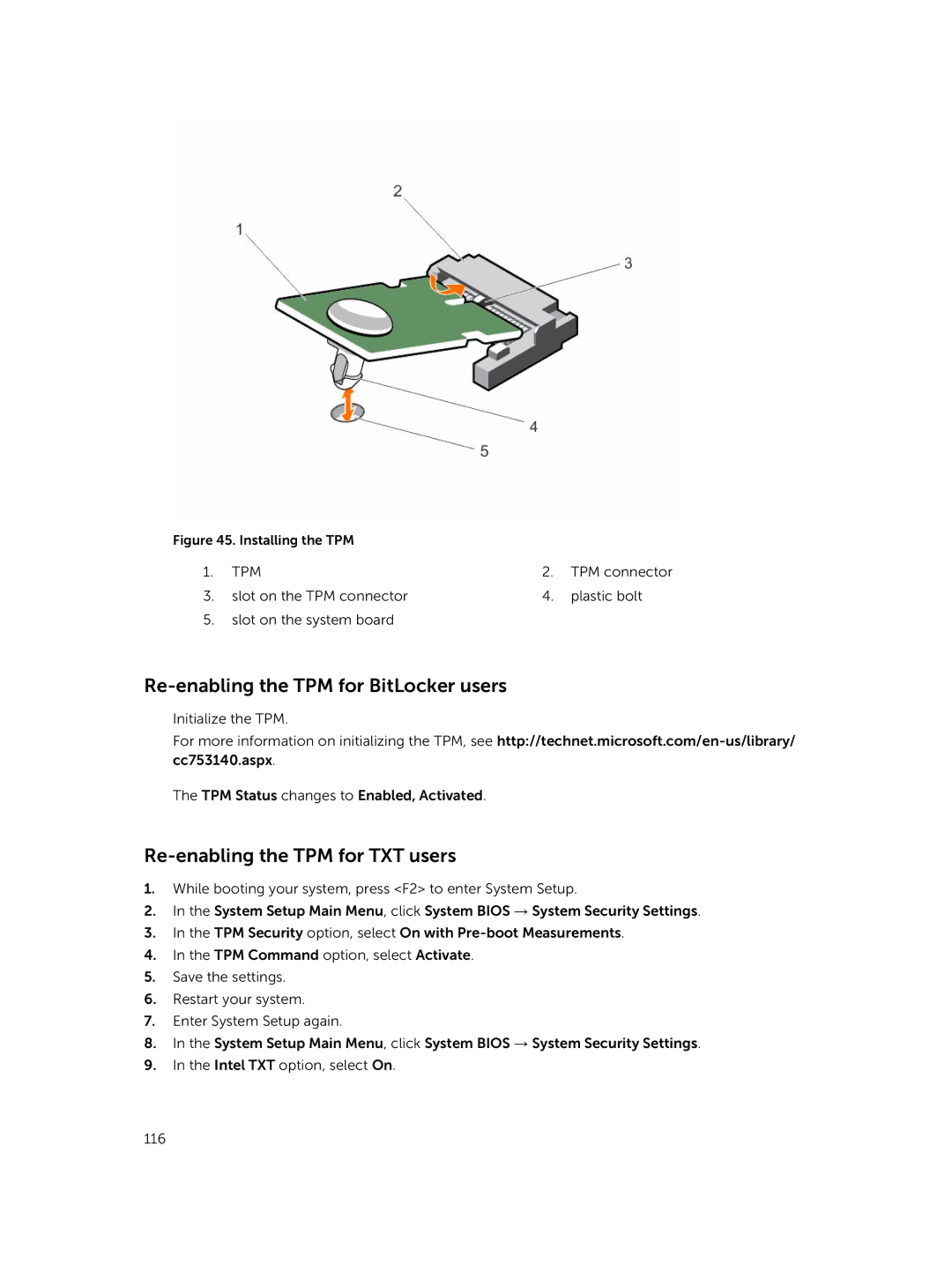
Figure 45. Installing the TPM |
|
| |
1. | TPM | 2. | TPM connector |
3. | slot on the TPM connector | 4. | plastic bolt |
5.slot on the system board
Re-enabling the TPM for BitLocker users
Initialize the TPM.
For more information on initializing the TPM, see
The TPM Status changes to Enabled, Activated.
Re-enabling the TPM for TXT users
1.While booting your system, press <F2> to enter System Setup.
2.In the System Setup Main Menu, click System BIOS → System Security Settings.
3.In the TPM Security option, select On with
4.In the TPM Command option, select Activate.
5.Save the settings.
6.Restart your system.
7.Enter System Setup again.
8.In the System Setup Main Menu, click System BIOS → System Security Settings.
9.In the Intel TXT option, select On.
116